Best Cloud Storage for Photos: Top 10 Photo Backup Solutions

Losing a wedding gallery, a five-year travel archive, or a client shoot to a dead SSD is a nightmare no photographer forgets. In 2026, protecting your images is no longer optional — it is the baseline of any serious workflow. Whether you shoot 12-megapixel iPhone snaps or 61-megapixel medium-format RAWs, the best cloud storage for photos decides how safe, searchable, and shareable your memories will be a decade from now.
This guide breaks down the top photo backup solutions, compares real 2026 pricing, storage limits, RAW support, encryption, and speed. You will learn which services suit iPhone owners, which ones professional photographers actually trust, and where to find genuine lifetime plans without the marketing gloss.
👉 Protect the shots you cannot reshoot — pair the right cloud plan with expert photo retouching to keep every image gallery-ready.
Why Photo Backup Matters More Than Ever in 2026
The stakes have never been higher
Modern smartphones now capture 48 to 200 megapixel images, and mirrorless cameras routinely produce 40–80 MB RAW files. A single wedding can generate 300 GB of raw data. That volume — combined with rising ransomware attacks and predictable drive failures — makes cloud backup the safest home for irreplaceable images.
According to the Backblaze Drive Stats reports, consumer hard drives fail at roughly 1.4% per year, and SSDs are not immune either. If you rely on a single external drive, you are gambling with every shoot.
Key reasons to move beyond a single hard drive:
- Redundancy protects against theft, fire, flood, and drive death.
- Anywhere access lets you deliver client galleries from the road.
- Automatic sync removes human error from the backup process.
- Version history rescues files after accidental edits or ransomware.
- AI-powered search makes 50,000 unlabelled photos actually findable.
Understanding storage math matters here too. If you are unsure how much space you really need, our breakdown of KB vs MB and how many photos a 64GB card holds helps you estimate real-world file sizes before you buy a plan.
The 3-2-1 Backup Rule: The Photographer’s Golden Standard
Three copies, two media types, one offsite
Every professional photo backup strategy still revolves around the 3-2-1 rule, and cloud storage is the piece that finally makes it easy for hobbyists.
- 3 copies of every photo you cannot afford to lose.
- 2 different types of media (for example, an internal drive plus an external SSD).
- 1 offsite copy stored somewhere physically separate — ideally, the cloud.
Photographers who skip the offsite copy remain fully exposed to house fires, burglaries, and localized floods, as DPReview explains in its 3-2-1 rule guide. Cloud storage checks that critical third box without extra hardware or a trip to a bank vault.

How We Ranked the Best Cloud Storage for Photos
Our testing criteria, in plain English
Every service in this guide earned its spot based on the criteria that actually matter to photographers and everyday users — not marketing bullet points. Our shortlist weighs:
- Price per terabyte across monthly, annual, and lifetime billing.
- RAW and video file support at full resolution.
- Upload and download speeds on real-world broadband.
- Encryption model — zero-knowledge versus at-rest only.
- Sharing tools for clients and family.
- AI features such as face grouping, object search, and auto-albums.
- Cross-platform apps covering iOS, Android, Windows, macOS, and web.
Let us break down the ten strongest photo backup solutions available today.
1. Google Photos — Best Free Cloud Storage for Photos
Generous free tier, unmatched AI search
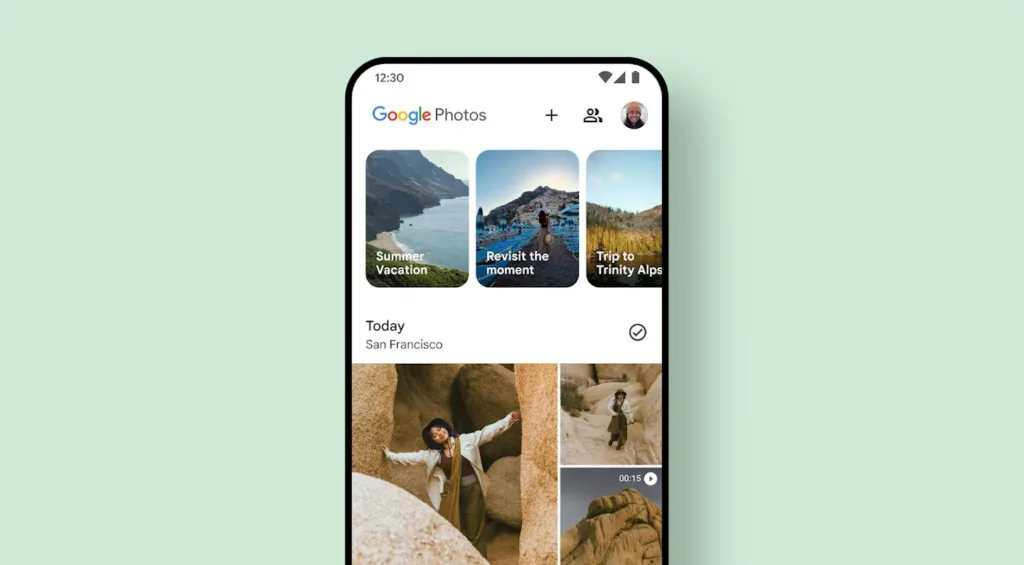
Google Photos remains the default answer for casual shooters, and for good reason. Every Google account includes 15 GB shared across Photos, Drive, and Gmail, and paid Google One plans start at just $1.99 per month for 100 GB.
- Free tier: 15 GB shared across Google services.
- Paid plans: $1.99/mo (100 GB), $2.99/mo (200 GB), $9.99/mo (2 TB).
- AI features: Face grouping, object search, Magic Editor, cinematic photos.
- Trade-off: Storage counts against your quota once the free “Storage saver” cap was retired for new uploads.
PCMag’s photo storage roundup still names Google Photos the strongest all-rounder because of its AI search and generous sharing tools. If you juggle a Pixel, an iPhone, and a laptop, Google Photos glues them together seamlessly. Pair it with our tips on the best photo editing apps for pocket-sized retouching.
2. Apple iCloud Photos — Best for iPhone and Mac Users
Native sync, ProRAW support, and end-to-end encryption
If you own an iPhone, iPad, or Mac, iCloud is the least friction path to safe backups. Apple’s Photos app quietly uploads originals in the background and preserves Live Photos, Portrait depth data, and ProRAW metadata that other services often strip.
- Free tier: 5 GB (shared with iCloud Drive and Mail).
- iCloud+ 50 GB: $0.99/month.
- iCloud+ 200 GB: $2.99/month.
- iCloud+ 2 TB: $9.99/month.
- iCloud+ 6 TB / 12 TB: $29.99 / $59.99 per month.
Apple’s Advanced Data Protection, documented on Apple’s platform security page, enables end-to-end encryption so only your trusted devices can decrypt your library — a major win for privacy-conscious users. If you often print vacation shots, our guide to the best photo printing software pairs perfectly with an iCloud archive.
👉 Turning a phone snapshot into a hero product image? Our background removal service delivers clean cutouts within hours.
3. Amazon Photos — Best Free Cloud Storage for Photos with Prime
Unlimited full-resolution RAW backup as a Prime perk
Amazon Photos hides one of the most generous perks in tech: unlimited full-resolution photo backup, including RAW files, for every Prime member. That single fact makes it a no-brainer for photographers already paying for Prime.
- Photos: Unlimited full-resolution (including RAW) for Prime members.
- Video: 5 GB included; upgrade plans start at $1.99/month for 100 GB.
- Supported RAW formats: Canon CR2/CR3, Nikon NEF, Sony ARW, Fujifilm RAF, and more.
- Family Vault: Share unlimited storage with up to five family members.
Amazon’s official file requirements page confirms the platform accepts virtually every camera RAW format on the market. That is why many wedding and event shooters use Amazon as a free cold backup layer on top of their working drive.
4. IDrive — Best All-In-One Cloud Backup for Photographers
Multi-device backup, courier seeding, and version history
IDrive is not a photo-only app; it is a full computer backup service that happens to be brilliant for images. It covers multiple devices under one account, supports NAS drives, and even ships you a physical drive for the first upload if you have terabytes to move.
- Personal 5 TB: intro pricing frequently drops below $10 for the first year; standard renewal sits around $99.50/year.
- Higher tiers: 10 TB, 20 TB, 50 TB, and 100 TB plans for studios and heavy shooters.
- Snapshots preserve 30 previous versions of every file.
- Physical seeding via IDrive Express avoids painful initial uploads.
- Covers multiple computers on a single subscription.
IDrive consistently earns a top spot in PCWorld’s cloud backup roundup because it handles both consumer laptops and professional studios equally well. If you shoot with a top mirrorless camera, IDrive can back up your tethered folder in real time.
5. Backblaze — Best Unlimited Backup for Serious Archives
Flat-rate unlimited, unmatched simplicity
Backblaze takes the opposite approach from IDrive: one flat price for unlimited backup on a single computer. For photographers who never delete anything, that is a dream come true.
- Unlimited personal backup: $99/year (or $9/month billed monthly, or $189 for two years).
- External drives attached to your computer are also backed up automatically.
- B2 Cloud Storage offers pay-as-you-go archive tier at roughly $6 per TB per month.
- Restore options: web download, USB drive shipped to your door, or Restore Return refund.
- Extended Version History available for $0.006/GB per month.
Backblaze is the “set-and-forget” workhorse. PCMag calls it streamlined and secure, and its 30-day (or extended one-year) version history saves photographers from accidental deletes and ransomware attacks.
👉 Cataloguing a client’s product shoot? Speed up delivery with our precise clipping path service — from $0.39 per image.
6. pCloud — Best Lifetime Cloud Storage for Photos
One-time payment, 99-year access
pCloud is the rare service that still sells lifetime plans, meaning one payment covers you for up to 99 years. For someone tired of monthly bills, the math is compelling.
- Free tier: 10 GB.
- Premium 500 GB (Lifetime): $199 one-time (regularly $299).
- Premium Plus 2 TB (Lifetime): $399 one-time (regularly $599).
- Ultra 10 TB (Lifetime): $1,190 one-time (regularly $1,890).
- pCloud Encryption (optional add-on): zero-knowledge folder for sensitive files.
Android Authority’s cost comparison shows pCloud’s 2 TB lifetime plan pays for itself in about four years versus Google One. The built-in media player also handles videos and RAW previews smoothly — useful when reviewing a shoot in your browser.
7. Sync.com — Best Zero-Knowledge Encrypted Photo Storage
Client-side encryption, Canadian jurisdiction, real privacy
Sync.com is the privacy pick. Everything you upload is encrypted before it leaves your device, meaning even Sync’s own engineers cannot see your files. That matters for photojournalists, boudoir photographers, and legal-sensitive shoots.
- Personal 150 GB: $4/month (billed annually).
- Personal 1 TB: $16/month (billed annually).
- Solo 5 TB: aimed at freelancers and creators.
- Zero-knowledge encryption applied to every file by default.
- GDPR-, HIPAA-, and PIPEDA-compliant for regulated industries.
Themframes.com highlights Sync.com as the best cloud storage for photographers purely on privacy grounds. If you routinely remove backgrounds from sensitive client images, Sync’s encryption gives you a defensible audit trail.
8. Microsoft OneDrive — Best for Microsoft 365 Households
6 TB shared, plus Word, Excel, PowerPoint, and Copilot
OneDrive is bundled with Microsoft 365 subscriptions, which most Office users already pay for. That turns it into “free” cloud storage in disguise.
- Free tier: 5 GB.
- Microsoft 365 Basic (100 GB): $19.99/year or $1.99/month.
- Microsoft 365 Personal (1 TB): $99.99/year or $9.99/month.
- Microsoft 365 Family (6 TB total — 1 TB each for six users): $129.99/year or $12.99/month.
- Personal Vault: extra-secure encrypted folder for IDs, passports, and RAW masters.
For families sharing one plan, OneDrive Family is arguably the cheapest cloud storage for photos per terabyte in this entire list — six full terabytes for the price of a couple of coffees a month. It also plugs directly into Windows File Explorer and works beautifully with photo folders exported from Lightroom.
9. Adobe Creative Cloud — Best for Lightroom Users
Cloud + editing suite in one subscription
If you already live inside Lightroom, Adobe’s Photography Plan doubles as your backup solution. Adobe retired the entry-level 20 GB Photography plan for new subscribers on January 15, 2025, so today’s options revolve around 1 TB and above.
- Lightroom (1 TB): $9.99/month or $119.88/year.
- Photography Plan (1 TB): includes Photoshop, Lightroom, Lightroom Classic — around $19.99/month (annual billing).
- Photography Plan (2 TB): an upgrade for heavier shooters.
Every RAW you import into Lightroom syncs to the Adobe cloud, giving you an off-site copy and cross-device editing. If you are experimenting with AI photo editing software, Lightroom’s Denoise and Generative Remove tools already feel unfair.
10. Icedrive, Dropbox, and Proton Drive — Honorable Mentions
Three more names worth shortlisting
If the top nine do not fit, three more services deserve a mention.
- Icedrive: Modern interface with client-side encryption. Lifetime plans start around $99 for 150 GB and scale to $499 for 3 TB.
- Dropbox Plus: 2 TB for $11.99/month. Its Smart Sync and Replay tools remain favorites among wedding and video shooters who collaborate with second shooters.
- Proton Drive: End-to-end encrypted, Swiss-based, and increasingly competitive at 200 GB and 500 GB tiers.
Dropbox no longer sells an “unlimited” plan for individuals, but its collaboration tools remain a strong reason to keep it in your stack alongside a cheaper archive service.
👉 Selling apparel online? Our ghost mannequin service turns shot garments into invisible-mannequin product images that convert.
Cloud Storage vs Cloud Backup: What’s the Real Difference?
Sync mirrors; backup remembers
Photographers often confuse these two categories, but the distinction matters enormously when files disappear.
- Cloud storage (Google Photos, iCloud, Dropbox, pCloud): syncs a folder. Delete on your phone, delete in the cloud.
- Cloud backup (Backblaze, IDrive): copies everything with version history. Delete locally and the backup still exists for 30 days or more.
For a bulletproof archive, use both. Store your working library in a sync service such as iCloud or Google Photos, and set a true backup service like Backblaze to protect your master drive. This dual approach mirrors what most working wedding photographers already do, and it perfectly satisfies the 3-2-1 rule.
RAW Files, Video, and Storage Reality Checks
Terabytes vanish faster than you think
Cloud plans that look enormous on paper shrink fast once RAW files enter the picture. A single Sony A7R V RAW file weighs around 65–120 MB. A Canon R5 8K RAW video clip can eat 2 GB per minute.
Here is a rough map of how far each terabyte stretches:
- 1 TB ≈ 10,000 Sony 61 MP RAWs, or 250,000 iPhone HEIC photos, or 8 hours of 4K video.
- 2 TB ≈ one full wedding season for most photographers.
- 5 TB+ recommended for commercial, real estate, or event shooters.
If you shoot a lot of tight product frames, our resources on how to resize an image in Photoshop and 4:3 aspect ratio explained will help you plan output sizes before uploading.

Best Photo Backup Solutions by User Type
Match your storage stack to your shooting style
Different shooters have different priorities. Use this quick shortlist to skip the analysis paralysis:
- iPhone user: iCloud+ 200 GB for daily sync, Amazon Photos for unlimited backup.
- Android/Pixel user: Google One 2 TB with Magic Editor perks.
- Windows/Microsoft household: Microsoft 365 Family (6 TB shared).
- Serious hobbyist photographer: Adobe Photography 1 TB + Backblaze unlimited.
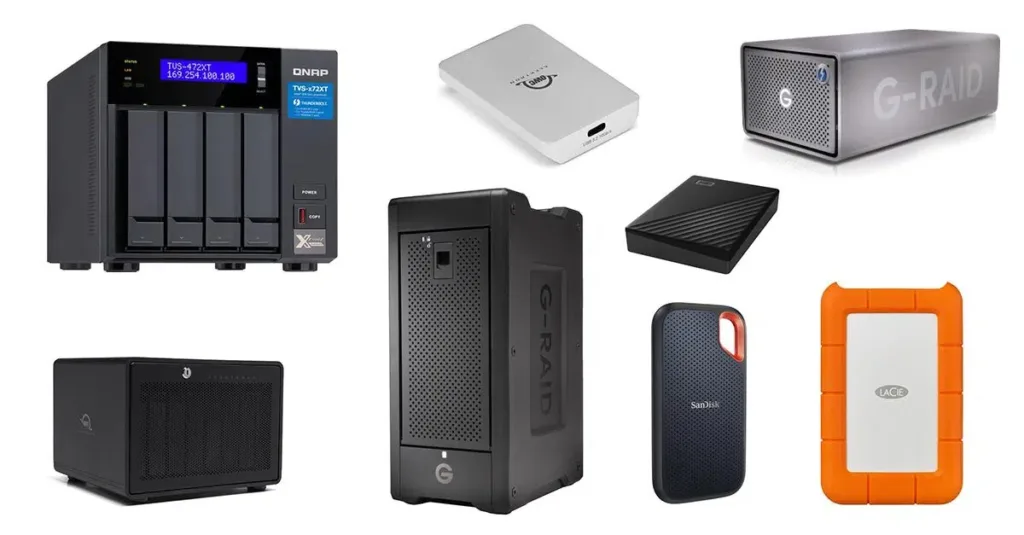
- Wedding/event pro: IDrive 5 TB + Amazon Photos (Prime) + local NAS.
- Privacy-first user: Sync.com or pCloud with the Crypto add-on.
- Lifetime deal hunter: pCloud 2 TB lifetime or Icedrive lifetime.
👉 Restyling an editorial catalogue? Combine your backup workflow with pro color changes for consistent brand palettes.
Security, Privacy, and Encryption: What to Actually Look For
Not all “encrypted” services are equal
Terms matter here, and marketing copy often blurs them on purpose.
- Encryption in transit: protects photos while uploading. Standard everywhere.
- Encryption at rest: server-side encryption. The provider still holds the keys.
- Zero-knowledge / end-to-end: only you hold the keys. Sync.com, pCloud Crypto, Proton Drive, and iCloud Advanced Data Protection offer this.
- Two-factor authentication (2FA): non-negotiable for every single account.
The FTC’s data security guidance recommends 2FA and end-to-end encryption for any account holding personal media. If your images include model releases, minors, or NDAs, choose zero-knowledge storage without exception.
Speed, Sync, and Real-World Upload Times
Your internet plan matters more than the brand
Your broadband will define your experience more than the service itself. On a typical 200 Mbps home connection, uploading 1 TB of photos takes around 12 hours nonstop. Two tactics dramatically improve that:
- Selective sync: upload only folders that matter, and archive everything else offline.
- Physical seeding: IDrive Express and Amazon Snowball ship you a drive to preload data.
Our guide to top popular camera brands shows how quickly modern sensors generate data — plan your upload strategy around your shooting cadence, not the marketing brochure.
Best Cloud Storage for Photos: 2026 Comparison Table
| Service | Starting Price | Storage | Best For | RAW Support |
|---|---|---|---|---|
| Google Photos | Free (15 GB) | 100 GB–30 TB | AI search & sharing | Yes |
| iCloud+ | $0.99/mo | 50 GB–12 TB | Apple ecosystem | Yes (ProRAW, HEIC) |
| Amazon Photos | Prime ($14.99/mo) | Unlimited photos | RAW archive | Yes (all major RAW) |
| IDrive | ~$99.50/yr | 5 TB–100 TB | Full computer backup | Yes |
| Backblaze | $99/yr | Unlimited (per PC) | Set-and-forget backup | Yes |
| pCloud | $199 lifetime | 500 GB–10 TB | Lifetime deals | Yes |
| Sync.com | $4/mo | 150 GB–5 TB | Zero-knowledge privacy | Yes |
| OneDrive | $99.99/yr | 1–6 TB | Microsoft 365 users | Yes |
| Adobe CC | $9.99/mo | 1–10 TB | Lightroom pros | Yes |
| Dropbox | $11.99/mo | 2 TB+ | Team sharing | Yes |
Building Your 2026 Photo Backup Workflow (Step-by-Step)
The workflow working photographers actually use
Here is the exact routine most working photographers now follow. Adapt the tools; keep the structure.
- Ingest RAWs to a working SSD immediately after every shoot.
- Duplicate them to a second external drive or NAS the same day.
- Sync the working catalogue to Adobe Cloud or Lightroom Mobile.
- Backup the entire drive to Backblaze or IDrive overnight.
- Archive delivered client folders to Amazon Photos or pCloud lifetime.
- Verify monthly by opening random files from each destination.
This layered approach is the modern interpretation of 3-2-1: two local, one cloud sync, one cloud archive. Add labels, keywords, and star ratings in Lightroom so your future self can actually find that one perfect frame.

Common Mistakes People Still Make in 2026
Avoid these seven traps
Even with unlimited plans widely available, photographers keep repeating avoidable mistakes.
- Trusting a single external drive as if it lives forever.
- Relying on Storage Saver compression and losing quality years later.
- Sharing an iCloud password instead of using Family Sharing.
- Skipping 2FA on the account that holds a decade of memories.
- Never testing a restore until the drive actually dies.
- Mixing personal and client photos in the same shared folder.
- Assuming “sync” equals “backup” — a costly misconception.
Our tutorial on how to find recently deleted photos can save you when a mistake slips through — but only if you catch it inside the recovery window.
👉 Reflections, glass, and hair edges? Our image masking service tackles the hardest cutouts flawlessly.
Cloud Storage for Businesses and Studios
What changes when you scale beyond a solo shooter
Studios juggling multiple shooters and editors need more than a personal Dropbox account. Look for:
- Team seat management with per-user quotas.
- Granular sharing permissions (view-only, download, or edit).
- Client proofing galleries such as Pixieset, Pic-Time, or SmugMug.
- API access for automated ingestion from tethering software.
- Compliance certifications — SOC 2, ISO 27001, HIPAA where relevant.
IDrive Business, Dropbox Business Advanced, and Google Workspace all fit here. If your studio delivers e-commerce imagery, our take on the best clipping path service providers explains how to integrate outsourced retouching with cloud folders without breaking your workflow.
Free Cloud Storage for Photos: Squeezing Every Free GB
Stack the free tiers strategically
If money is tight, stack the free tiers instead of paying for one service:
- Google One: 15 GB free.
- iCloud: 5 GB free.
- OneDrive: 5 GB free.
- pCloud: 10 GB free.
- Icedrive: 10 GB free.
- MEGA: 20 GB free.
Combined, that is more than 65 GB — enough to store roughly 20,000 iPhone photos with careful organization. Just remember to keep one master offline copy so a single account lockout does not orphan you from the entire library.
Environmental and Ethical Considerations
Storage has a carbon footprint too
Cloud data centres consume enormous electricity, but many major providers now run on renewable energy. Google’s environmental reports confirm its data centres are matched with 100% renewable energy purchases annually, and Apple claims full carbon-neutral operations for iCloud. If sustainability matters to your brand, factor this into the decision alongside price and features.
FAQ: Best Photo Backup Solutions & Cloud Storage for Photos
1. What is the best free cloud storage for photos in 2026?
Google Photos is the best free standalone option at 15 GB. Amazon Photos is arguably better if you already have Prime, thanks to unlimited full-resolution photo storage including RAW files. Stacking multiple free tiers (Google + iCloud + OneDrive + pCloud + MEGA) can push you past 65 GB without spending a cent.
2. Is iCloud better than Google Photos for iPhone users?
iCloud offers deeper iOS integration, Live Photos, ProRAW support, and end-to-end encryption via Advanced Data Protection. Google Photos wins on AI search and cross-platform sharing. Most iPhone users benefit from running both — iCloud as the primary sync, Google as a secondary AI-searchable copy.
3. How much cloud storage do I need for RAW photos?
Plan on 1 TB per 10,000 to 15,000 modern RAW files. Wedding and commercial photographers should start at 2 TB and add archive tiers such as Amazon Photos or Backblaze B2 for older shoots. Hobbyists who cull aggressively often survive on 500 GB.
4. Are lifetime cloud storage plans worth it?
pCloud and Icedrive both sell genuine lifetime plans that pay for themselves within three to four years compared with monthly rivals. They are worth it if you commit to the ecosystem and back up locally too — no single provider should ever be your only copy of anything important.
5. Which cloud storage service has the best security?
Sync.com, pCloud (with the Crypto add-on), Proton Drive, and iCloud with Advanced Data Protection offer zero-knowledge or end-to-end encryption. These are ideal for photographers handling sensitive client work, minors, or NDA-bound shoots.
6. Can I back up my DSLR photos wirelessly?
Yes. Modern Canon, Nikon, Sony, and Fujifilm cameras include Wi-Fi apps that push JPEGs or RAWs to your phone, from where Amazon Photos, Google Photos, or iCloud picks them up automatically. Tethering to a laptop running Lightroom, then syncing to Adobe Cloud, remains the professional route.
7. What is the difference between cloud sync and cloud backup?
Cloud sync mirrors a folder — delete a file locally and it disappears in the cloud too. Cloud backup keeps versions and safeguards deleted files for a defined retention window. Photographers should use both to be fully protected.
8. How do I move photos from Google Photos to another service?
Use Google Takeout to export your entire library, then upload the archive to your new provider. Services such as Multcloud can transfer between clouds without touching your local drive, saving hours on multi-terabyte migrations.
Final Verdict: Which Photo Backup Solution Wins in 2026?
The honest answer: no single winner
There is no single “best cloud storage for photos” — only the best for your workflow. For most people, the winning combination looks like this:
- iPhone users: iCloud+ 2 TB + Amazon Photos (Prime).
- Android users: Google One 2 TB + Backblaze unlimited.
- Photographers: Adobe Photography 1 TB + IDrive 5 TB + Amazon Photos.
- Privacy first: Sync.com or pCloud Crypto + local NAS.
- Deal hunters: pCloud 2 TB lifetime + free Google/OneDrive tiers.
Whatever mix you choose, follow the 3-2-1 rule, turn on two-factor authentication, and test a full restore at least once a year. Your future self will thank you when a drive finally clicks its last click.
👉 Backups protect the pixels — our multi clipping path service protects the polish. Send your images today for studio-grade editing that keeps your archive gallery-ready.