Best Photo Printing Software in 2026: 10 Top Picks Ranked
Great prints start with great software. This guide ranks the 10 best photo printing tools of 2026 — free and paid — with verified pricing, feature checklists, and expert picks for every printer, budget, and skill level.
🎯 Key Takeaways (Read This First)
- Best all-around workflow: Adobe Lightroom Classic (from $119.88/year prepaid).
- Best free tool: Epson Print Layout for Epson printers; Canon Professional Print & Layout for Canon printers.
- Best budget/free full editor: Affinity Studio (Photo + Designer + Publisher, 100% free since October 2025).
- Best for maximum sharpness: Qimage One (from $79.99, Mac + Windows).
- Best for pro studios: Mirage Print (from $649) or ImagePrint Black (from $695).
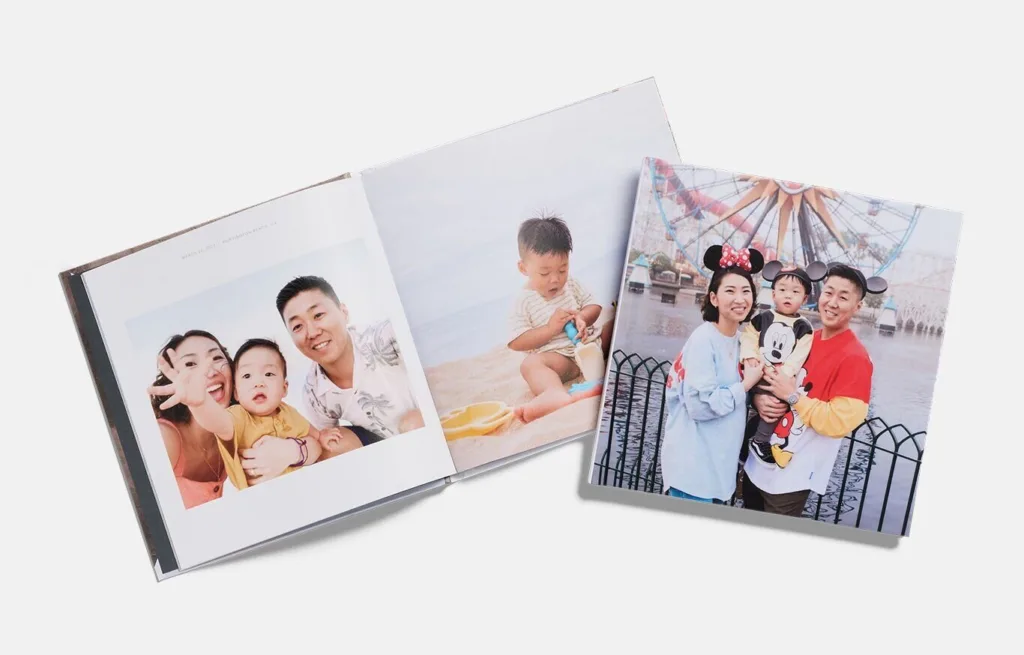
- Best for photo books: Mixbook (softcover from $14.99, hardcover from $29.99).
Introduction: Why Software Decides How Your Prints Actually Look
Most photographers obsess over cameras, lenses, and monitors — yet the software that drives the printer often matters more than any of them. A $3,000 fine-art printer produces flat, muddy results when badly configured software sends it wrong instructions, and even a modest home inkjet delivers stunning output when guided by properly color-managed tools. That gap between your screen and the finished print is exactly where photo printing software earns its keep.
The 2026 landscape looks nothing like it did five years ago. Free utilities from Epson and Canon now rival paid RIPs for basic photo output. Canva made the entire Affinity suite completely free in late 2025 — a genuine industry earthquake. Adobe’s Print module still anchors most professional workflows, while specialized tools like Qimage One and ImagePrint Black continue serving working pros who exhibit, sell, or ship client prints. This guide walks through the strongest options available today, matches each one to the type of user it fits, and gives you a clear decision framework.
💡 Ready to prep your images for print? Our expert photo retouching team polishes every file to print-ready perfection — skin, tone, sharpness, and detail.
What Makes Photo Printing Software Actually “Good”?
Great printing software solves four hard problems at once. Miss any of them, and your prints suffer.
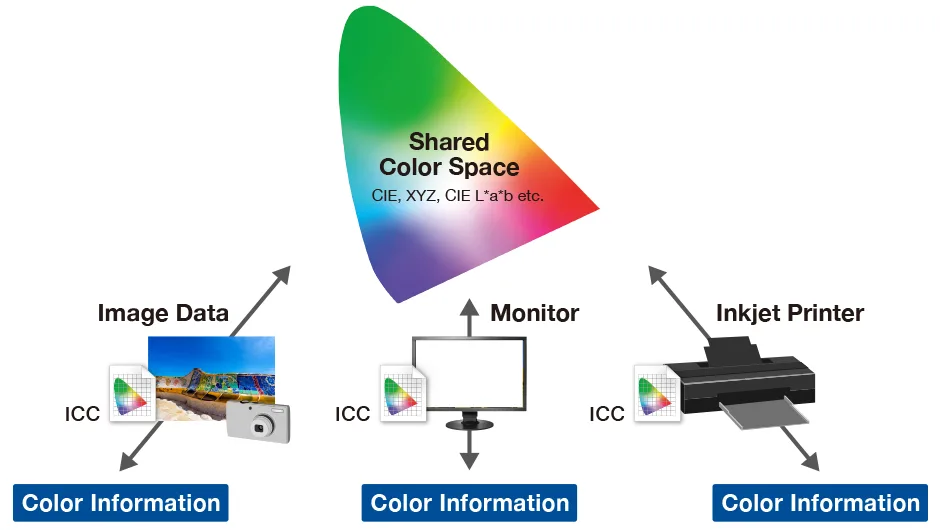
- Color accuracy — the tool must honor ICC profiles for paper, printer, and monitor so what you see matches what you get. Fujifilm’s color-management guide explains exactly why paper-specific profiles matter.
- Layout flexibility — you should control paper size, margins, gallery-wrap, borders, contact sheets, and multi-image nesting without wrestling the interface.
- Sharpening for output — screen sharpening and print sharpening are different jobs; strong software applies size-aware and paper-aware sharpening automatically.
- Ink and paper efficiency — smart nesting reduces waste on roll paper and cut sheets, saving real money for volume printers.
Beyond those four essentials, the best 2026 tools also handle black-and-white workflows separately, offer soft-proofing that predicts the final print, and integrate directly with Photoshop or Lightroom.
Quick Comparison Table: The 10 Best Photo Printing Software of 2026
| Software | Best For | Verified Price (USD) | Platform |
|---|---|---|---|
| Adobe Lightroom Classic | All-round photo workflow + print | $119.88/yr prepaid or $14.99/mo | Win/Mac |
| Qimage One | Sharpest inkjet output (cross-platform) | From $79.99 | Win/Mac |
| Qimage Ultimate | Sharpness + Windows power features | $89.99 + $19.99/yr renewal | Windows |
| Epson Print Layout | Epson printer owners | Free | Win/Mac/iOS |
| Canon Professional Print & Layout | Canon printer owners | Free | Win/Mac |
| Affinity Studio | Full editor (Photo/Design/Publisher) | Free (since Oct 2025) | Win/Mac/iPad |
| Capture One Pro | Color-critical pro workflow | ~$18/mo annual or ~$26/mo | Win/Mac |
| Mirage Print (DINAX) | Studio & fine-art print shops | $649–$1,299 | Win/Mac |
| ImagePrint Black | Exhibition-grade B&W and color | $695–$2,995 | Win/Mac |
| Mixbook | Photo books & albums | Softcover $14.99+, Hardcover $29.99+ | Web/App |
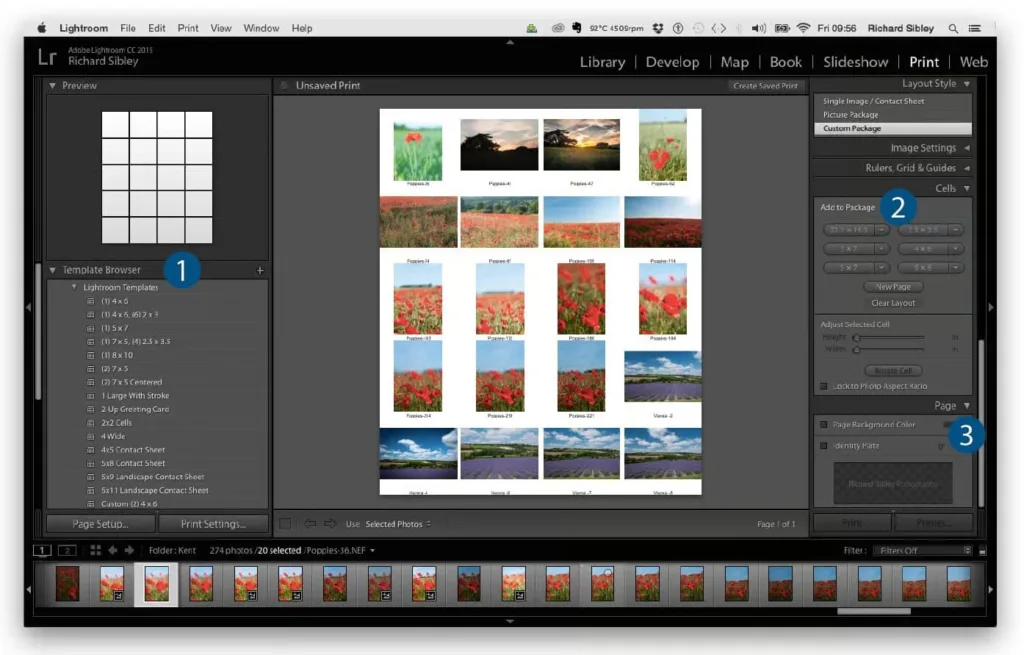
1. Adobe Lightroom Classic — The All-Round Workflow King
In short: Lightroom Classic remains the default choice for most working photographers because it does everything — cataloging, editing, exporting, and printing — inside one workflow.
Its Print module handles single images, contact sheets, and custom multi-image layouts through a Layout Style panel that most users learn in an afternoon. You pick an ICC profile, choose a rendering intent, apply print sharpening based on paper type, and click Print. The tool then repeats that setup perfectly weeks or months later through saved Print Templates.
Current 2026 pricing (verified on the Adobe Lightroom plans page):
- Lightroom-only plan: $11.99/month (annual billed monthly) or $119.88/year prepaid
- Photography Plan (Lightroom + Lightroom Classic + Photoshop, 20GB): $14.99/month billed monthly OR $119.88/year prepaid (equivalent to ~$9.99/mo)
- Photography Plan 1TB: $19.99/month
The annual prepaid Photography Plan remains the best value — the same price it has been for years, even after the January 2025 monthly-billing hike. Reprint the same 4×6 or 8×10 layout months later without touching a setting.
Pros
- Deep integration with your existing Lightroom catalog
- Excellent size-aware print sharpening
- Reusable Print Templates for repeat jobs
- Reliable soft-proofing view before you commit ink
Cons
- Subscription-only (no true perpetual license)
- Limited compared to dedicated RIPs on roll-paper handling
- Print module has changed little in recent releases
2. Qimage One — Sharpness Nobody Else Matches (Mac + Windows)
In short: Qimage One squeezes more visible sharpness from a file than any general-purpose editor and packs multiple images onto one sheet with almost zero waste.
Its patented interpolation algorithms genuinely stand alone. The 2026 release added Deep Focus Sharpening v2, a refined algorithm that holds micro-detail without haloing — a huge win when you enlarge a mid-resolution file to 16×20 or larger. Qimage One runs on macOS and Windows with one license covering both, priced from $79.99 (Standard) up to about $119.99 for higher-tier feature sets.
Pros
- Industry-leading interpolation and sharpening
- Automatic multi-image nesting saves paper
- Cross-platform with single license
- Deep Focus Sharpening v2 exclusive to 2026 release
Cons
- Interface looks utilitarian next to Adobe’s polish
- Requires a small learning investment
- Not a general-purpose photo editor
🎯 Sending sharp prints to a client? Let our clipping path specialists isolate every subject cleanly — perfect edges, zero halos, faster turnarounds.
3. Qimage Ultimate — The Windows Power User’s Choice
In short: Qimage Ultimate is the Windows-only sibling with additional automation and batch features for high-volume printers.
Priced at $89.99 with a $19.99/year renewal for updates (or a lifetime license for permanent updates), Ultimate targets photographers who print daily — event shooters, real-estate photographers, and studios that push hundreds of prints per week. It runs on Vista through Windows 11, per the official ddisoftware purchase page.
Pros
- Same industry-leading interpolation as One
- Lifetime license available
- Heavier automation for batch printing
- Direct email support from the developer
Cons
- Windows-only
- Mac users must buy Qimage One instead
- Interface unchanged for years
4. Epson Print Layout — The Best Free Tool for Epson Owners
In short: Epson’s free utility punches far above its price and installs as a Photoshop plug-in for direct sending.
The tool supports full ICC profile workflow, drag-and-drop image placement, black-and-white mode with live preview, panorama layouts, and gallery-wrap options — features that cost hundreds of dollars in a full RIP. It installs as a Photoshop plug-in (Adobe CC 2015 or higher) — per the official Epson page, Lightroom is not natively supported as a plug-in, though you can still export from Lightroom and open in Print Layout.
Supported printers include SureColor P400, P600, P700, P800, P900, P5000, P6000, P7000, P7570, P8000, P9000, and P9570. iOS support covers only the P700 and P900.
Pros
- Completely free
- Direct Photoshop plug-in
- Excellent black-and-white workflow with live preview
- Handles panoramas and gallery-wrap layouts natively
- iOS app for P700/P900 owners
Cons
- Locked to Epson hardware
- No native Lightroom plug-in
- Fewer advanced automation options than paid RIPs
5. Canon Professional Print & Layout — Free Powerhouse for Canon Users
In short: Canon’s equivalent utility rivals Epson’s tool and works with all major Canon photo printers.
Canon Professional Print & Layout supports Canon PIXMA Pro-100/200/300/1000, imagePROGRAF PRO series, and includes a unique Pattern Print sheet that outputs small variations of the same image so you visually pick the best rendering intent or color adjustment. It integrates as a plug-in for Photoshop, Photoshop Elements, Lightroom, and Canon’s own Digital Photo Professional — per the Canon Europe product page, making it more integration-friendly than Epson’s tool.
Pros
- Free and Canon-optimized
- Pattern Print variation-testing sheet
- Plug-ins for Photoshop, Elements, Lightroom, and DPP
- Handles gallery-wrap and multi-image layouts
Cons
- Canon printers only
- Some advanced settings buried in menus
- Occasional printer-discovery bugs on networks
6. Affinity Studio — The 2026 Free-Software Earthquake
In short: In October 2025, Canva made the entire Affinity suite (Photo + Designer + Publisher, now merged into “Affinity Studio”) completely free for everyone. This changed the budget-editor landscape overnight.
Where Affinity Photo 2 previously cost ~$70 as a one-time purchase, the new Affinity Studio combines all three flagship apps into one fast, unified desktop application at zero cost. Optional AI features via Canva integration remain the only paid add-on. The announcement lives on the Canva Newsroom, and downloads run through affinity.studio.
For photographers, Affinity Studio delivers full ICC color management, non-destructive Soft Proof adjustment layers, RAW development, unlimited layers, macro recording, and export presets — all features previously locked behind paid licenses. Existing Affinity V2 perpetual license holders keep their older installs.
Pros
- 100% free for photo, vector, and layout tools
- Non-destructive Soft Proof adjustment layer
- Full ICC support and RAW development
- Cross-platform (Windows, macOS, iPad)
- No subscription trap, no time limit
Cons
- Smaller plug-in ecosystem than Adobe
- Optional AI features still paid via Canva
- Print output less sophisticated than dedicated RIPs
- Some longtime users prefer the older three-app layout
7. Capture One Pro — Color Science for Demanding Pros
In short: Capture One earned its reputation on tethered studio work and unmatched skin-tone rendering. Its color pipeline stays the industry benchmark for portrait, fashion, and commercial work.
Following the 6% price increase confirmed on the official Capture One pricing FAQ, 2026 pricing lands at approximately:
- Pro monthly: ~$26/month
- Pro annual (billed monthly): ~$18/month
- Perpetual license: available directly or unlocked free after 5 years of subscription
The Print output tool is less flashy than Lightroom’s, but the color pipeline behind every printed pixel arguably remains the strongest in the industry. Fashion, portrait, and product photographers lean on Capture One because the file arriving at the printer already looks the way it should.
Pros
- Best-in-class color rendering, especially skin tones
- Perpetual license path via subscription
- Tethered capture and studio session workflow
- Layered local adjustments
Cons
- Print module is functional, not feature-rich
- Steeper learning curve than Lightroom
- Higher monthly cost than Adobe Photography Plan
✨ Selling products online? Our ghost mannequin service creates 3D-effect apparel visuals that print and display beautifully.
8. Mirage Print (DINAX) — The Studio Standard “Pseudo RIP”
In short: Mirage sits between a plug-in and a full RIP — handling roll paper, tiling, cost calculation, and true 16-bit output while staying approachable for photographers who aren’t print engineers.
It presents the same interface whether you print to an Epson, Canon, or HP device, which is a big deal for studios running mixed hardware. 2026 pricing per DTG Web and DINAX’s own store:
- Master Edition Single Seat (Canon or Epson): $649
- Floating License: $699
- Ultimate Edition Floating License: $1,299
For a working studio doing dozens of prints per week, the time savings from Mirage’s automation typically pay for the license inside a few months.
Pros
- Cross-brand support (Epson, Canon, HP)
- True 16-bit print pipeline
- Roll handling and tiling for large formats
- Cost-per-print calculator built in
- One consistent interface across all printers
Cons
- Expensive for hobbyists
- Overkill for casual printing
- Not a full CMYK production RIP
9. ImagePrint Black by ColorByte — Exhibition-Grade Everything
In short: ImagePrint Black delivers something no other software matches: hand-built ICC profiles created by ColorByte’s team for every printer-paper combination they support.
Their black-and-white workflow is the gold standard for photographers printing large monochrome exhibition work. Shadow-detail retention and print-to-print consistency are exceptional. Pricing scales with printer size, per the Colorbyte webstore:
- Epson P700 / P600 / 2880 / 2400 / 2200: $695
- Canon Pro-1100 / Pro-1000: $1,495
- 24″ printers: ~$1,495
- 44″ printers: $2,495
- 64″ printers: $2,995
The interface feels dated and installation is not as slick as Adobe’s, but users who invest in ImagePrint rarely switch away.
Pros
- Hand-built profiles for every paper-printer combination
- Best-in-class black-and-white workflow
- Excellent shadow detail retention
- Consistent reprints months apart
Cons
- Expensive (starts at $695)
- Dated interface
- Overkill for casual printing
- Windows/Mac only (no Linux)
10. GIMP — The Free, Open-Source Workhorse
In short: GIMP is free, cross-platform, and surprisingly capable at print prep for photographers comfortable with layered editing.
It supports full ICC profile assignment, CMYK soft proofing via plug-in, layered editing, and every basic-to-advanced pixel operation you’d expect from a paid editor. It is not a dedicated print tool the way Lightroom is, but for photographers who know their way around layers and masks, it handles print prep without costing a cent. Details on gimp.org.
Pros
- Completely free and open source
- Runs on Windows, macOS, and Linux
- Full ICC support and layered editing
- Active community and huge plug-in ecosystem
Cons
- Steeper learning curve than Affinity Studio (now also free)
- Interface less polished than Adobe
- Native print module is basic — most users export and print elsewhere
11. Mixbook — The Best Online Photo Book Service
In short: For photo books — weddings, family year-in-reviews, graduation gifts — Mixbook consistently earns top marks in independent testing.
Both Wirecutter’s guide and NBC Select ranked Mixbook among the best in 2026 for paper quality and design flexibility. Base pricing per the Mixbook pricing page:
- Softcover 8×6″ book: from $14.99
- Hardcover Classic 8×6″: from $29.99
- Hardcover Classic 11×8.5″ Medium: from $49.99
- Hardcover Classic 14×11″ Large: from $84.99
- Additional pages: $4–$8 each, depending on size and paper
AI-powered layout suggestions speed up book creation without stripping creative control.
Pros
- Hundreds of pre-built templates
- Lay-flat binding available
- Strong paper and print quality
- AI-assisted layouts
Cons
- Per-book cost adds up on large projects
- Web/app-only workflow
- Some layout limits vs. desktop tools
How to Choose the Right Photo Printing Software
Pick your software based on three things: your printer, your budget, and how often you print. Here is the fast decision tree most photographers should follow.
- You own an Epson printer: install Epson Print Layout (free). Add Qimage One later if you want sharper detail.
- You own a Canon printer: install Canon Professional Print & Layout (free). Same Qimage upgrade path applies.
- You already use Lightroom or Photoshop: stay in Lightroom’s Print module. It handles 90% of jobs.
- You want a free full editor: download Affinity Studio (now completely free).
- You run a print studio: invest in Mirage Print or ImagePrint Black. The time savings pay for the license.
- You print exhibition black-and-white: ImagePrint Black is worth every dollar.
- You want a photo book: use Mixbook, Motif, or Printique.
Consider file size too. A memory card overflowing with high-resolution RAW files behaves very differently than a folder of compressed JPEGs — our guide on file sizes explains why that matters at print time.
Color Management: The One Step Nobody Should Skip
Color management sounds intimidating, but the workflow is simple once you understand the parts. Your monitor, your printer, and your paper all have distinct color capabilities called gamuts. An ICC profile is a small file that describes each device’s gamut and translates colors between them. Skip this step and beautiful sunset shots print greenish or muddy.
- Calibrate your monitor with a hardware colorimeter (Datacolor Spyder or Calibrite ColorChecker) every few weeks.
- Download paper-specific ICC profiles from your paper maker (Canson, Hahnemühle, Red River, Ilford all publish them free).
- Assign the correct profile in your printing software before hitting Print.
- Turn off “printer manages color” when your software is managing color — never let both run at once.
- Use soft proofing to preview how the print will look on paper before committing ink.
BenQ’s color-management explainer walks through the full workflow in depth if you want a deeper dive.
The Role of AI in Photo Printing Software (2026 Update)
AI now shows up in printing software in three practical places. First, AI upscaling rebuilds resolution when you enlarge a 12-megapixel file to 24×36, filling in believable detail without the mushy look older upscalers produced. Second, AI sharpening replaces blanket unsharp-mask filters with subject-aware sharpening that leaves skin smooth while enhancing eyes and edges. Third, AI layout suggestions — used heavily by Mixbook and Motif — auto-arrange photos into pleasing book spreads based on composition, faces, and color balance.
None of these tools replace judgment. They compress hours of manual work into minutes and free you to focus on final creative decisions. If you want a broader look at the AI landscape, check our roundup of the best AI editing tools.
🎨 Need color-perfect product shots? Our color changes team swaps hues while preserving highlights, shadows, and print-ready fidelity.
Common Mistakes That Ruin Home Prints
Even great software cannot rescue a botched workflow. These five mistakes cause the majority of disappointing prints.
- Printing at 72 dpi instead of 300 dpi — always resample to 300 dpi at final print size.
- Ignoring paper-specific ICC profiles — a “matte” profile will not save you on glossy paper.
- Editing on an uncalibrated monitor — your screen has been lying to you for months.
- Sharpening once for screen and never for print — print sharpening is a separate, size-aware step.
- Cropping without checking aspect ratio — a 4:5 file forced onto 4×6 paper crops or letterboxes badly. Our aspect ratio guide covers this in detail.
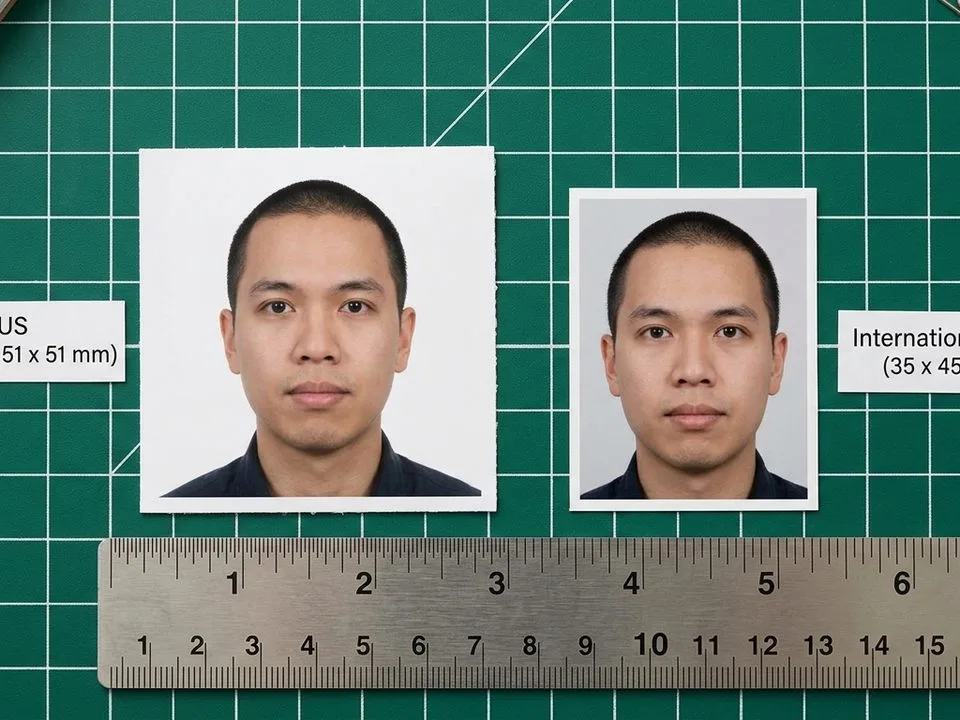
Understanding standard sizes helps too — our breakdown of 5×7 photo dimensions and 16×20 sizing prevents common cropping errors before you send anything to the printer.
Free vs. Paid: Which One Should You Actually Pick?
Here is the honest answer most reviews avoid. Free tools like Epson Print Layout, Canon Professional Print & Layout, Affinity Studio, and GIMP handle 80% of typical home-printing needs perfectly well. If your workflow is “edit in Lightroom, print to my Canon PIXMA on Canson Baryta,” you can skip paid printing software entirely.
Paid tools earn their price in three scenarios:
- You print at volume and need automatic nesting to save paper and ink.
- You need identical output across multiple printer brands (Mirage handles this best).
- You produce exhibition or client work where hand-built ICC profiles matter.
Below is a rough spend guide most photographers can use as a checkpoint.
- $0 tier: Epson Print Layout, Canon Professional Print & Layout, Affinity Studio, GIMP
- Under $100: Qimage One ($79.99), Qimage Ultimate ($89.99)
- $100–$500: Adobe Photography Plan (annual)
- $500+: Mirage Print ($649+), ImagePrint Black ($695+), Capture One Pro perpetual (~$317+)
Photo Printing Software vs. Print Services: When to Send It Out
Home printing is romantic and educational, but it is not always the smart choice. Services like Nations Photo Lab, Printique, and White House Custom Color deliver gallery-quality prints at costs that are hard to beat if you print occasionally. Our guide on the best photo slideshow apps covers digital-first alternatives, while our tutorial on printing polaroid-style photos explains the hobby-friendly middle ground.
Send it out when: you print fewer than 50 sheets per year, you do not own a photo printer, or you need very large prints (24×36 and up).
Print at home when: you print regularly, own compatible hardware, and want full creative control from file to frame.
Final Verdict: Our Top Picks
If we had to name one tool for the widest possible audience, Adobe Lightroom Classic wins in 2026 because it handles the whole job — cataloging, editing, and printing — inside a single workflow most photographers already know. For sharpness fanatics, add Qimage One on top. Using an Epson or Canon printer? The manufacturer’s free utility is genuinely all most people need. For gallery-grade black-and-white or client work, ImagePrint Black stays unbeaten. And for anyone who wants a fully free full-featured editor, Affinity Studio is the biggest 2026 story.
The right choice is the one that matches your printer, your budget, and your printing frequency. There is no universally “best” tool — only the one that fits your workflow today.
🚀 Turning your best shots into a print portfolio? Our full image editing services prepare every file for flawless print output — fast, affordable, unlimited revisions.
Frequently Asked Questions
What is the best free photo printing software in 2026?
Epson Print Layout and Canon Professional Print & Layout are the strongest free options if you own the matching printer brand — both offer full ICC support, Photoshop plug-ins, and print-ready layouts at zero cost. Affinity Studio (also free since October 2025) is the best free full editor for print prep across any printer brand.
Do I really need dedicated photo printing software, or is Photoshop enough?
Photoshop can print, but dedicated tools like Lightroom’s Print module, Qimage One, or Epson Print Layout apply size-aware sharpening, better layout templates, and paper-specific profiles automatically. For serious print work, a dedicated tool saves time and produces sharper output.
What is a RIP and do I need one?
A RIP (Raster Image Processor) converts image data into precise printer instructions, offering better ink control and color accuracy than a standard driver. Casual users do not need one. Studios, print shops, and large-format printers benefit significantly from RIPs like Mirage Print or ImagePrint Black.
What’s the difference between Qimage One and Qimage Ultimate?
Qimage Ultimate is Windows-only with the fullest feature set and an optional lifetime license. Qimage One is the cross-platform (Mac + Windows) version with a slightly simpler feature set starting at $79.99. Both use the same industry-leading sharpening engine.
Is Affinity really 100% free now, or is there a catch?
Yes, Affinity Studio is genuinely free since October 2025 when Canva unified Affinity Photo, Designer, and Publisher into one free desktop app. Optional AI features remain paid via Canva integration, but the core photo, vector, and layout tools carry no cost.
How do ICC profiles improve print quality?
ICC profiles tell your software exactly how a specific printer, ink, and paper combination reproduces color. Without the correct profile, colors shift toward whatever the driver guesses. With the right profile applied, prints match your calibrated monitor much more closely.
Is Adobe Lightroom Classic worth the subscription in 2026?
For photographers who already edit in Lightroom, yes — the Print module handles nearly every home-printing scenario and integrates seamlessly with your catalog. The $119.88 annual prepaid Photography Plan remains excellent value, though monthly billing now costs $14.99 after the 2025 hike. Affinity Studio offers a genuinely free alternative for most editing needs.
Can I print professional-quality photo books at home?
Technically yes, but most home printers cannot match the binding, paper thickness, and lay-flat quality of dedicated services like Mixbook, Printique, or Artifact Uprising. For books, sending files to a specialist service almost always produces better results at lower per-book cost.
What resolution should I use when printing photos?
Aim for 300 dpi at the final print size. A 4×6 needs about 1,200×1,800 pixels; an 8×10 needs about 2,400×3,000 pixels; a 16×20 needs roughly 4,800×6,000 pixels. Anything under 200 dpi starts to look soft, especially on glossy paper.