KB vs MB Explained: Is a Kilobyte Bigger Than Megabyte?
Quick Answer
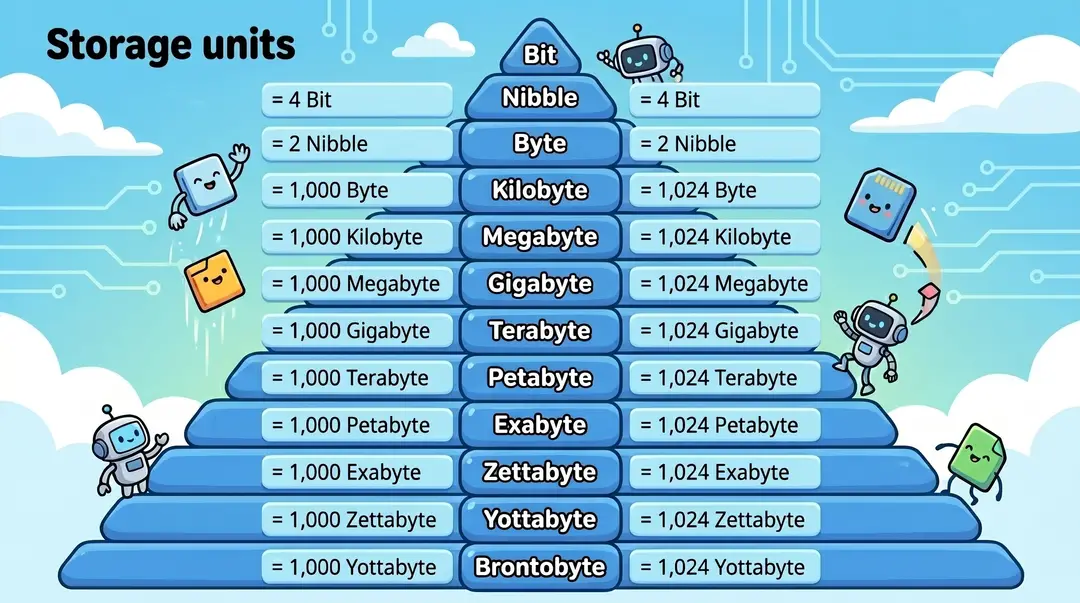
No, a kilobyte (KB) is not bigger than a megabyte (MB). A megabyte is roughly 1,000 times larger than a kilobyte.
- 1 MB = 1,024 KB (binary, used by Windows and most operating systems)
- 1 MB = 1,000 KB (decimal, used by storage manufacturers)
- 1 MB = 1,000,000 bytes (or 1,048,576 bytes in binary)
If a kilobyte were a single grain of rice, a megabyte would be a small bowl of rice. The math is simple, but the history, the binary-versus-decimal debate, and the everyday consequences for photos, websites, and downloads are where the real story unfolds.
Kilobyte vs Megabyte: At-a-Glance Comparison
| Feature | Kilobyte (KB) | Megabyte (MB) |
|---|---|---|
| Size in bytes (decimal) | 1,000 | 1,000,000 |
| Size in bytes (binary) | 1,024 | 1,048,576 |
| Relative size | Smaller | ~1,000× larger |
| Typical use | Text, icons, web assets | Photos, music, PDFs |
| Example file | Plain-text email (5 KB) | Smartphone photo (3 MB) |
| IEC equivalent | Kibibyte (KiB) | Mebibyte (MiB) |
This single table answers the question for 90% of readers. The rest of the article unpacks the why so you can apply the knowledge to photography, web performance, and digital workflows.
🚀 Want crisp, lightweight product images that load fast and look gorgeous? Try our professional clipping path service and ship pixel-perfect photos at the right file size.
What Is a Byte, Anyway? Start With the Foundation
Before comparing KB and MB, let’s anchor the smallest building block. Computers don’t think in letters or pictures — they think in bits (binary digits), each one either a 0 or a 1. Combine eight bits and you get a byte, the universally accepted “atom” of digital information. The term itself was coined in June 1956 by IBM engineer Werner Buchholz during the design of the IBM 7030 Stretch computer.
A single byte stores enough information for one character of text in standard ASCII encoding. The word “Hello,” for instance, occupies exactly five bytes — one per letter. A tweet of 280 characters consumes roughly 280 bytes, plus a little formatting overhead. From this microscopic starting point, every larger unit climbs upward in powers of 1,000 (decimal) or 1,024 (binary).
Here is how the base hierarchy stacks:
- Bit (b): 1 binary digit (a 0 or a 1)
- Byte (B): 8 bits = 1 character of text
- Kilobyte (KB): ~1,000 bytes (decimal) or 1,024 bytes (binary)
- Megabyte (MB): ~1,000 KB (decimal) or 1,024 KB (binary)
- Gigabyte (GB): ~1,000 MB
- Terabyte (TB): ~1,000 GB
The lowercase b versus uppercase B distinction matters enormously, and we’ll return to it when we discuss internet speeds. For now, remember the rule: B = Byte, b = bit, and bytes are 8 times bigger than bits.
Is KB Bigger Than MB? The Direct Answer
A megabyte is the larger of the two. Period. Whenever you see a file weighing 4 MB next to a file weighing 4 KB, the 4 MB file is roughly 1,000 times larger. The “kilo” prefix means thousand, and the “mega” prefix means million — both borrowed from the International System of Units and applied to digital storage.
Here is the clean comparison:
- 1 KB = 1,000 bytes (decimal) or 1,024 bytes (binary)
- 1 MB = 1,000 KB (decimal) or 1,024 KB (binary)
- 1 MB = 1,000,000 bytes (decimal) or 1,048,576 bytes (binary)
If your hard drive shows a folder of 750 KB next to one of 75 MB, the second folder holds the equivalent of 100 of the first. That mental model handles almost every real-world situation. A stack of plain-text emails fits in a tiny corner of your inbox, while a single 4K vacation photo can consume the same space as thousands of those emails combined.
For non-technical use cases, the rounded 1,000:1 ratio works perfectly. Engineers, system administrators, and forensic analysts, though, still depend on the strict 1,024:1 binary math — which leads us to the next section.
The 1,000 vs 1,024 Debate: Why the Confusion Exists
The “kilobyte = 1,024 bytes” rule comes from early computing convenience. Computer memory addresses arrange themselves in powers of two, and 2¹⁰ = 1,024 — close enough to a metric kilo that engineers in the 1960s and 70s borrowed the prefix without inventing new vocabulary. By the time the Commodore 64 launched in 1982 with “64 KB of RAM” (technically 65,536 bytes, or 64 kibibytes), the binary convention had cemented itself in computer culture.
Then came the storage industry. Hard-drive and SSD manufacturers prefer the decimal system because it makes their products look bigger — a “1 TB” drive sold as 1,000,000,000,000 bytes (decimal) actually displays as roughly 931 GB inside Windows (which uses binary math). That mismatch is the reason every “new” drive looks a little smaller than the box advertised.
To end the chaos, in 1998 the International Electrotechnical Commission (IEC) released a fresh set of binary prefixes formalized in IEC 80000-13:
- KiB (kibibyte) = 1,024 bytes
- MiB (mebibyte) = 1,024 KiB = 1,048,576 bytes
- GiB (gibibyte) = 1,024 MiB
- TiB (tebibyte) = 1,024 GiB
Under the IEC standard, “kilobyte” should strictly mean 1,000 bytes, while “kibibyte” strictly means 1,024 bytes. In practice, most operating systems, casual users, and even tech blogs still use “KB” loosely for both. Apple’s macOS switched to decimal reporting starting with Snow Leopard (10.6) in 2009, while Windows continues to display binary values labeled with “KB” — one of the cleanest examples of why this debate refuses to die.
The Complete Data Storage Hierarchy
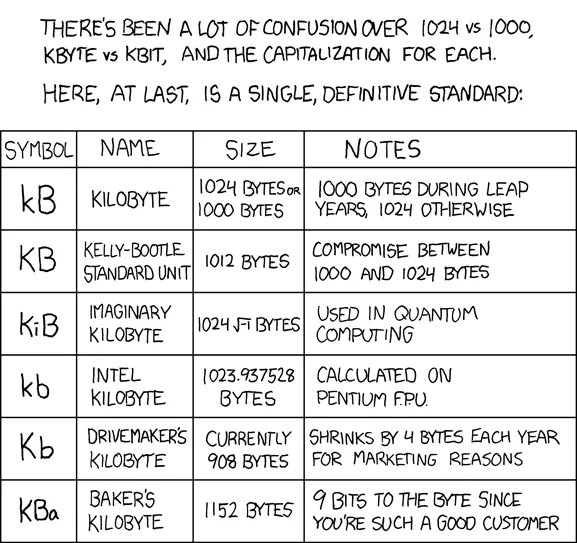
For a complete mental map of digital storage, here is the full hierarchy from smallest to largest, using decimal values for everyday simplicity:
| Unit | Symbol | Decimal Size | Real-World Equivalent |
|---|---|---|---|
| Bit | b | 1/8 byte | A single yes/no signal |
| Byte | B | 1 byte | One text character |
| Kilobyte | KB | 1,000 bytes | A short email or tiny icon |
| Megabyte | MB | 1,000,000 bytes | A sharp photo or 3-min MP3 |
| Gigabyte | GB | 1,000,000,000 bytes | A 1-hour HD movie or 250 songs |
| Terabyte | TB | 1,000,000,000,000 bytes | A modest external hard drive |
| Petabyte | PB | 1,000 TB | A mid-sized data center segment |
| Exabyte | EB | 1,000 PB | Global daily internet traffic |
| Zettabyte | ZB | 1,000 EB | All data created worldwide yearly |
| Yottabyte | YB | 1,000 ZB | Theoretical future-scale storage |
To put yottabytes in perspective, the GeeksforGeeks file-size guide notes that humanity has not yet generated a single yottabyte of unique non-duplicated data. For everyday users in 2026, KB, MB, and GB are the units you will actually touch.
Why File Size Matters in the Real World
File size is never an abstract number — it controls speed, quality, cost, and user experience. Here is where KB-versus-MB awareness pays off:
- Website performance: Google’s Core Web Vitals reward fast-loading pages. A homepage stuffed with 3 MB hero images loads visibly slower than the same page using 300 KB optimized versions.
- SEO and rankings: Large images drag down page speed, and Google factors that into search rankings. Smart sizing improves both UX and visibility.
- Email deliverability: Most providers cap attachments at 20–25 MB. Send a 30 MB folder and your message bounces.
- Mobile data usage: Streaming HD video burns through gigabytes in an hour; loading a few KB-sized icons costs almost nothing.
- Cloud storage costs: Photographers paying for backup notice the difference between 5 MB JPEGs and 50 MB RAW files instantly.
- Print quality: Photo printers need MB-range files for sharp output. A tiny KB-range image stretched to 8×10 inches will look blurry.
If you handle photos for an e-commerce store, fashion catalog, or real-estate listing, every megabyte you trim translates into faster load times and happier customers. That is exactly why clean clipping work, careful background removal, and disciplined export settings matter so much.
🎯 Want faster product pages without sacrificing image quality? Use our background removal service to keep files lean and conversion-ready.
KB vs MB in Photography: What Photographers Need to Know
Photographers live at the intersection of KB and MB more than almost any other profession. Camera sensors capture massive RAW files, while final outputs for web, print, and client galleries demand smart compression.
Here is a realistic snapshot of common photo file sizes:
- Web thumbnail (150 × 150 px JPEG): 5–30 KB
- Optimized blog image (1200 × 800 px JPEG): 80–250 KB
- Standard smartphone photo (12 MP JPEG): 2–5 MB
- Professional DSLR JPEG (24–45 MP): 8–15 MB
- DSLR RAW file (24 MP): 25–50 MB
- Medium-format RAW (50+ MP): 60–120 MB
Notice the spread. A single uncompressed RAW from a Sony A7R V or a high-end Nikon mirrorless body can devour space that would house 10,000+ thumbnails. If you shoot product photography or e-commerce catalogs, this scale forces hard decisions about the best cloud storage for photos and how to deliver web-ready files without crushing detail.
The sweet spot for online product photos sits between 80 KB and 350 KB per image — large enough to look crisp on retina displays, small enough to load in under a second. Professional retouchers know this balance instinctively, which is why they resize and re-export after editing rather than uploading straight from the camera.
How to Convert Between KB and MB (Without a Calculator)
The conversion math is simple once you pick a system. Most everyday situations call for the decimal version, while engineers stick to binary for accuracy. Here is how to convert quickly:
Decimal (most common):
- KB → MB: Divide by 1,000 → 5,000 KB ÷ 1,000 = 5 MB
- MB → KB: Multiply by 1,000 → 2 MB × 1,000 = 2,000 KB
Binary (technical accuracy):
- KB → MB: Divide by 1,024 → 5,120 KB ÷ 1,024 = 5 MB exact
- MB → KB: Multiply by 1,024 → 2 MB × 1,024 = 2,048 KB
A few practical shortcuts worth memorizing:
- 500 KB ≈ 0.5 MB
- 1,500 KB ≈ 1.5 MB
- 2,500 KB ≈ 2.5 MB
- 10,000 KB ≈ 10 MB
- 5,120 KB = 5 MB (binary exact)
If you regularly handle large batches — for instance, when prepping product catalogs or wedding galleries — a free online tool like Omni Calculator’s KB-to-MB converter handles the math instantly. Bookmark one and stop second-guessing yourself.
How to Reduce File Size Without Killing Quality
Compression is the bridge between “big and gorgeous” and “small and shareable.” The best photographers and web designers follow a layered approach:
- Resize first, then compress. Drop a 6000 × 4000 px image to 1920 × 1280 before exporting. Pixels you do not need still cost storage.
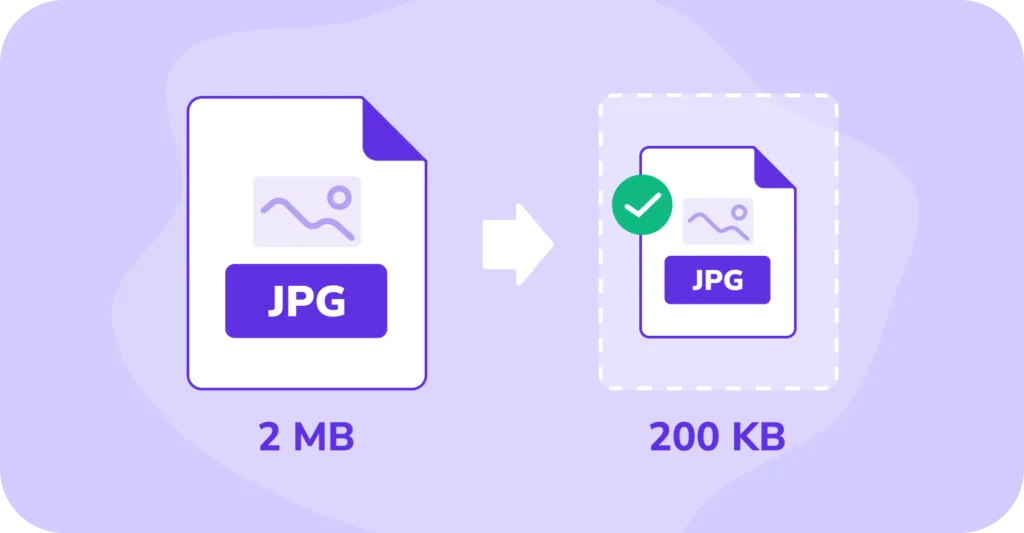
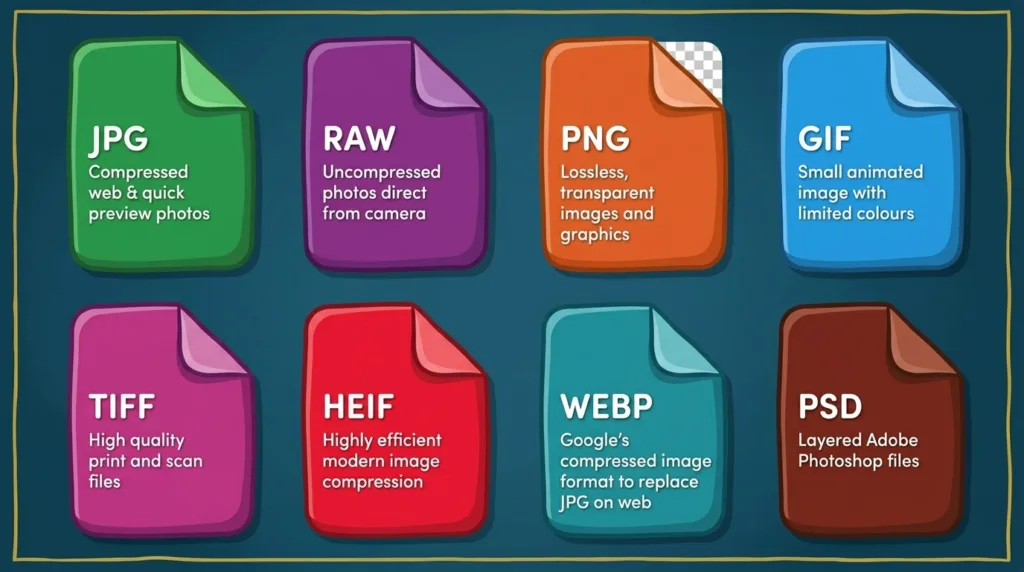
- Choose the right format. JPEG suits photos with smooth gradients; PNG fits graphics with sharp edges and transparency; WebP delivers 25–35% smaller files than JPEG at similar quality; AVIF goes further, often 50% smaller than JPEG.
- Adjust the quality slider. Most JPEG exports between 70 and 85 quality look identical to the human eye but save 40% file size.
- Strip metadata. EXIF data, GPS tags, and color profiles add hidden weight you rarely need on the web.
- Use professional retouching. Clean, well-masked subjects compress better because the background carries less random pixel noise.
For step-by-step guidance, check our deep dive on how to resize an image in Photoshop and our roundup of the best photo editing software for 2026.
✂️ Selling apparel online? Get studio-perfect ghost mannequin edits that look professional and stay web-light for lightning-fast product pages.
Real-World Examples: KB or MB?
Sometimes the easiest way to remember unit sizes is to anchor them to files you already handle. Here is a side-by-side cheat sheet:
Typical KB-range files:
- Plain-text email body: 2–10 KB
- Small website favicon: 1–5 KB
- Compressed thumbnail image: 20–100 KB
- One-page Word document (no images): 25–80 KB
- Optimized SVG logo: 5–60 KB
- Short MP3 ringtone: 100–300 KB
Typical MB-range files:
- High-resolution JPEG photo: 1–5 MB
- 3-minute MP3 song: 3–6 MB
- 10-page PDF with images: 1–4 MB
- Standard PowerPoint deck: 5–25 MB
- Smartphone HD video (1 minute): 80–150 MB
- Mobile app installer: 20–250 MB
Typical GB-range files:
- 90-minute 1080p movie: 1.5–4 GB
- 4K Blu-ray movie: 50–80 GB
- AAA video game install: 50–200 GB
- Full RAW wedding shoot: 30–100 GB
This perspective explains why a single phone photo can equal hundreds of text messages, and why streaming a single 4K movie consumes more bandwidth than a year of casual web browsing.
Bits vs Bytes: The Internet Speed Trap
Here is where most consumers get burned. Internet service providers advertise speeds in megabits per second (Mbps), while file sizes display in megabytes (MB). The two look almost identical but differ by a factor of 8.
The conversion rule:
- 1 byte = 8 bits
- 100 Mbps ÷ 8 = 12.5 MB/s actual download speed
So if your ISP sells you a “100 Mbps” plan, a 100 MB game patch will not download in one second. It takes closer to 8 seconds under ideal conditions, longer with real-world overhead. NCTA’s bits-vs-bytes explainer notes that the industry standardized on bits because pre-internet telecom companies measured signal transmission in bit-level pulses.
Quick reference:
- 25 Mbps ≈ 3.1 MB/s (basic streaming)
- 100 Mbps ≈ 12.5 MB/s (typical home plan)
- 500 Mbps ≈ 62.5 MB/s (gigabit-light)
- 1,000 Mbps (1 Gbps) ≈ 125 MB/s (gigabit fiber)
- 2,500 Mbps (2.5 Gbps) ≈ 312.5 MB/s (premium fiber)
The capitalization rule applies again: MB/s (megabytes per second) describes file transfer; Mbps (megabits per second) describes connection speed. Mix them up and your math will be off by a factor of 8.
🌐 Running an e-commerce site that needs lightning-fast photos? Try our image masking service for ultra-clean, compression-friendly product visuals.
How Storage Has Grown: A Quick History
Looking at how kilobytes evolved into terabytes is genuinely humbling. The original IBM PC of 1981 shipped with 16 to 64 kilobytes of RAM. A single modern smartphone photo (around 4 MB) holds roughly 64 times more data than the maximum factory memory of that landmark machine.
A few milestones worth remembering:
- 1956: IBM’s RAMAC 305 became the first commercial computer with a moving-head hard disk drive, storing 5 million 6-bit characters (~3.75 MB modern equivalent) across 50 24-inch platters — physically the size of two refrigerators.
- 1981: The IBM PC launched with 16 KB to 64 KB of RAM standard, expandable to 256 KB on the motherboard.
- 1982: Commodore 64 debuted with 64 KB of RAM — enormous for a home computer at the time.
- 2007: Hitachi released the first 1 TB consumer hard drive (the Deskstar 7K1000, with five 200 GB platters).
- 2018: Samsung began mass production of the PM1643 30.72 TB SSD, the largest commercial 2.5-inch drive of its era.
- 2024–2026: Cloud providers like Backblaze, AWS, and Google routinely manage exabytes (millions of TB) of customer data.
Storage cost per gigabyte has dropped from over $300,000 in 1981 to a fraction of a cent today. According to Backblaze’s cost-per-gigabyte data, the long-term trend remains steeply downward even when measured in inflation-adjusted dollars.
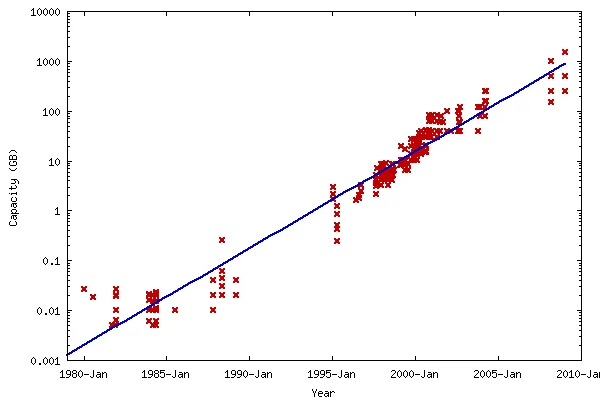
For context on modern storage capacity, our partner guide on how many photos a 32 GB memory card holds gives you a working sense of how this math applies in everyday shooting scenarios.
Common Myths About KB and MB, Debunked
Misconceptions about storage units circulate constantly. Let’s clean up the most stubborn:
Myth 1: “KB and Kb mean the same thing.”
Wrong. KB is kilobyte (storage); Kb is kilobit (transmission). The lowercase “b” is bits. They differ by a factor of 8.
Myth 2: “1 MB is exactly 1,000 KB.”
True in decimal, false in binary. Windows still shows 1 MB as 1,024 KB. Your operating system can silently disagree with the box your hard drive came in.
Myth 3: “Higher MB always means better photo quality.”
File size and quality correlate but are not identical. A 10 MB poorly-shot JPEG riddled with compression artifacts looks worse than a 2 MB sharp, well-lit photo exported at the right resolution.
Myth 4: “If my drive is empty, it should show the full advertised capacity.”
Operating systems reserve space for system files, formatting overhead, and recovery partitions. A new “1 TB” drive typically shows around 931 GB usable — that is normal and not a defect.
Myth 5: “Megabytes are obsolete in 2026.”
Hardly. Most images, audio files, and short videos still live in the MB range. The unit is not going anywhere.
Myth 6: “Compressing a file always damages it.”
Lossless formats like PNG, ZIP, and FLAC compress without any quality loss. Lossy formats like JPEG and MP3 trade controllable quality for dramatic size reductions.
When to Use KB vs MB in Your Daily Workflow
Knowing which unit applies in which situation saves time and prevents errors:
Use kilobytes (KB) when working with:
- Web favicons, icons, and small logos
- Short text documents and plain-text emails
- Compressed thumbnails for galleries
- CSS, JavaScript, and HTML files
- Small audio clips or notification sounds
Use megabytes (MB) when working with:
- High-resolution photos and product images
- Music tracks and podcasts
- PDF documents with embedded images
- Short videos and animations
- Software installers and app packages
Use gigabytes (GB) when working with:
- Full-length movies and TV episodes
- Photo and video libraries
- Operating systems and major software
- Large game installations
- RAW photo archives
In professional photo workflows, you receive raw assets in the MB-to-GB range and deliver finals in the KB-to-MB range. That compression journey is where editing teams add real value — preserving detail while shrinking footprint. For production teams, our Photoshop tools and toolbar overview is a useful reference.
📸 Need polished, retail-ready images that look stunning on every device? Choose our photo retouching service for sharp, professional output without bloated file sizes.
KB vs MB for Page Speed
For content creators and marketers, file size directly affects search visibility. Google’s PageSpeed Insights penalizes pages where images and scripts collectively weigh more than necessary. As a working rule:
- Total page weight target: Under 2 MB for fast mobile loading
- Largest single image: Under 200 KB ideally, never over 500 KB
- CSS and JavaScript bundles: Under 100 KB each (minified and gzipped)
- Hero image / above-the-fold visuals: 80–150 KB sweet spot
Modern formats help enormously here. WebP files typically run 25–35% smaller than equivalent JPEGs, and AVIF can deliver up to 50% smaller files at matching perceptual quality. Pair smart formats with proper color correction in Photoshop before export and your pages will load briskly without sacrificing visual punch.
If you publish heavily across blogs and e-commerce, also explore our roundup of the best AI photo editing software in 2026 — many modern AI tools auto-optimize file size during export, saving hours of manual work.
Practical Tools to Check and Convert File Sizes
You do not need expensive software to manage file sizes confidently. These free tools cover almost every common task:
- Windows File Explorer / macOS Finder: Right-click any file and select Properties (Windows) or Get Info (Mac) to see exact size.
- TinyPNG / TinyJPG: Drop in PNGs or JPEGs and download compressed versions instantly.
- Squoosh.app (by Google): Side-by-side preview of compression at various quality levels and formats.
- ImageOptim (Mac): Drag-and-drop batch optimizer that strips metadata and re-encodes images.
- HandBrake: Free open-source tool for compressing video files without quality collapse.
- CloudConvert: Browser-based converter that handles file-size targets explicitly.
For advanced editing workflows, our guide to the best Photoshop alternatives in 2026 covers software that handles batch resizing and export beautifully.
Shadows, Backgrounds, and File Size: The Editing Connection
Here is one underappreciated truth: clean editing produces smaller files. When you isolate a product from a busy background or place a natural shadow under a subject, the resulting image compresses better because there is less random noise for JPEG and WebP encoders to track.
Three editing decisions that consistently reduce file size:
- Clean background removal: Solid white or transparent backgrounds compress more efficiently than cluttered scenes.
- Realistic shadows: Soft, properly-placed shadows add depth without the visual chaos that bloats files.
- Color correction: Balanced color reduces the entropy JPEG/WebP encoders need to encode.
Photographers and brands that need scalable production pipelines often outsource to specialists for exactly this reason. Beautiful, light, web-ready images are not an accident — they are the output of disciplined editing.
🎨 Want subtle, lifelike shadows that elevate every product shot? Add depth with our shadow creation service and keep file sizes lean.
Frequently Asked Questions (FAQ)
1. Is 1 MB equal to 1,000 KB or 1,024 KB?
Both, depending on context. The decimal SI standard says 1 MB = 1,000 KB. The binary system used by most operating systems treats 1 MB = 1,024 KB. For everyday math, the 1,000 ratio is close enough.
2. Which is bigger, 5 MB or 5,000 KB?
They are effectively equal in decimal (5,000 KB = 5 MB). In binary, 5 MB = 5,120 KB, so 5 MB is slightly larger.
3. Why does my hard drive show less space than advertised?
Manufacturers use the decimal system (1 TB = 1,000,000,000,000 bytes), but Windows displays binary values (1 TB ≈ 931 GiB). The difference is not missing storage — it is just two different unit conventions colliding.
4. What is the difference between MB and Mb?
MB (uppercase B) = megabyte, used for file size. Mb (lowercase b) = megabit, used for internet speed. One byte equals eight bits, so MB and Mb differ by a factor of 8.
5. How many KB make a GB?
1 GB = 1,000 MB = 1,000,000 KB in the decimal system. In binary, 1 GiB = 1,024 MiB = 1,048,576 KiB.
6. What size is a good web image?
Aim for 80 KB to 300 KB per image. That range delivers visual sharpness on retina displays while keeping pages snappy and SEO-friendly.
7. Are kilobytes still relevant in 2026?
Absolutely. Web icons, favicons, CSS files, JavaScript bundles, plain-text documents, and email signatures all live in kilobyte territory. The unit is not disappearing.
8. How do I know if my photo is too large to email?
Most email providers (Gmail, Outlook, Yahoo) cap attachments at 20–25 MB. If your file is bigger, compress it, resize it, or send a cloud-share link instead.
Key Takeaways
- A megabyte (MB) is roughly 1,000× larger than a kilobyte (KB).
- The split between 1,000 (decimal) and 1,024 (binary) explains why drive capacities seem to shrink when measured in Windows.
- Lowercase b means bit (used for internet speed); uppercase B means byte (used for file size). They differ by a factor of 8.
- Web-optimized images should typically stay between 80 KB and 300 KB each.
- Modern formats like WebP and AVIF compress 25–50% smaller than JPEG at equal quality.
- Smart editing — clean masking, shadows, color correction — helps files compress more efficiently and load faster.
Understanding KB vs MB is not trivia. It is the foundation of every modern digital workflow, from sending a photo to your grandmother to optimizing a Shopify store with thousands of product images. Once you internalize the math, the rest of the digital world starts making sense.
🚀 Ready to deliver flawlessly edited, perfectly sized images for your store, portfolio, or campaign? Explore the full Clipping Expert Asia photo editing suite and let our specialists handle the heavy lifting.