Why Are WhatsApp Photos Blurry? The 6 Stages of Quality Loss — and How to Beat Each One
TL;DR: The Short Answer
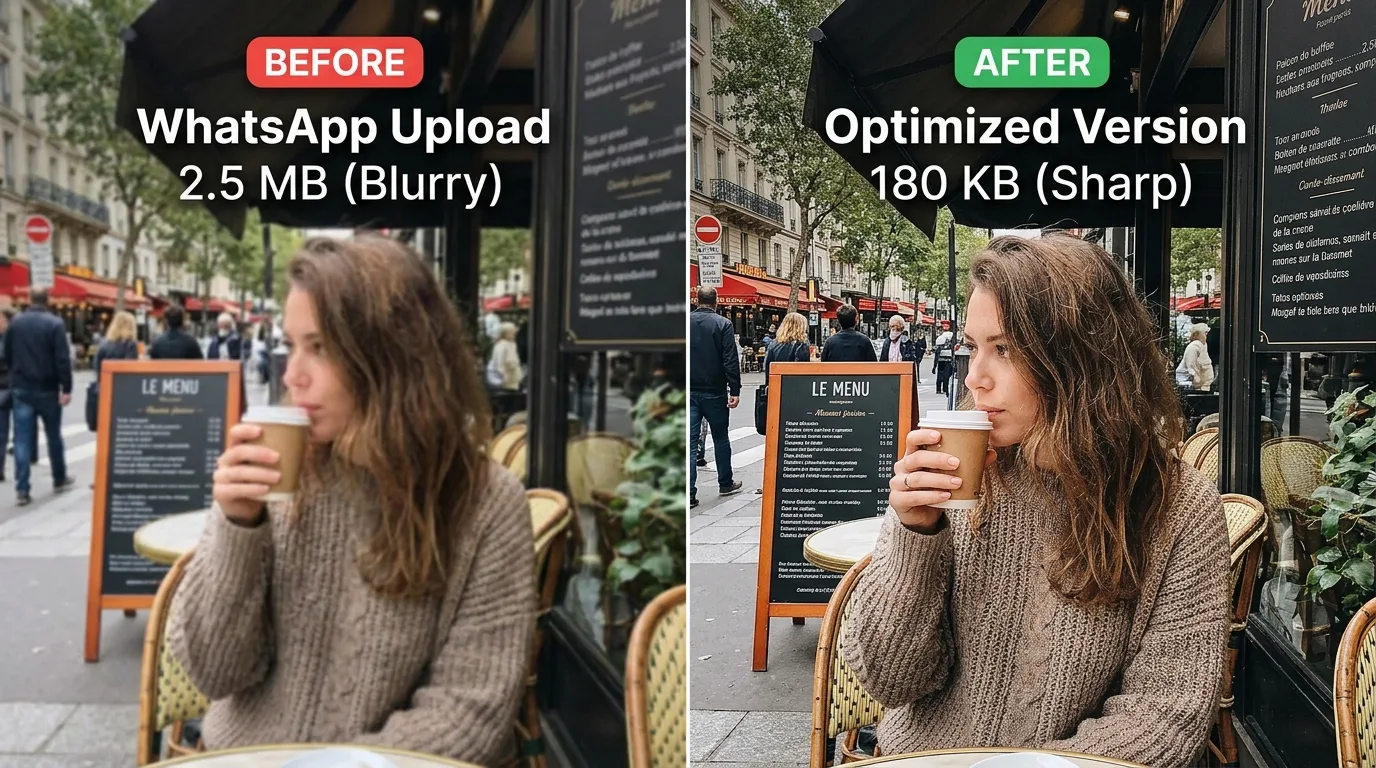
WhatsApp photos look blurry because WhatsApp deliberately compresses every photo you send — it’s not your camera, and it’s not your phone. Standard quality (the default) resizes every photo to roughly 1600px on the long edge, re-encodes it at JPEG quality 60–75, strips EXIF data, and shrinks a 5MB photo down to 80–200KB. A 12MP phone photo keeps fewer than 20% of its original pixels. HD quality (the HD button when selecting a photo, or set as default in Settings > Storage and data > Media upload quality) preserves up to 4096×2692 — but it still re-encodes, and HD resolution varies wildly by device (iPhone app keeps ~5120px; WhatsApp Web only ~2560px). Only Document mode sends the original file, byte-for-byte, up to 2GB — no in-chat thumbnail, but zero compression. On top of that, iPhone HEIC photos get converted to JPEG before compression (an extra generation of loss), Status uses a separate, more aggressive pipeline, and saving a received photo to your camera roll then re-sending it compresses it a second time. Google Drive backups store the compressed copies, not originals.
The Three Quality Tiers (Which One Are You Using?)
| Tier | Resolution | File size | Compressed? | When to use |
|---|---|---|---|---|
| Standard (default) | ~1600px long edge (1280–1600) | 80–200KB | Yes, heavy (JPEG Q60–75) | Memes, screenshots, quick snaps |
| HD | up to 4096×2692 (varies by device) | 500KB–2MB | Yes, lighter re-encode | Family photos, anything you might print |
| Document | Original (any) | up to 2GB | No — zero loss | Professional work, printing, archiving |
Stage 1: The Default Compression (The #1 Cause)
When you select a photo from your gallery and hit send, WhatsApp does four things to it, in order:
- Resizes the long edge to ~1600px (a 4032×3024 iPhone photo becomes ~1600×1200).
- Re-encodes as JPEG at quality ~60–75 (Instagram, by comparison, uses ~70–80).
- Strips EXIF metadata (camera, lens, location — gone).
- Converts PNG to JPG (transparency becomes a black or white box).
The result: a 5MB photo arrives at 80–200KB. For a meme or a screenshot of a meme, you’ll never notice. For a portrait you want to zoom into, or a product photo for a client, the softness is visible immediately. The loss is permanent — nothing on the receiving end can undo it.
Stage 2: HD Quality — Better, But Not Original
WhatsApp added HD photo sending in late 2023. Two ways to use it:
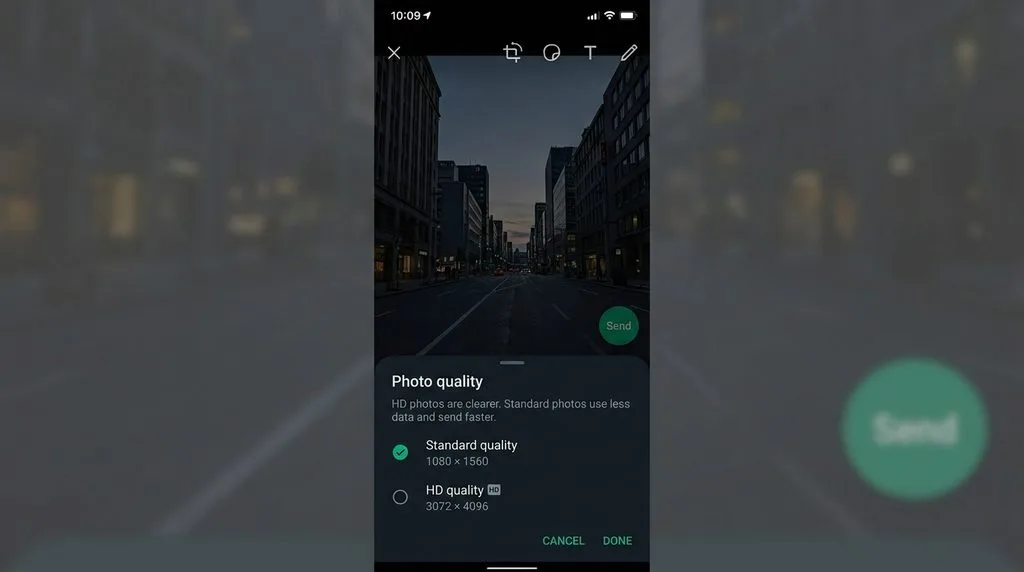
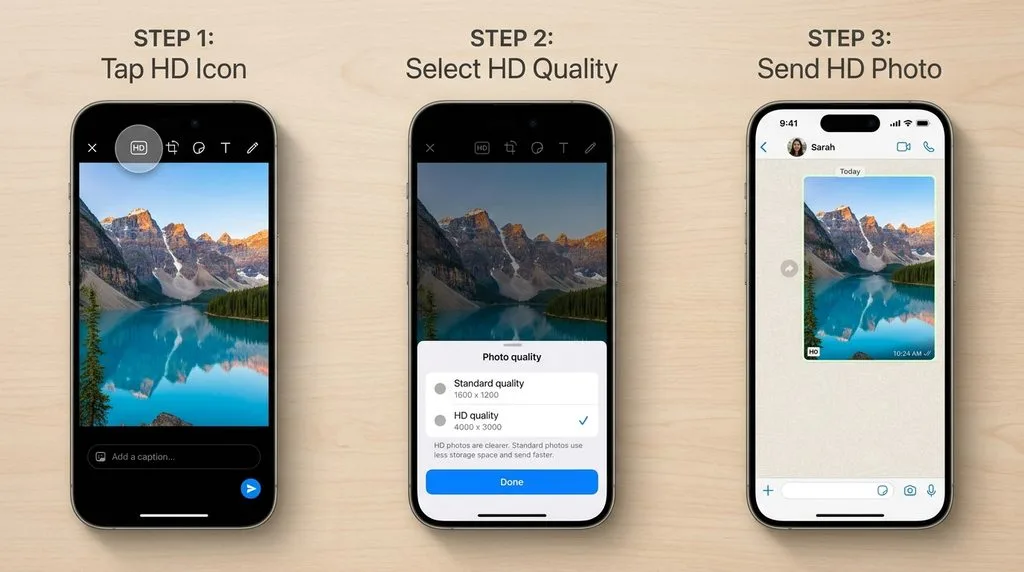
- Per photo: after selecting the photo, tap the HD button at the top of the screen and choose HD Quality.
- As default: Settings > Storage and data > Media upload quality > HD quality — every photo then sends in HD automatically.
HD preserves up to 4096×2692 pixels (or your camera’s native resolution) and files of 500KB–2MB. Visibly sharper when zoomed. But HD is not equal on every device — independent tests found: iPhone app kept ~5120px, Mac desktop ~4160px, Android phones ~3120px, WhatsApp Web only ~2560px. All of them still re-encode the file. HD is “less compressed,” not “uncompressed.”
Stage 3: iPhone HEIC Adds an Extra Conversion Loss
If you shoot on iPhone, your photos are saved as HEIC by default. WhatsApp does not transmit HEIC — it converts every HEIC photo to JPEG before applying its own compression. That’s two lossy steps where an Android JPEG shooter gets one. The difference is visible in fine detail — hair, texture, text.
Fix for iPhone users: either send as Document (original HEIC preserved), or convert HEIC to JPEG yourself at high quality (Settings > Camera > Formats > Most Compatible, or use a batch converter) before sending. iPhone-to-Android over WhatsApp goes through the lowest-common-denominator pipeline and looks worse than iPhone-to-iPhone.
Stage 4: Status Uses a Separate, More Aggressive Pipeline
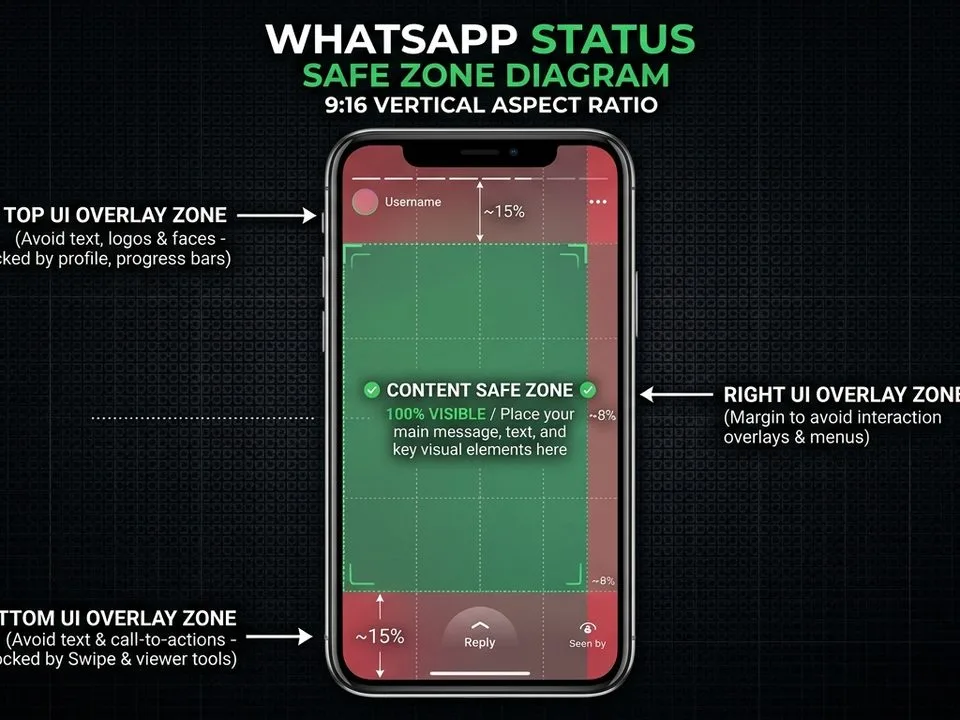
WhatsApp Status (the 24-hour disappearing story) runs photos and videos through a different encoder that’s more aggressive than chat compression — it’s optimized for fast loading on mobile networks. A photo that looks acceptable in chat can look noticeably softer as a Status. Status videos are capped at 16MB and up to 90 seconds. If you care about Status quality, export at exactly 1080×1920, JPEG quality 85, so the Status encoder has less work to do.
Stage 5: Forwarding vs. Save-and-Re-Send (The Generation-Loss Trap)
Here’s where most guides get it wrong. Forwarding a photo inside WhatsApp does NOT re-compress it — WhatsApp passes along the copy it already holds. But saving a received photo to your camera roll, then attaching it as a new photo, DOES compress it again — it goes through the full pipeline a second time. Each round trip adds another layer of JPEG artifacts. After three or four save-and-re-send cycles, faces are soft and text is unreadable. Rule: never re-send a photo you received — ask the original sender for the file, or forward it directly.
Stage 6: Backups Store the Compressed Copies
WhatsApp’s Google Drive / iCloud backup stores the compressed versions of your photos — the 1600px, 100KB copies that arrived on your phone, not the originals. If you switch phones and restore from backup, every photo comes back at compressed quality. For anything important, keep the original file elsewhere (Google Photos, a hard drive, a cloud link). A guide to how much a 64GB SD card holds puts original vs compressed file sizes in perspective — a 12MP original JPG is ~4–6MB; the WhatsApp copy is ~0.1MB.
The Pre-Compress Sweet Spot (Beat the Compressor)
You can’t turn off WhatsApp compression in photo mode, but you can starve it of work. If you hand WhatsApp a file that’s already at its target size and quality, its re-encoder touches it lightly or not at all:
- Resize to 1600px on the long edge yourself (WhatsApp’s own cap). Anything bigger gets downscaled with a cheap filter.
- JPEG quality 85, sRGB. Target under 300KB.
- Screenshots and text graphics: save as PNG — lossless, text stays sharp through re-encoding.
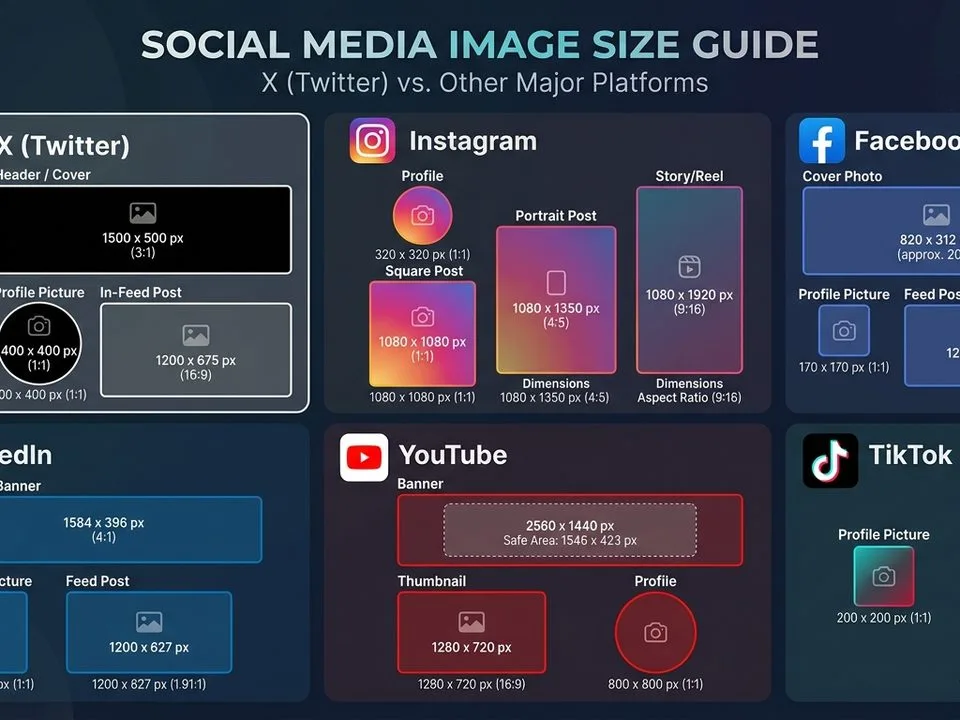
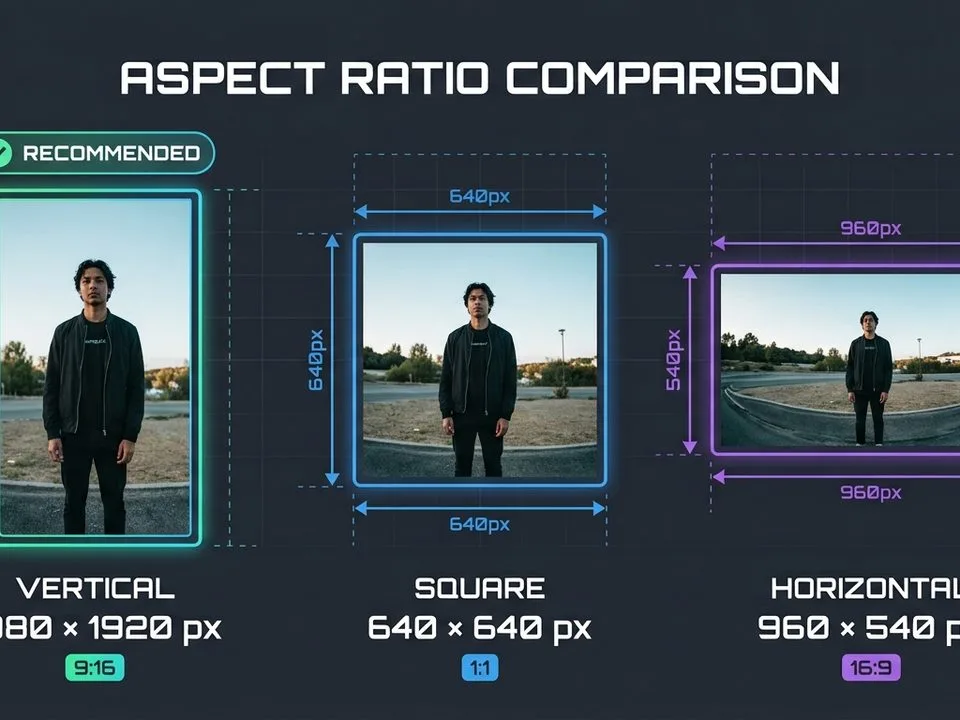
- Profile photos (DP): upload a pre-sized square, 640×640 or 1080×1080, face centered. For a clean DP with a plain background, a guide to remove background tools compares the options; a guide to the Magic Wand tool covers manual selection.
- WhatsApp Business product photos: add a subtle drop shadow so square catalog shots don’t look flat. A guide to realistic shadows covers the technique.
When to Use Which Method (Decision Guide)
| Situation | Best method | Why |
|---|---|---|
| Meme, screenshot of a meme | Standard | Compression invisible |
| Screenshot with text | PNG, pre-sized 1600px | Text stays sharp |
| Family photo, might print | HD (set as default) | ~4096px, good enough |
| Client work, retouching, printing | Document | Zero loss, original file |
| Whole album (10+ photos) | Cloud link (Google Photos/iCloud) | Original quality, no 2GB limit |
| WhatsApp Business catalog | 1080×1080 JPG, <1MB | Square crop, fast load |
| Received photo you want to share | Forward directly | Avoids second compression |
5 Common WhatsApp Quality Mistakes
- Leaving Standard as default. Most people never find the HD setting. Set it once: Settings > Storage and data > Media upload quality > HD.
- Sending HEIC from iPhone. Two lossy steps. Convert to JPG first or send as Document.
- Saving received photos to camera roll and re-sending. Second compression. Forward directly instead.
- Uploading a 12MB original and expecting WhatsApp to handle it. It downscales with a cheap filter. Pre-resize to 1600px at quality 85 yourself.
- Assuming HD = original. HD still re-encodes, and resolution varies by device. Only Document is truly lossless.
Frequently Asked Questions
Why are my WhatsApp photos blurry?
Because WhatsApp compresses every photo sent through the normal gallery method. Standard quality (the default) resizes photos to ~1600px on the long edge and re-encodes them at JPEG quality 60–75, shrinking a 5MB photo to 80–200KB. The loss is permanent. Use the HD button or send as Document to avoid it.
How do I send HD photos on WhatsApp?
Select the photo, then tap the HD button at the top of the screen and choose HD Quality. To make HD permanent: Settings > Storage and data > Media upload quality > HD quality. HD preserves up to 4096×2692 pixels but still re-encodes the file. For true original quality, send as Document.
Does WhatsApp HD reduce compression completely?
No. HD uses a lighter re-encode and higher resolution (up to ~4096px), but it is still compressed. HD resolution also varies by device — independent tests found iPhone keeps ~5120px, Mac ~4160px, Android ~3120px, and WhatsApp Web only ~2560px. Only Document mode sends the original file with zero compression.
Why do iPhone photos look worse on WhatsApp than Android?
Because iPhone shoots in HEIC by default, and WhatsApp converts HEIC to JPEG before applying its own compression — that’s two lossy steps. Android phones shooting in JPEG go through one. Convert HEIC to JPEG at high quality before sending, or send as Document to preserve the original HEIC.
Do forwarded WhatsApp photos lose quality?
Forwarding directly inside WhatsApp does NOT re-compress — the app passes along the copy it already holds. But saving a received photo to your camera roll and then attaching it as a new photo compresses it a second time. After several save-and-re-send cycles, quality degrades visibly. Forward directly or ask for the original file.
What is the maximum file size on WhatsApp?
Photos and videos sent as media: 16MB. Files sent as Document: up to 2GB. WhatsApp Business catalog videos: up to 50MB. For albums larger than 2GB, send a cloud storage link (Google Photos, iCloud) instead.
Why do WhatsApp Status photos look worse than chat photos?
WhatsApp Status uses a separate, more aggressive compression pipeline optimized for fast mobile loading. For best Status quality, export at exactly 1080×1920, JPEG quality 85, so the encoder has less work to do. Keep text in the center safe zone (~1080×1350).
Do WhatsApp backups store original quality photos?
No. Google Drive and iCloud backups store the compressed versions that arrived on your phone — the ~1600px, 100KB copies. If you restore from backup on a new phone, all photos come back at compressed quality. Keep originals in a separate photo library or cloud storage.
Final Verdict
WhatsApp blurry photos are by design, not by accident — Meta compresses to save bandwidth for billions of users. The fix is three settings: set HD as your default upload quality, convert iPhone HEIC to JPEG before sending, and use Document mode (or a cloud link) for anything that matters. Pre-resize to 1600px at JPEG 85 to starve the compressor, forward photos directly instead of save-and-re-send, and never rely on WhatsApp backup for originals. Do that, and your WhatsApp photos will look like the photos you actually took.