Best ChatGPT Image Prompts in 2026: 50+ Copy-Paste Examples, a Proven Formula, and Pro Editing Tips
A ChatGPT image prompt is a plain-English instruction that tells ChatGPT what to generate or change in a picture. You upload a photo, describe the result you want, and the model builds a new version of it. That is the whole idea — and in 2026 it works far better than most people expect.
Here is the honest truth after testing thousands of these edits: the model is only half the job. Your prompt is the other half. A vague ChatGPT picture prompt gives you a vague, plasticky, generic result. A precise one gives you something that looks like it came out of a real camera. This guide hands you the ready-to-paste prompts and the thinking behind them, so you stop guessing and start getting the image you actually pictured.
You will get a repeatable five-part formula, a library of 50-plus copy-paste prompts sorted by task, style, and industry, plus the small fixes that separate a scroll-stopping edit from AI slop. Whether you want a viral trend edit or a clean professional headshot, the best ChatGPT image prompts follow the same handful of rules. Let us walk through them together.
1. What Is a ChatGPT Image Prompt, and Why Does It Matter?
Before you paste a single prompt, it helps to know what is happening under the hood. ChatGPT does not edit your photo the way Photoshop does. It does not move pixels around in your original file. Its image model looks at your upload, understands the subject, lighting, and background, then generates a fresh version built to match your instructions. OpenAI covers the official approach in its image generation guide, which is worth bookmarking before you start.
This matters for one big reason. Because the model rebuilds the image, it can drift. Ask for too much at once, and it may quietly change a face, a color, or a background you wanted to leave alone. That single fact explains almost every frustration beginners run into, and almost every fix in this guide traces back to it.
The upside is huge. You can prompt ChatGPT to edit a photo using ordinary words, and it handles the four operations most people care about: adding, removing, combining, and blending elements. You can also generate images from scratch with a text-only ChatGPT image prompt, no upload needed. Either way, the quality of your output tracks the quality of your description.
2. The Five-Part Formula Every Great ChatGPT Picture Prompt Follows
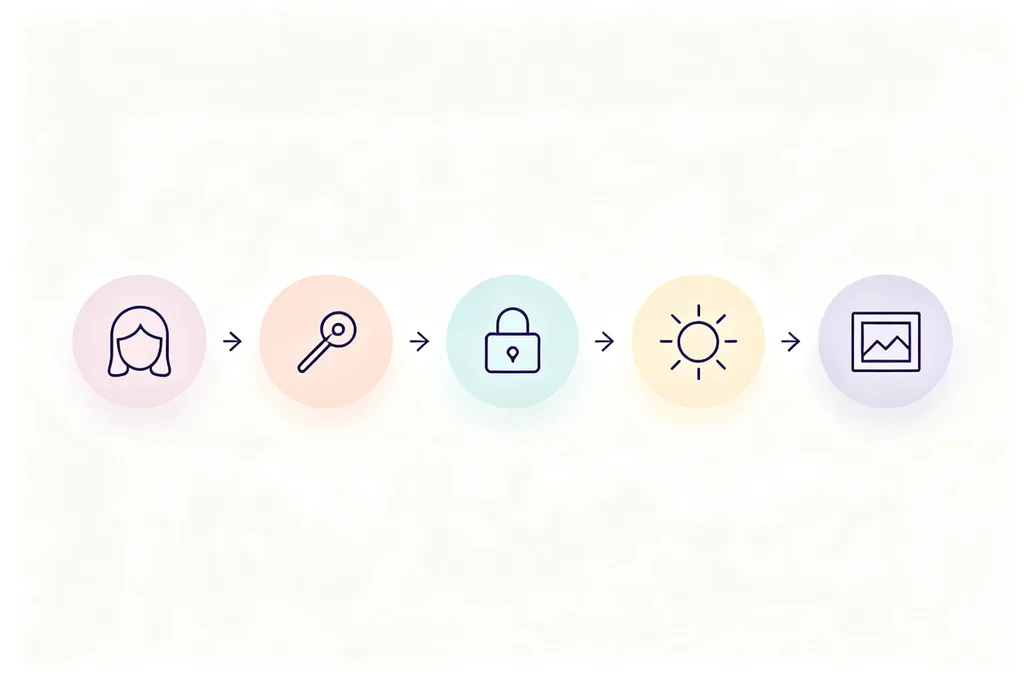
If you remember one thing from this whole guide, make it this formula. Almost every strong prompt, no matter the style, follows the same five parts. Learn the shape once, and you can build any edit you want without hunting for a template.
- Source context. Tell it what the photo is. “This portrait,” “this product shot,” “this landscape at sunset.”
- The specific edit. Say exactly what to change. “Replace the background with a white studio,” “remove the person on the left.”
- What to preserve. Lock down what must not move. “Keep the face identical, same eyes, nose, and mouth.”
- Mood and lighting. Set the feel. “Soft golden-hour light,” “moody cinematic color grade,” “natural skin texture.”
- Output format. Name the size. “9:16 vertical for Instagram Stories,” “1:1 square,” “high-resolution.”
That is the backbone of how to prompt ChatGPT to edit a photo well. Miss the “preserve” step and your face drifts. Miss “mood and lighting” and you get that flat, generic AI look. Stack all five and the difference is night and day, which the prompt library below shows in real examples.
3. Before You Upload: Prep Your Source Photo
Most failed edits are not caused by a weak prompt. They are caused by a weak source image. The AI can only work with the detail you feed it, so a blurry, dark, or heavily filtered image sets you up to lose before you start. Get the input right and everything downstream improves. If you are shooting new source material, even mid-range high-resolution cameras give the model far more detail to work with than a compressed screenshot.
Run through this pre-upload checklist every time, and your hit rate climbs fast:
- Good lighting. A well-lit face gives the model something to preserve. Soft, even light beats harsh shadows every time.
- High resolution. Upload the sharpest version you have. A modern smartphone photo from 2022 or later works well.
- Full face visible. Front-facing or slightly turned. Avoid cropped, tilted, or half-hidden faces if identity matters.
- Minimal compression. Skip screenshots of screenshots. Every re-save throws away detail the AI needs.
- No heavy filters. Pre-applied beauty filters confuse the model. Start from something close to the raw photo.
- One clear subject. Busy group shots and cluttered scenes are harder to control than a single, clean subject.
4. 50+ Best ChatGPT Image Prompts (Copy-Paste Library)
This is the heart of the guide: a working library of ChatGPT prompts for photo editing and image generation you can copy, paste, and tweak. They are sorted four ways so you can find what you need fast. Fill in any bracketed detail, then adjust the wording until the result matches your vision.
4.1 Everyday Photo Editing & Retouching Prompts
These are the everyday fixes people search for most. Each one changes one thing while protecting the rest of the photo.
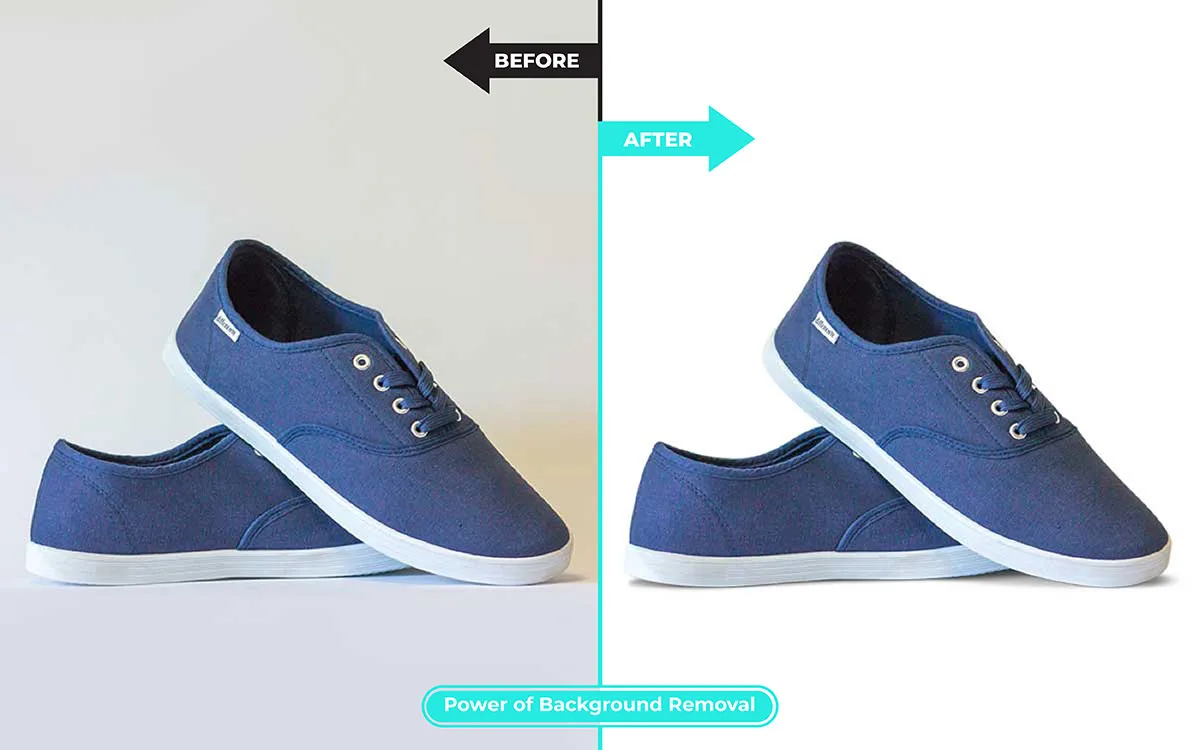
Remove background
Remove the background from this image completely and place the subject on a transparent background. Keep clean, sharp edges with no haloing, and preserve the subject’s colors and detail. Output as a high-resolution PNG.
AI handles quick cutouts well, but for catalog-grade edges on hair or fur you may want a dedicated background remover that handles the tricky cases the AI fumbles.
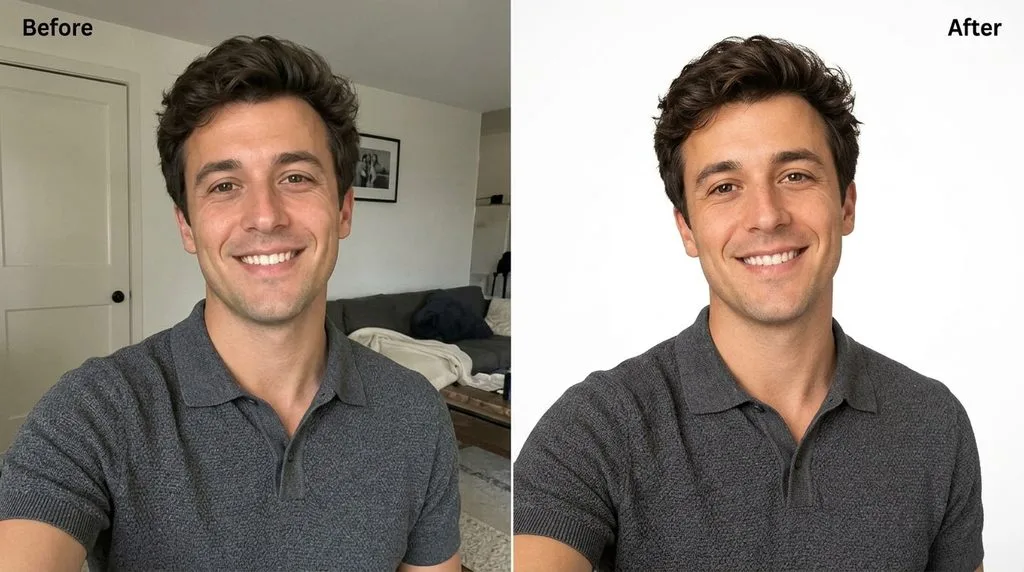
Replace background
Replace the background of this image with (a minimalist white studio / a tropical beach at sunset / a modern office). Keep the subject sharp and well-lit, and blend the shadows and lighting naturally so the composite looks realistic and seamless.
Remove an object
Remove the (specific object, e.g. power lines / trash can) from this image. Reconstruct the area behind it naturally so it looks undisturbed. Preserve the original lighting, color, depth of field, and texture. Avoid visible artifacts or cloning patterns.
Remove a person
Remove the person in the (red shirt on the left) from this photo. Rebuild the background naturally where they stood, keeping the main subject completely untouched. Match lighting and perspective so the result looks seamless.
Improve lighting
Relight this photo with soft, even lighting. Lift the shadows gently to recover detail, tame any blown-out highlights, and balance the overall exposure. Keep skin tones natural and the mood realistic. Do not flatten the image or over-brighten it.
Replace the sky
Replace the sky in this image with (a vibrant sunset with pink clouds / a clear blue daytime sky / a dramatic starry night). Blend the new sky naturally with the scene’s lighting and colors, keeping realistic shadows and highlights.
Sharpen faces
Sharpen the faces in this photo naturally. Define eye detail, lash detail, and hair strands. Do not alter facial structure or identity. Keep skin texture realistic and avoid an over-edited, plastic look. Preserve everything else unchanged.
Change hairstyle
Change the hairstyle to (a layered bob / long soft waves). Preserve the face and identity exactly. Render realistic hair texture, volume, strand detail, and soft shadows so it blends naturally with the original lighting.
Change clothes
Change the outfit on the person in this photo to (a tailored navy suit / a casual white tee and jeans). Keep the pose, body proportions, face, and lighting consistent, with realistic fabric folds, texture, and shadows.
Change expression
Change the facial expression to (a warm, genuine smile / a calm, confident look). Preserve every facial feature, face shape, and identity exactly. Keep lighting, skin texture, and background unchanged.
4.2 Restoration & Upscaling Prompts
Old and low-quality photos deserve careful handling. These prompts recover detail without inventing new content.
Restore an old photo
Restore this old photograph. Repair scratches, tears, and fading, recover lost detail in the faces, and balance the exposure. Preserve the original composition, expressions, and period feel. Do not beautify or change identity. Output a clean, high-resolution version.
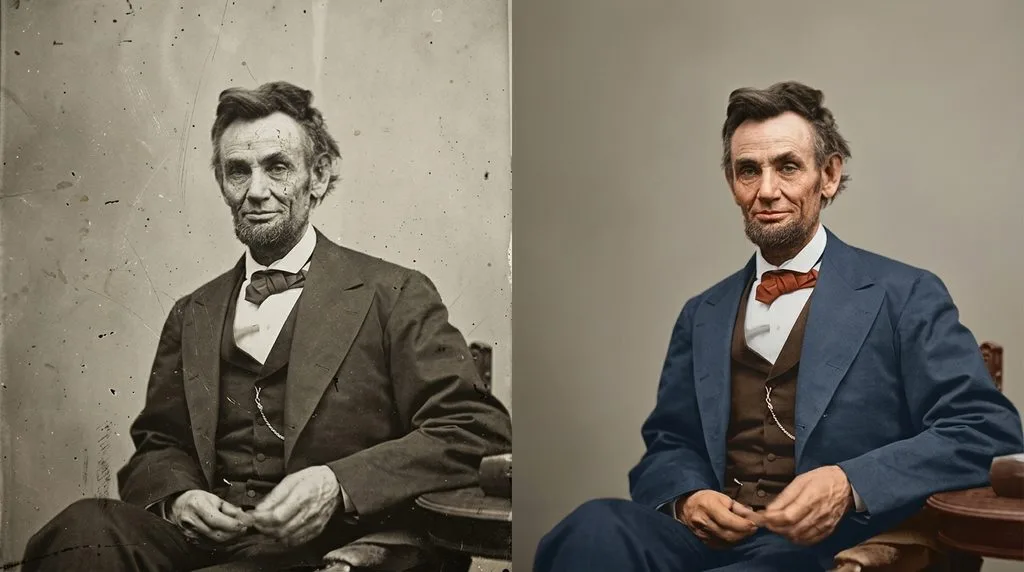
Colorize a black-and-white photo
Colorize this black-and-white photograph with historically accurate, natural colors. Apply realistic skin tones and period-appropriate clothing and environment colors. Preserve all shadows and tonal depth, keep colors subtle rather than oversaturated, and do not alter facial identity.
Upscale a low-resolution image
Upscale this photograph to high resolution. Reconstruct blurry detail, repair compression artifacts, and sharpen edges and faces. Preserve the original subject, composition, and identity. Do not invent new elements. Output: tack sharp, photorealistic, natural color.
If you need print-quality enlargement beyond what ChatGPT produces, follow up with a dedicated AI upscaler built for high-magnification detail recovery.
Fix a blurry photo
Improve this photo by reducing mild blur and restoring edge definition. Keep facial features, objects, and textures realistic. Avoid artificial sharpness, fake detail, or halo effects around edges. Keep the result natural, not over-processed.
4.3 Style & Aesthetic Transformation Prompts
These are the viral ChatGPT image prompts filling social feeds right now. Each keeps your identity intact while swapping the whole vibe.
Cinematic portrait
Convert this portrait into a cinematic image. Dramatic side lighting, rich teal-and-orange color grading, shallow depth of field, subtle film grain, and mood-driven contrast to evoke a movie still. Natural tones, 85mm look, 4:5 ratio. Keep the face identical.
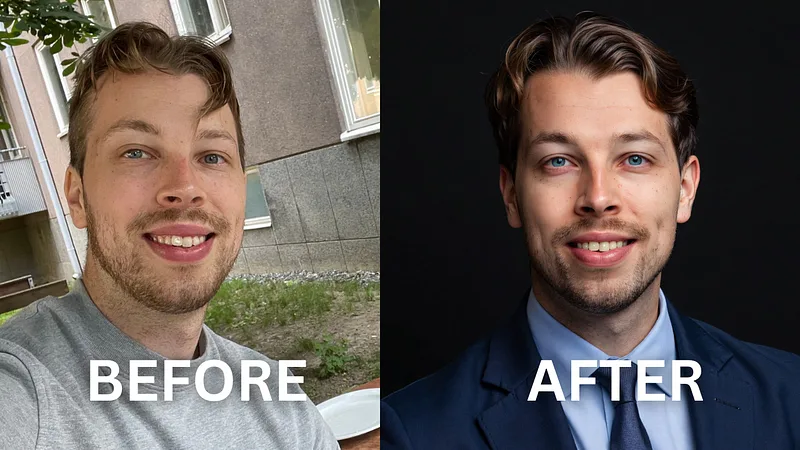
Professional LinkedIn headshot
Transform this casual photo into a professional headshot. Clean light-gray studio background, soft flattering lighting, subtle catchlights in the eyes, business attire like a blazer. Preserve natural skin texture and the exact facial features. Sharp focus, 1:1 ratio.
Studio beauty portrait
Create a minimal studio beauty portrait from this photo. Soft softbox key light at 45 degrees, gentle fill, smooth neutral background, natural glossy skin, calm confident expression, sharp eyes. Realistic high-end portrait photography. Preserve the face clearly.
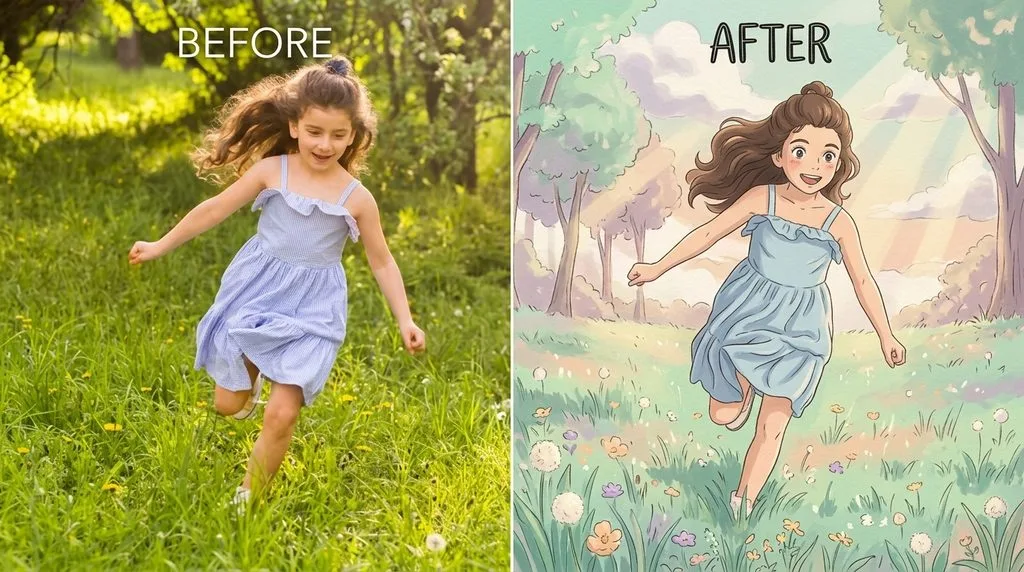
Studio Ghibli style
Transform this photo into a Studio Ghibli style illustration. Soft pastel colors, hand-painted textures, gentle lighting, dreamy background with drifting clouds and light rays, warm nostalgic mood. Keep the main subject recognizable with expressive features.
Vintage Polaroid
Age this crisp photo like a 1990s Polaroid. Add heavy film grain, a slight blur around the edges, a faint warm light leak in one corner, faded colors, and a classic white Polaroid frame. Keep the subject in focus with a candid, nostalgic feel.
Y2K Instagram flash
Give this portrait an early-2000s Instagram flash look. Direct camera flash, overexposed highlights, glossy skin, dark background, high contrast, subtle grain, candid pose. Y2K digital-camera aesthetic. Preserve the face and expression.
Black-and-white editorial
Convert this portrait to a dramatic black-and-white editorial image. High-contrast side lighting or Rembrandt pattern, deep shadows, rich tonal range, sharp facial detail, timeless fashion-photography feel. No color. Keep identity and expression intact.
16-bit pixel art character
Transform the person into a 16-bit pixel art video game character sprite with a limited color palette, pixel-perfect details, classic SNES-era style. Keep the pose and general silhouette recognizable.
4.4 Professional & Commercial Use Prompts
These lean commercial. If you run a store, a listing, or a client shoot, these Chat GPT prompts for photo editing get you close to a usable frame fast.
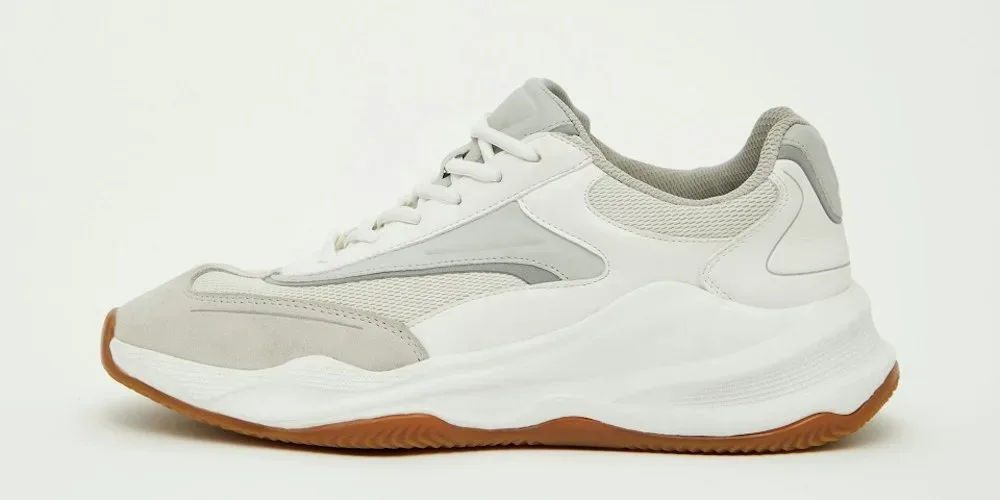
Ecommerce product photo
Edit this product photo for a clean online store listing. Remove the background and replace it with pure white, even the lighting with no harsh shadows, sharpen texture and detail, and add a soft grounding shadow beneath the product. Keep colors true to life, no artificial saturation.
Real estate day-to-dusk
Transform this daytime exterior property photo into a warm twilight image. Replace the sky with a soft sunset glow, shift the ambient light cooler, and turn on the interior and exterior lights so windows glow warmly. Keep it realistic and inviting, not overdone.
Food photography
Create a photorealistic food photo of (the dish) on a wooden table. Warm overhead light plus soft window fill, realistic specular highlights on sauce and glassware, condensation on a water glass, natural plating imperfections. Appetizing, editorial, 4:5 ratio.
Jewelry retouch
Retouch this jewelry photo for a luxury listing. Clean up dust and fingerprints, enhance clarity on the gemstones, control blown-out highlights while keeping realistic metal texture and reflections. Dark background, dramatic light, sharp macro detail. Do not exaggerate the shine.
Fashion editorial
Create a photorealistic editorial fashion photo of this person wearing (the outfit) against a textured wall. Soft studio key light with gentle falloff, controlled shadows, 50mm f/2.2 look, natural pores and flyaway hairs, clean modern color grade. Vertical 2:3. Preserve the face.
Wedding portrait
Create a cinematic golden-hour wedding portrait from this couple’s photo, foreheads gently touching, warm backlight and soft rim lighting, quiet garden setting, creamy bokeh, 85mm f/1.4 look, honeyed romantic tones. Keep both faces exactly the same. 4:5, high resolution.
5. Pro Keyword Cheat Sheet: Words That Instantly Improve Your Output
Here is a trick real photographers use without thinking, and the AI understands it fluently. When you name camera and lighting terms, the model treats your request like an actual photograph instead of a cartoon. These modifier words act like seasoning — drop a few into any prompt and the output jumps in quality. The single highest-leverage word you can add is lighting; if you change only one thing, change this, and you can read more about why warm low-angle light works in the golden hour photography reference.
| Modifier type | Words to drop into your prompt |
|---|---|
| Lighting | Golden hour, rim lighting, softbox, natural window light, overcast daylight, dramatic side light |
| Camera | Full-frame, 85mm portrait lens, f/1.8, DSLR quality, Kodak Portra 400, Fujifilm color |
| Mood | Moody, editorial, luxury, dreamy, matte, cinematic, high-fashion, nostalgic |
| Quality | Ultra-detailed, photorealistic, natural skin texture, high dynamic range, micro-contrast, tack sharp |
And when you know the vibe but not the words, this quick table bridges the gap:
| What you want | What to type in your prompt |
|---|---|
| Softer, natural skin | natural skin texture, preserve pores |
| Luxury / high-end feel | editorial fashion lighting, luxury mood |
| Vintage film look | Kodak Portra 400, analog grain, faded blacks |
| Dramatic, moody image | cinematic lighting, high contrast, crushed blacks |
| Clean studio look | softbox key light, seamless backdrop |
| Razor-sharp detail | ultra detailed, tack sharp, high dynamic range |
| True-to-life realism | photorealistic, natural color, no over-smoothing |
| Warm sunset glow | golden hour light, warm rim light, soft shadows |
| Blurred background | shallow depth of field, f/1.8, creamy bokeh |
| Nostalgic snapshot | film grain, subtle light leak, candid feel |
6. How to Preserve Facial Identity in ChatGPT
If you take one clause into every portrait edit, take this one. The most common complaint people share is “the AI made me look like a different person.” It is not a bug. Because the model rebuilds the image, it will happily “improve” your face into a stranger unless you tell it not to.
The fix is a single sentence you append to any portrait prompt. This is the exact Chat GPT photo editing prompt clause I paste every single time:
Keep my facial features exactly as they appear in the uploaded image — same eyes, nose, mouth, and face shape. The person must stay clearly recognizable.
One more pro move: when you refine an edit over several turns, repeat that preserved line each time. The model drifts across regenerations, and restating what must stay fixed keeps your likeness locked in. Say what changes, then say what must not.
7. Weak Prompt vs. Strong Prompt: Before and After
This is where the formula clicks. Below are real rewrites. The weak version is what most people type. The strong version is the same request rebuilt with the five parts. Read them side by side, and you will feel the difference in specificity.
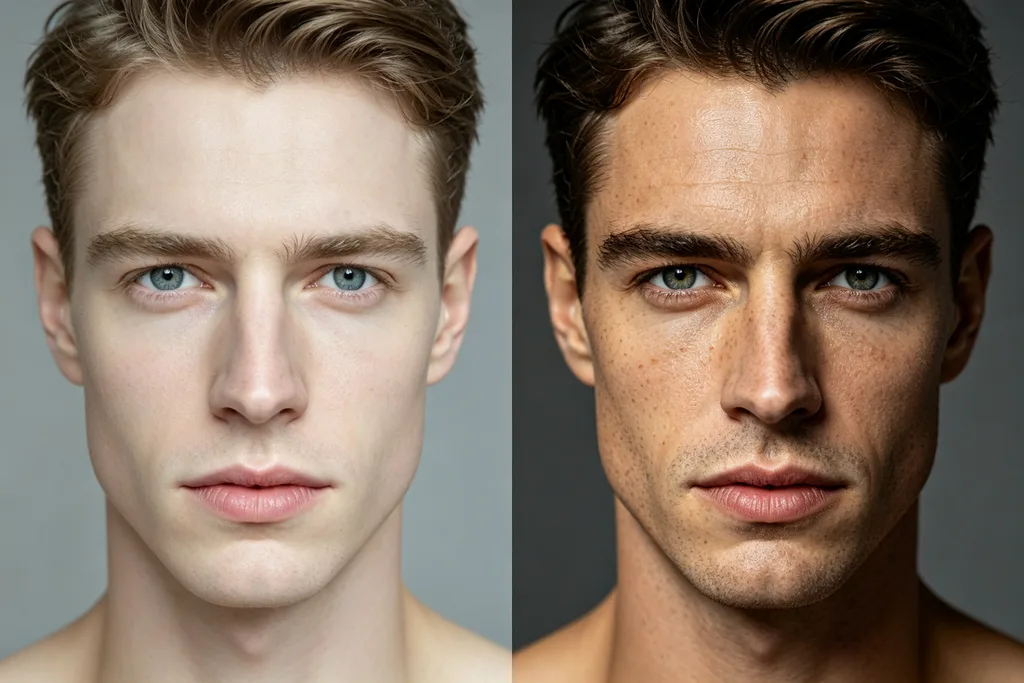
Weak: “Make this photo look better.”
Strong: “Enhance this portrait. Preserve the face exactly, remove the background clutter, keep natural skin texture, increase dynamic range, and relight with soft golden-hour light. DSLR quality, shallow depth of field, high resolution.”
Weak: “Give me a cinematic portrait.”
Strong: “Turn this portrait into a cinematic image. Dramatic side lighting, rich orange-and-teal color grade, shallow depth of field, subtle film grain, moody contrast. Keep the face and expression identical. 85mm look, 4:5 ratio.”
Weak: “Fix the background.”
Strong: “Replace the background of this image with a clean light-gray studio backdrop. Keep the subject sharp with clean edges, and match the shadows and lighting naturally so the composite looks seamless. Preserve the subject exactly.”
See the pattern? Every added clause is doing a job: one protects the face, one sets the light, one names the format. You are not writing more words for the sake of it. You are removing the guesswork that the AI would otherwise fill in badly.
8. Refine Iteratively: One Change Per Turn
This is the skill that separates people who fight the AI from people who direct it. ChatGPT remembers the conversation, so you almost never need to rewrite a full prompt. You nudge one thing at a time and let it build on the last result. Ask for five changes at once, and you will spend ten minutes guessing which one caused the drift.
Here are the follow-up phrases I use constantly:
- Keep everything exactly the same, but make the lighting warmer.
- Change only the background. Keep the subject, pose, and face identical.
- Preserve the face and clothing, but remove the object on the right.
- Undo the last change and go back to the previous version.
- Use the first image’s lighting with the second image’s background.
A clean way to work is in passes: fix composition first (remove objects, extend the background), then subject details (hair, wardrobe), then finish with color and texture. Change one variable per turn, lock everything else, and your hit rate goes through the roof.
9. Common ChatGPT Photo Editing Mistakes (and How to Fix Them)
Every one of these has burned me at some point, so learn from them instead of repeating them. Match your symptom on the left and apply the fix on the right.
| Problem | Cause | The fix |
|---|---|---|
| Face looks like a stranger | The model “improves” your features | Append: keep facial features identical, same eyes, nose, mouth, face shape |
| Garbled text in the image | Text rendering is still imperfect | Put exact text in quotes, spell tricky words out, expect 2–3 tries |
| Oversaturated, fake colors | AI defaults to punchy output | Add: natural color, realistic saturation, no over-processing |
| Generic “AI look” | The prompt lacks specific detail | Add camera, lighting, and unusual concrete details |
| Distorted hands or fingers | A known limit of all AI models | Add: realistic hands, defined fingers, no extra digits; regenerate |
| Too many changes at once | Conflicting instructions confuse it | Break the edit into single-change steps across turns |
| Result looks flat / low-res | Vague ask or plan limits | Ask for high-resolution and stack quality keywords at the end |
Notice the theme: nearly every fix is about being more specific and slowing down. If your colors keep coming out wrong on a high-stakes image, a professional editor is still the reliable route.
10. Output, Sizing, and What to Do Next
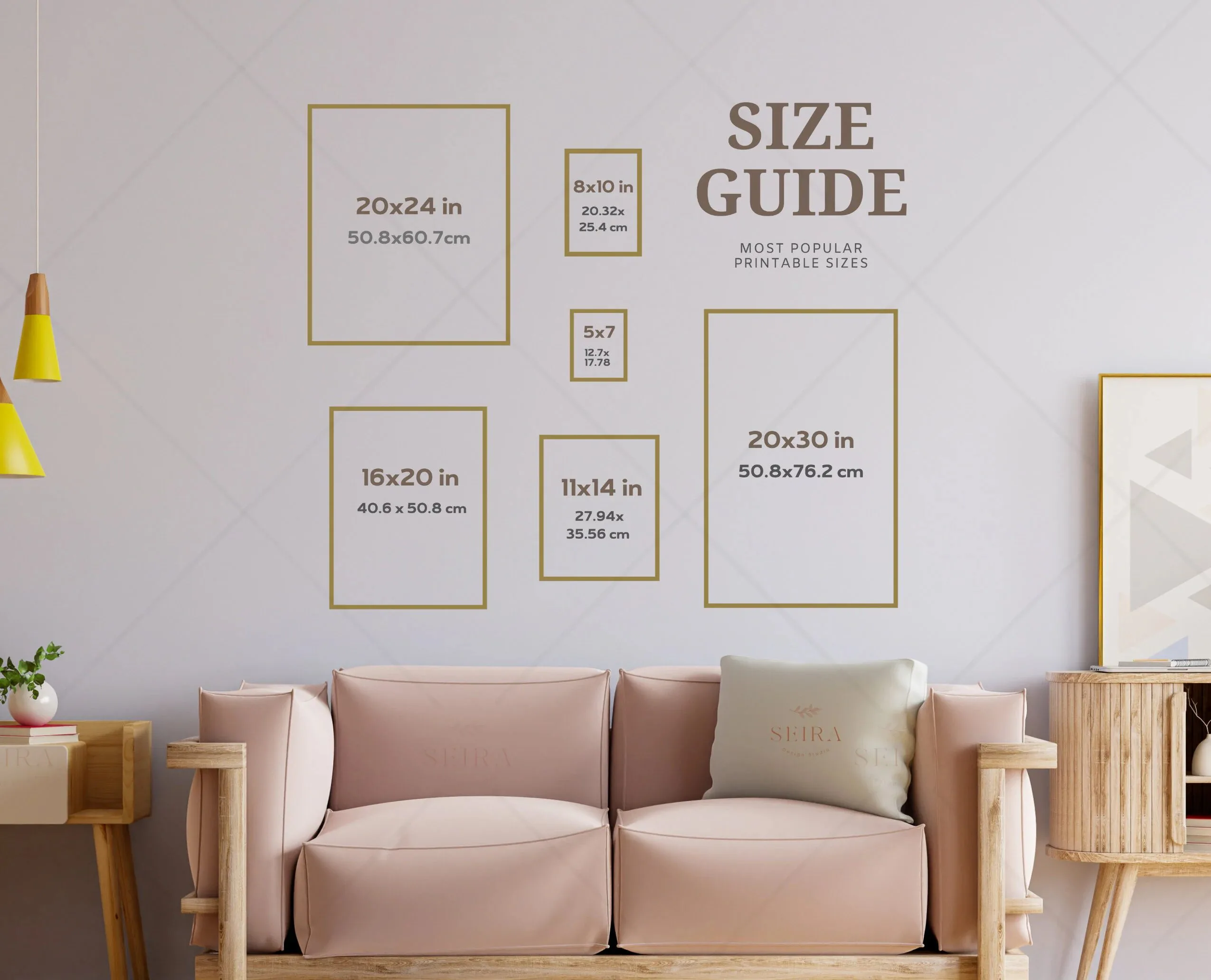
When you land on a result you love, download it at the highest resolution ChatGPT offers. For social media, name your ratio in the prompt (9:16 for Stories, 4:5 for Instagram feed, 1:1 for avatars). For print, pair the download with good photo printing software and keep the original file safe — you cannot recover detail later if you only save a compressed copy.
A few final workflow tips:
- Regenerate two or three times on any important edit; small variations reveal a winner.
- Start new chats for unrelated projects so context does not bleed between images.
- Treat AI output as a first draft. Critical commercial work still benefits from a final human pass.
Final Thought
The tool is easy. The prompt is the craft. Once you internalize the five-part formula, lock your identity clause, and learn to refine one change at a time, you can create almost any edit you can picture — without touching a single slider. If you also write with AI, these image techniques pair naturally with solid writing prompts that keep your words as sharp as your visuals.
Start with one prompt from the library that matches a photo on your phone right now. Change the lighting, swap the background, or push the mood. Then refine, one nudge at a time, until it feels like yours. That is the whole game, and now you know how to play it.
Frequently Asked Questions
Can ChatGPT edit photos directly?
Yes. Upload an image to an image-capable ChatGPT model (such as GPT-4o or the current GPT Image model), describe the edit you want in plain English, and it generates a revised version. It handles background removal, object removal, relighting, style transfer, upscaling, and restoration.
Do I need ChatGPT Plus to edit images?
Free tiers support limited image generation and editing. For higher resolution, faster generation, and more generous daily limits, a paid plan works better. Heavy commercial users often combine ChatGPT for drafting with a dedicated editor for finishing.
Why does ChatGPT change my face when I edit a photo?
Because it rebuilds the image rather than editing your original pixels. Always add a line telling it to keep your exact features (“same eyes, nose, mouth, face shape”), and repeat that instruction on every refinement turn to lock your likeness.
Can ChatGPT remove backgrounds from photos?
Yes. Ask for a transparent or pure-white background with clean edges and no haloing. For intricate hair, fur, or catalog-grade cutouts, follow up with a dedicated background removal tool for cleaner edges.
Can ChatGPT restore old or damaged photos?
It repairs scratches, fading, and mild damage impressively well. For severely damaged or precious originals, treat AI as a first pass and rely on careful professional restoration for believable results. Scan originals at high resolution before uploading.
What image formats does ChatGPT accept?
ChatGPT reads common formats like JPEG, PNG, and WebP. It does not edit RAW files directly. Export a high-quality JPEG or PNG from your RAW editor first, then upload that for editing.
How do I get better, more realistic results from ChatGPT image prompts?
Use the five-part formula: source context, specific edit, what to preserve, mood and lighting, output format. Add camera and lighting modifiers, change one variable per refinement turn, and always include a face-preservation clause on portraits.