How to Fix AI Generated Images: Hands, Faces, and Garbled Text — The Flaw-by-Flaw Repair Guide
TL;DR: The Short Answer
AI images fail in predictable ways: extra/fused fingers (#1 flaw), distorted/asymmetric faces, garbled text, extra limbs, waxy plastic skin, blurry hair edges, and object fusion. The master fix is inpainting — mask the bad region precisely, include a little surrounding context, use a simple anatomy-specific prompt, and generate 3–4 variations. Hands: mask one hand at a time (include wrist), prompt “human hand, five fingers, natural proportions, matching the pose,” denoise strength 0.4–0.6 (lower preserves pose, higher redraws). Faces: face-restore pass with Remini, CodeFormer, or GFPGAN (free), or ADetailer in Stable Diffusion. Text: never trust AI text — mask it and re-type the exact words on a new layer. Stray objects: select, leave the prompt blank, Generative Fill removes them. After fixing, upscale 2–4× (Topaz Gigapixel, Photoshop Super Resolution, Upscayl free), then manual touchup with Clone Stamp/Liquify.
Prevention beats fixing: negative prompts cut hand defects 50–60% (Stable Diffusion/Flux), describe hands explicitly in the prompt, use newer models (Midjourney v6/v7, DALL-E 3, Flux), and ControlNet/OpenPose for structure. Honest caveat: AI images are invented — there is no original to recover. You’re re-generating, not restoring. Hands remain the hardest; sometimes composite a real stock hand or choose a pose where hands are obscured.
The Flaw-by-Flaw Repair Table (What’s Wrong → Best Fix)
| Flaw | What it looks like | Best fix | Tool |
|---|---|---|---|
| Extra/fused/missing fingers | 6 fingers, fused digits, too-long fingers, weird palm | Inpaint one hand at a time, include wrist, prompt “five fingers, natural hand anatomy,” denoise 0.4–0.6 | Photoshop Generative Fill, Midjourney Vary Region, SD ADetailer (hand_yolov8n) |
| Distorted face / asymmetric eyes | Crossed eyes, mismatched iris, melted face | Face restore: Remini, CodeFormer, GFPGAN (free), or inpaint face at low denoise | Remini (mobile), CodeFormer/GFPGAN (free web), ADetailer face |
| Garbled text / wrong logo | Gibberish letters, nonsense words | Mask text, re-type exact words on a new layer (AI cannot do text) | Photoshop, Canva, any text editor |
| Extra limb / stray object / extra person | Third arm, random object, duplicate person | Select it, leave prompt blank, Generative Fill removes | Photoshop Generative Fill, Clipdrop Cleanup (free) |
| Waxy/plastic skin | Too smooth, no pores, doll-like | Inpaint with “natural skin texture, soft pores, realistic highlights,” or Frequency Separation | Photoshop, inpaint at 0.4 denoise |
| Blurry hair / clothing edges | Melted hair, fused fabric | Inpaint edge region with “sharp detailed hair strands” or upscale + sharpen | Inpaint + Topaz Gigapixel |
| Low resolution | 1024×1024, soft at print size | Upscale 2–4× after all inpainting is done | Topaz Gigapixel, Photoshop Super Resolution, Upscayl (free), Midjourney Upscale |
| Object fusion | Two objects merged, impossible anatomy | Mask fused region, inpaint with clear description; or use ControlNet Canny/Depth to force structure | Inpaint + ControlNet (SD/ComfyUI) |
A guide to best AI upscaler tools covers the upscale step; a guide to ChatGPT photo editing prompts covers prompt wording; a guide to portrait retouching covers skin/face touchup; a guide to photo editing for beginners covers the manual Clone Stamp/Liquify step.
The Inpaint Formula (Master Method)
Inpainting fixes 90% of AI flaws. Do it right:
- Mask precisely. Use Lasso/Pen tool (Photoshop) or Vary Region brush (Midjourney) to select ONLY the bad region. Include a little context (wrist for a hand, jawline for a face) so the model knows what it’s attached to.
- Use a simple, specific prompt. Not your full original prompt — just what belongs in that region. For a hand: “natural human hand, five fingers, correct anatomy, matching skin tone and pose.” For a face: “photorealistic face, symmetric eyes, natural skin texture.”
- Denoise strength 0.4–0.6. Lower (0.3–0.4) preserves the original pose but may keep flaws; higher (0.6–0.8) redraws fresh but may change pose/lighting. Start at 0.5.
- Generate 3–4 variations, pick the best. Inpainting is probabilistic — the first try is rarely perfect. If 3 tries fail, widen the mask or change the prompt.
- Blend edges. After inpainting, use a soft eraser or layer mask at 20–40% opacity to blend the repaired region into the original — AI inpaint often has a subtle lighting/color mismatch.
- Check at 100%. Zoom in on eyes, teeth, jewelry, fingernails — small flaws hide at thumbnail size.
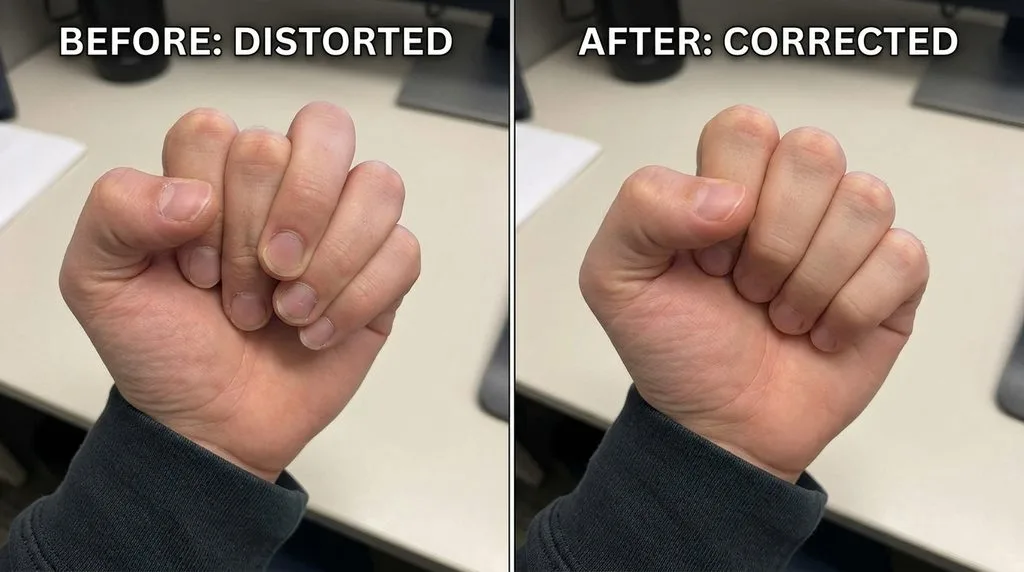
Fix #1: Hands (The #1 AI Flaw)
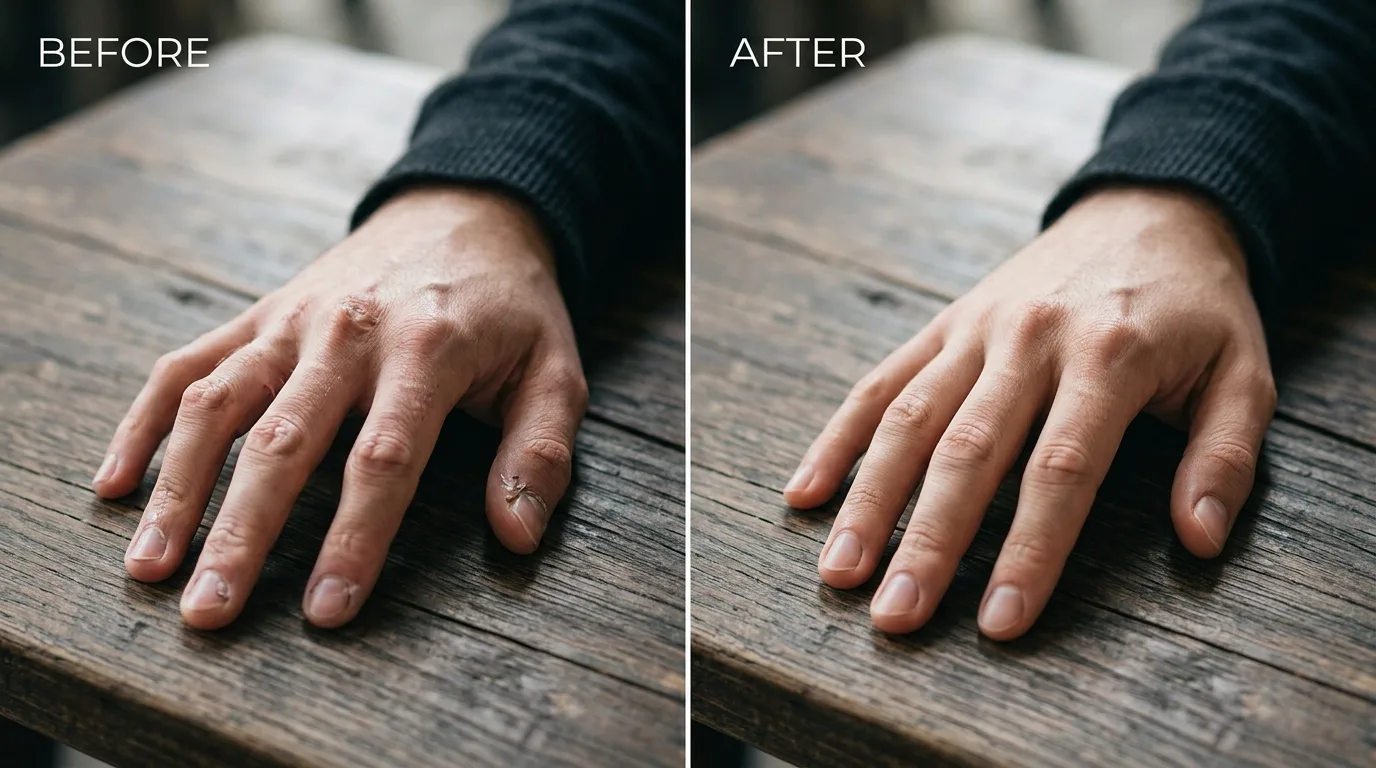
Hands fail because they occupy a tiny pixel area but contain extreme anatomical complexity (27 bones, multiple joints, infinite poses). Fix workflow:
- Mask one hand at a time. Include the wrist and a little forearm — the model needs to know where the hand attaches. Never inpaint both hands in one pass.
- Prompt simple: “natural human hand, five fingers, correct anatomy, relaxed pose, matching skin tone, realistic skin texture.” Avoid complex gestures — “peace sign,” “holding a pen,” etc. are still failure-prone. If the hand is holding something, describe it explicitly (“holding a coffee cup, four fingers wrapped around handle”).
- Denoise 0.4–0.6. If just one finger is wrong, mask ONLY that finger at denoise 0.3 — preserves the rest.
- Stable Diffusion users: enable ADetailer with
hand_yolov8n.ptdetection model — it auto-finds and inpaints hands in one pass. Or use ControlNet OpenPose with a hand pose reference to force correct anatomy. - If inpainting fails after 3+ tries: composite a real hand from a stock photo (match lighting/angle), or choose a crop/pose where the hand is obscured (in a pocket, behind the back, holding an object). Sometimes the fastest fix is re-generating with a simpler hand pose.
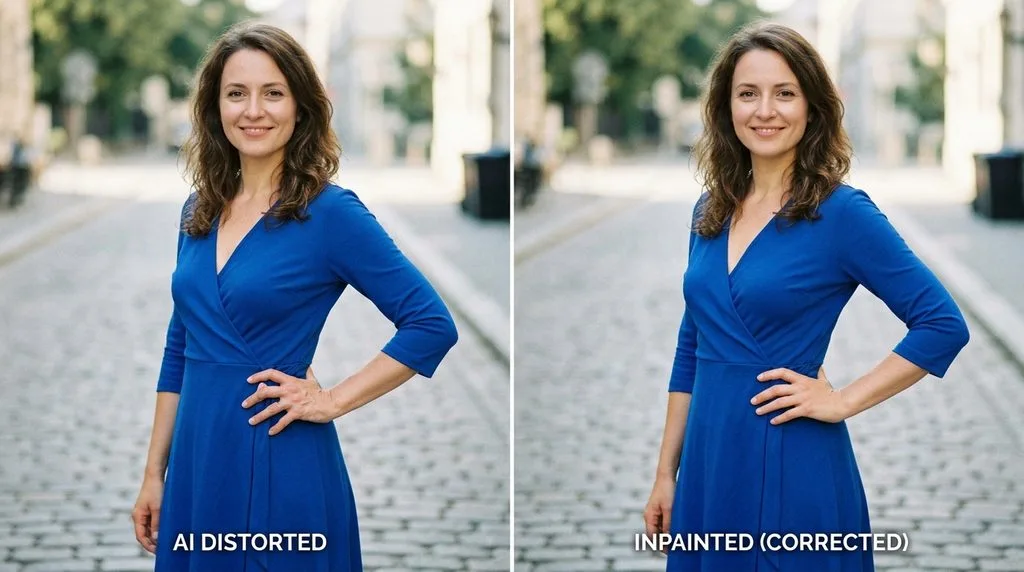
Fix #2: Faces (Asymmetric Eyes, Melted Features)
Faces are easier than hands but still fail — especially at a distance or in profile. Fix:
- Face restore pass: Run the image through Remini (mobile, best face enhancement), CodeFormer or GFPGAN (free web tools — restore old/blurry faces), or Topaz Photo AI (desktop). These are trained specifically on faces and rebuild eyes, nose, mouth, skin texture.
- Inpaint the face: If restore isn’t enough, mask the face, prompt “photorealistic face, symmetric eyes, natural skin texture, matching expression,” denoise 0.3–0.4 (low, to preserve expression/identity).
- Stable Diffusion: ADetailer with
face_yolov8n.ptauto-detects and inpaints faces. Usemediapipe_face_meshfor precise eye/mouth alignment. - Identity check: AI face restoration can subtly change a person’s features. If the image is supposed to represent a specific person, compare before/after — use IP-Adapter or a reference image (Midjourney
--cref) to lock identity. - Eyes and teeth: Zoom to 200%. Asymmetric irises? Inpaint just the eye. Gibberish teeth? Inpaint the mouth with “natural smile, realistic teeth” — or close the mouth in the prompt.
Fix #3: Text (Never Trust AI Text)
Diffusion models learn shapes, not letterforms. AI text is always gibberish or near-miss words. The only fix is to re-type it:
- Mask the garbled text region with Generative Fill (leave prompt blank — it will fill with background).
- Add a new text layer in Photoshop/Canva with the exact words, matching font, size, color, and perspective (use Edit > Transform > Distort/Perspective to match angle).
- For logos: replace with the real logo vector file, scaled to fit.
- If the text is on a curved surface (t-shirt, bottle, sign), use Photoshop’s Warp or Displace filter to make the text follow the surface.
Fix #4: Upscale (After All Inpainting)
AI images are usually generated at 1024×1024 or similar — fine for web, too small for print or large displays. Upscale LAST, after all inpainting is done (upscaling first wastes compute on regions you’ll replace):
- Topaz Gigapixel AI — best detail, up to 6×.
- Photoshop Super Resolution / Generative Upscale — 2× or 4×, built into CC.
- Upscayl — free, open-source, local, 4×.
- Midjourney Upscale (Subtle / 2× / 4×) — built into the web editor.
- After upscaling: light sharpen (Unsharp Mask 50–80% / 0.5px / Threshold 2–4) and check at 100%.
Prevention: Stop Flaws Before They Happen
- Negative prompts (Stable Diffusion/Flux): Add
extra fingers, fused fingers, mutated hands, deformed hands, bad anatomy, extra limbs, asymmetric eyes, text, watermark, signatureto the negative prompt. Independent tests show this reduces hand defects 50–60%. Midjourney uses--noparameter. - Describe hands explicitly: “photorealistic hands with five perfectly proportioned fingers, natural hand positioning, anatomically correct.” Research shows detailed anatomical descriptions improve hand accuracy up to 47%.
- Avoid complex hand gestures. Use simple poses: hands at sides, in pockets, holding a simple object. Complex gestures (pointing, playing instrument, typing) are still failure-prone.
- Use newer models: Midjourney v6/v7, DALL-E 3, Flux, SDXL — hand/facial accuracy improved dramatically over 2024–2026. Regenerating with the newest model often solves flaws that needed heavy editing before.
- ControlNet / OpenPose (Stable Diffusion/ComfyUI): Use a pose reference to force correct body/hand structure. Canny/Depth ControlNet prevents object fusion in product shots. IP-Adapter / Midjourney
--creflocks face identity and style consistency. - Generate at native resolution, upscale after. Don’t ask the model for 4K — it spreads detail too thin. Generate 1024–2048px, then upscale 2–4×.
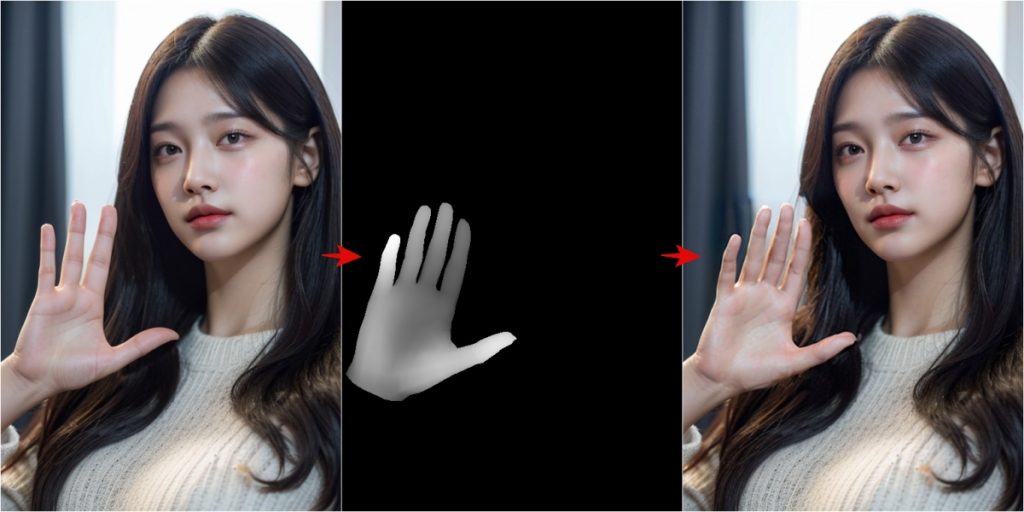
Alt: ControlNet hand refiner workflow — original AI image on left, detected hand depth mask in middle, corrected hand on right
The Full Repair Workflow (Step by Step)
- Generate your image with the newest model, explicit hand/face description, negative prompt, simple pose.
- Identify flaws at 100% zoom: check hands first, then faces/eyes/teeth, then text/logos, then small artifacts (extra fingers, jewelry, background objects).
- Inpaint bad regions one at a time: mask precisely + context, simple prompt, denoise 0.4–0.6, 3–4 variations, blend edges.
- Face restore pass (Remini/CodeFormer/GFPGAN) if faces are soft.
- Re-type text on new layers; replace logos with vector files.
- Upscale 2–4× (Topaz Gigapixel / Upscayl / Photoshop Super Resolution).
- Manual touchup: Clone Stamp for small artifacts, Liquify for proportion tweaks, Frequency Separation for waxy skin, Dodge/Burn to match lighting on inpainted regions.
- Final color grade — inpainting often shifts color/lighting slightly; unify with a Color Lookup or Camera Raw filter over the whole image.
5 Common AI-Image Fix Mistakes
- Inpainting both hands at once. The model gets confused. One hand at a time, include wrist context.
- Using your full original prompt in the inpaint box. Keep it simple — describe only what belongs in that masked region.
- Upscaling before inpainting. You waste compute and time upscaling regions you’ll replace. Fix first, upscale last.
- Trusting AI text. It’s always wrong. Re-type it. Every time.
- Expecting inpainting to fix severe anatomy errors. If a hand is fused into a blob with 8 fingers, 3 inpaint tries is your limit — then composite a real hand or regenerate with a simpler pose.
Frequently Asked Questions
How do you fix extra fingers in AI images?
Inpaint one hand at a time: mask the hand (include wrist for context), use a simple prompt like “natural human hand, five fingers, correct anatomy, matching skin tone and pose,” set denoise strength 0.4–0.6, generate 3–4 variations. If only one finger is wrong, mask just that finger at denoise 0.3. Stable Diffusion users: enable ADetailer with hand_yolov8n.pt for auto hand detection and inpainting.
Can you fix a distorted AI face?
Yes. Run a face-restore pass first — Remini (mobile, best), CodeFormer or GFPGAN (free web), or Topaz Photo AI (desktop). If still wrong, inpaint the face at low denoise (0.3–0.4) with prompt “photorealistic face, symmetric eyes, natural skin texture.” Check identity — AI face restoration can subtly change features; use IP-Adapter/Midjourney –cref to lock a specific person’s likeness.
Why does AI text always look like gibberish?
Diffusion models learn shapes and patterns, not letterforms or spelling. They generate text-like shapes that aren’t real letters. The only fix is to mask the garbled text (Generative Fill with blank prompt fills the background), then re-type the exact words on a new layer in Photoshop/Canva, matching font, size, color, and perspective. Never trust AI-generated text.
What is the best AI inpainting tool in 2026?
Adobe Photoshop Generative Fill (best full editor, 7 models, precise selection). Midjourney Vary Region (built into web editor, Smart Select). Flux Fill (best open-weight inpaint model, 0.4–0.6 denoise). Stable Diffusion/ComfyUI + ADetailer + ControlNet (most control, free). Clipdrop Cleanup (free 20 removals/day, simple object removal).
Do negative prompts actually reduce AI hand defects?
Yes — independent tests show adding negative prompts like “extra fingers, fused fingers, mutated hands, deformed hands, bad anatomy, extra limbs” reduces hand defects by 50–60% in Stable Diffusion and Flux. Midjourney uses the –no parameter. Also describe hands explicitly in the positive prompt (“five perfectly proportioned fingers, anatomically correct”) — research shows this improves hand accuracy up to 47%.
Should I upscale an AI image before or after fixing flaws?
After. Always inpaint/fix first at native resolution, then upscale 2–4× as the final step. Upscaling first wastes time and compute on regions you’ll replace, and upscaling amplifies flaws (extra fingers get bigger and sharper).
Can AI-generated images be truly “fixed” or just re-generated?
Honest answer: re-generated. Unlike a blurry photo (where some detail exists to recover), AI images are invented from noise — there is no original detail hidden under the blur. Inpainting replaces the bad region with a fresh AI guess. For severe anatomy errors (fused 8-finger blob), inpainting often fails — composite a real stock hand, or regenerate with a simpler pose where hands are obscured.
What is ControlNet and how does it prevent AI flaws?
ControlNet (Stable Diffusion/ComfyUI, free) forces the AI to follow a structural reference: OpenPose locks body/hand position, Canny locks edge outlines, Depth locks 3D depth, IP-Adapter locks face/style identity. It prevents object fusion, wrong poses, and inconsistent anatomy — especially useful for product shots and multi-figure compositions. Midjourney offers –cref (character reference) and –sref (style reference) for similar control.
Final Verdict
AI image flaws are predictable and repairable with inpainting — mask precisely, prompt simply, denoise 0.4–0.6, generate variations, blend edges. Hands are the hardest (one at a time, include wrist, ADetailer helps); faces recover well with Remini/CodeFormer; text must always be re-typed; upscale last. Prevention is cheaper than fixing: negative prompts (50–60% fewer hand defects), explicit hand descriptions, newer models, and ControlNet for structure. And accept the honest limit: AI images are re-generated, not restored — when inpainting fails 3 times, composite a real element or regenerate with a simpler pose. Get the workflow right and a “almost perfect” AI image becomes publishable in 10–15 minutes.