Why Are Facebook Photos Blurry? How to Improve Upload Quality
TL;DR: The Short Answer
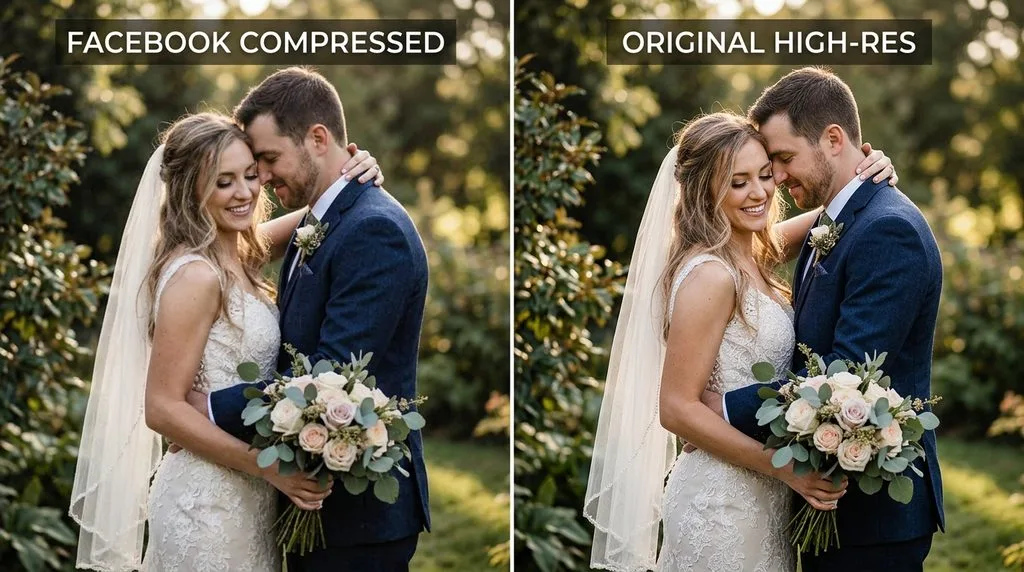
Facebook photos look blurry because Facebook caps every photo at 2048px on the longest edge and re-encodes it at roughly JPEG quality 85 — and if you upload from the mobile app, there’s a second, hidden compression step before the photo even leaves your phone. That’s three passes (app pre-compress → server resize → server re-encode) versus one pass from desktop. The fix: export at exactly 2048px on the long edge, JPEG quality 85–90, sRGB, sharpen after resize, turn on Settings & privacy > Settings > Preferences > Media > Upload HD (off by default), and upload from desktop or Meta Business Suite for critical posts (one pass instead of three).
For Reels: export 1080×1920, H.264, 8–10Mbps, 30fps — uploading high-bitrate 4K triggers “bitrate panic” and Facebook crushes it to 2–4Mbps. Marketplace product photos must be 1:1 (1080×1080) — 4:5 or 9:16 get cropped. PNG is better than JPEG for text/logos/graphics (Facebook handles PNG more gently for flat graphics).
The Pass-Count Difference (Mobile App vs Desktop)
This is the detail most guides miss. Where you upload from determines how many times your photo gets compressed:
| Upload route | Compression passes | Result |
|---|---|---|
| Facebook mobile app (default) | 3 passes: app pre-compress → server resize → server re-encode | Softest |
| Mobile app + Upload HD ON | 2 passes: server resize → server re-encode | Better |
| Desktop / Meta Business Suite | 1 pass: server re-encode | Sharpest |
The mobile app downscales photos before upload to save mobile data — a legacy behavior from 3G/4G era that’s still the default. If you care about quality, upload critical posts from a computer. For Marketplace product photos, clean cutouts matter — a guide to clipping path vs deep etch explains which isolation method survives Facebook’s re-encode best.
The 2048px Cap (Export Exactly This Size)
Facebook stores feed and album photos at a maximum of 2048px on the longest edge. Anything larger gets downscaled by Facebook’s fast resampler (soft). Anything smaller than ~960px gets upscaled (blurry). Export at exactly 2048px on the long edge and Facebook’s resizer has nothing to do — it only re-encodes.
- Feed portrait (best engagement): 2048×2560 (4:5) — or 1080×1350 if you want to match Instagram
- Feed square: 2048×2048 (1:1)
- Feed landscape: 2048×1152 (16:9)
- Cover photo: 820×312 (or 851×315) — exact, or it crops
- Profile photo: upload 720×720+, displays 170×170 desktop
- Marketplace: 1080×1080 (1:1) — non-negotiable, anything else crops
- Event cover: 1200×628 (1.91:1)
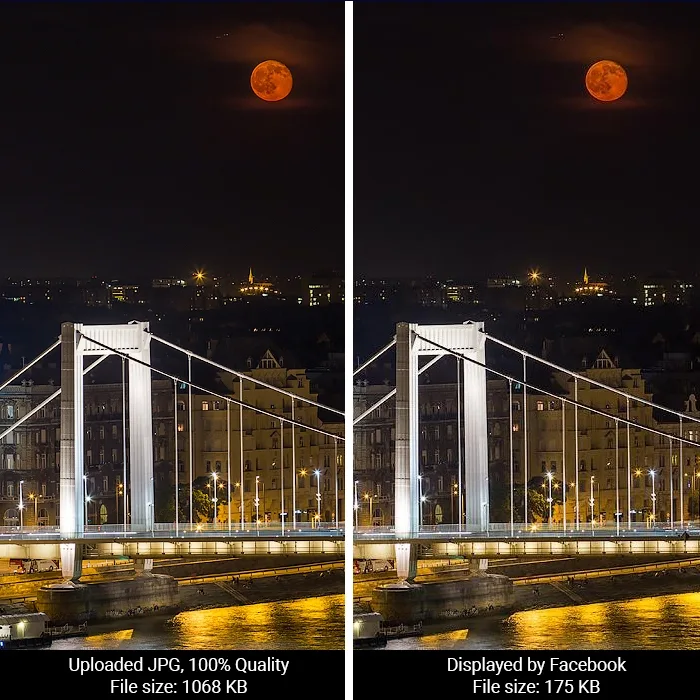
JPEG Quality 85–90 (Not 100) — and PNG for Graphics
Same counterintuitive rule as Instagram: quality 100 makes the file 2–3× larger with no visible benefit, and a huge file triggers more aggressive server compression. Quality 85–90 is the sweet spot. Below 80, you introduce artifacts before Facebook touches it.
Format matters by content type:
- Photos (people, landscapes): JPEG — Facebook’s pipeline is tuned for it.
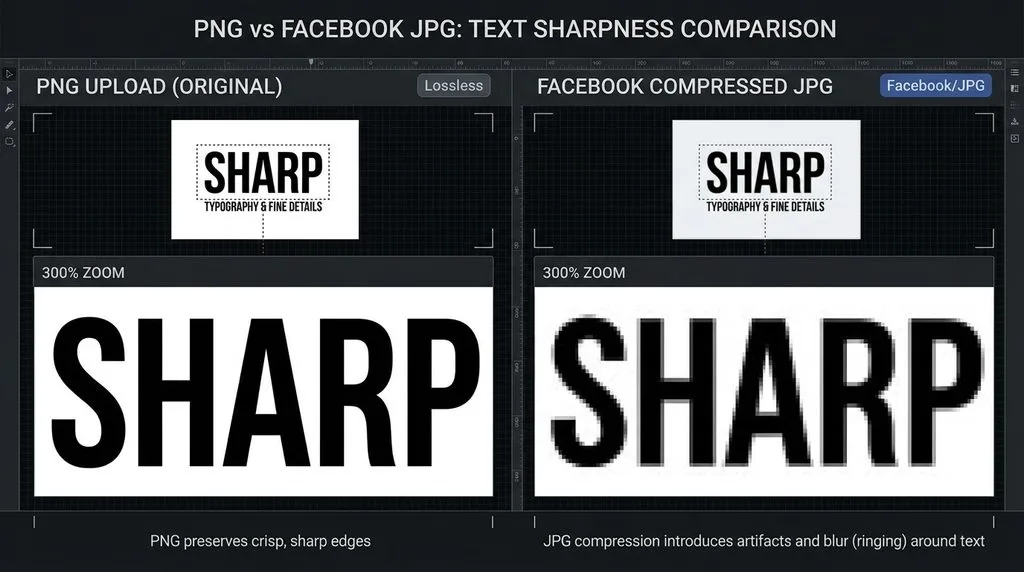
- Text graphics, logos, screenshots, flat design: PNG — Facebook handles PNG more gently for graphics (fewer blocky artifacts around text). File size will be larger but the result is sharper.
- Never upload HEIC directly (iPhone default) — Facebook converts it to JPEG, adding a lossy pass. Export from Lightroom/Photos as JPEG first.
Color: sRGB, Always
Facebook converts everything to sRGB. Adobe RGB, Display P3, ProPhoto → washed-out, shifted colors. Convert to sRGB in your editor before export. Embed the ICC profile. Avoid HDR exports — Facebook flattens them poorly.
Sharpen After Resize (Last Step)
Resizing to 2048px softens edges. Sharpen as the final step: Photoshop Unsharp Mask 50–80%, 0.8–1.5px, Threshold 2–4; or Lightroom Output Sharpening > Screen > Standard. Judge at 100%. For video content, a guide to budget camcorders covers capture quality; a guide to 360 cameras and a guide to camera glasses cover niche capture formats that need extra pre-processing before Facebook upload.
The “Upload HD” Setting (Off by Default)
Turn it on once:
Settings & privacy > Settings > Preferences > Media > Upload HD (toggle for photos and videos). With it off, the mobile app sends a lower-quality version on cellular. Also: upload over WiFi, not mobile data — weak connections trigger silent quality reduction.
Reels & Video: Bitrate Panic Is the Real Enemy
For video, bitrate matters more than resolution. Facebook’s video encoder has a “bitrate panic” response: if you upload a high-bitrate file (50Mbps 4K), the algorithm sees a huge file and crushes it to 2–4Mbps — visibly blocky, soft. Target the sweet spot:
- Reels/Stories: 1080×1920 (9:16), H.264 High profile, MP4, 8–10Mbps, 30fps, AAC audio. Max 90s, max 4GB.
- Feed video (landscape): 1920×1080 (16:9), H.264, 8–12Mbps, 30fps. Max 240min, max 10GB.
- Do not upload 4K — Facebook doesn’t display it, and the high bitrate triggers panic compression. Export at 1080p.
- Add captions/text before export — Facebook’s in-app editor re-encodes.
- Audio required for Reels (silent Reels get throttled).
Albums vs Timeline vs Marketplace (Different Pipelines)
- Albums: store at the full 2048px cap — best quality for photo sets.
- Timeline single posts: same 2048px cap, but displayed smaller in feed (~500px wide).
- Marketplace: 1:1 (1080×1080) is mandatory. 4:5 or 9:16 product shots get center-cropped to square — your product gets cut off. Use clean white or lifestyle background, product fills 80% of frame.
- Groups: same pipeline as timeline, but group admins can set quality preferences.
The Complete Export Checklist (Facebook)
- Crop to final ratio (4:5 portrait for feed; 1:1 for Marketplace)
- Resize to 2048px on long edge (Bicubic Sharper)
- Convert to sRGB
- Export JPEG quality 85–90 (PNG for text graphics/logos)
- Sharpen (Screen/Standard or USM 50–80% / 1px)
- Turn on Upload HD in Facebook settings
- Upload from desktop / Meta Business Suite (1 pass) for critical posts
- For Reels: 1080×1920, H.264, 8–10Mbps, 30fps, captions baked in
5 Common Facebook Quality Mistakes
- Uploading from the mobile app with default settings. 3 compression passes. Use desktop or turn on Upload HD.
- Uploading 4K or 50Mbps video. Triggers bitrate panic → crushed to 2–4Mbps. Export 1080p at 8–10Mbps.
- HEIC from iPhone. Extra conversion pass. Export JPEG first.
- Adobe RGB / P3 color. Washed out. Convert to sRGB.
- Non-square Marketplace photos. Cropped to 1:1, product cut off. Use 1080×1080.
Frequently Asked Questions
Why are my Facebook photos blurry?
Because Facebook caps every photo at 2048px on the longest edge and re-encodes it at ~JPEG quality 85. If you upload from the mobile app with default settings, there’s an additional pre-compression step before upload — three passes total. Export at exactly 2048px, JPEG 85–90, sRGB, turn on Upload HD, and upload from desktop for best results.
How do I upload HD photos to Facebook?
Turn on Upload HD: Settings & privacy > Settings > Preferences > Media > Upload HD (photos and videos). Then export at 2048px long edge, JPEG 85–90, sRGB, and upload over WiFi. For maximum quality, use desktop or Meta Business Suite instead of the mobile app — it’s one compression pass instead of three.
What is the best size to upload to Facebook?
2048px on the longest edge. Feed portrait: 2048×2560 (4:5). Square: 2048×2048. Cover photo: 820×312. Marketplace: 1080×1080 (1:1, mandatory). Event cover: 1200×628. Anything larger gets downscaled by Facebook’s fast resampler; anything smaller than ~960px gets upscaled (blurry).
Why do my Facebook Reels look blurry?
Usually because you uploaded 4K or high-bitrate video, triggering Facebook’s “bitrate panic” — the algorithm crushes high-bitrate uploads to 2–4Mbps. Export Reels at 1080×1920 (9:16), H.264, 8–10Mbps, 30fps. Add captions and text before export — the in-app editor re-encodes. Audio is required.
Is PNG or JPEG better for Facebook?
JPEG for photos (Facebook’s pipeline is tuned for it). PNG for text graphics, logos, screenshots, and flat design — Facebook handles PNG more gently for graphics, preserving sharp text edges. Never upload HEIC directly (iPhone default) — Facebook converts it, adding a lossy pass.
Does Facebook compress photos more on mobile vs desktop?
Yes. The Facebook mobile app downscales photos before upload (to save data), then Facebook’s server resizes and re-encodes — three passes total. Desktop and Meta Business Suite go through only the server re-encode (one pass). Turn on Upload HD to reduce the mobile app’s pre-compression.
Why are my Marketplace photos cropped or blurry?
Marketplace requires 1:1 (1080×1080). 4:5 or 9:16 photos get center-cropped to square, cutting off your product. Use 1080×1080, product fills ~80% of frame, clean background. JPEG quality 85, sRGB.
What JPEG quality should I use for Facebook?
85–90. Quality 100 produces a much larger file with no visible benefit and can trigger more aggressive server compression. Below 80, you introduce JPEG artifacts before Facebook touches the file. Sharpen after resizing as the final step.
Final Verdict
Facebook blurriness comes down to pass count and bitrate. The mobile app’s hidden pre-compression turns a one-pass re-encode into three passes — turn on Upload HD or upload from desktop. Export at 2048px, JPEG 85–90, sRGB, sharpened last. For video, bitrate is everything — 8–10Mbps at 1080p, never 4K. Marketplace is 1:1 only. Nail that checklist and your Facebook photos will look like the files you actually exported.