Best AI Upscaler 2026: Top 10 Tools Tested & Compared
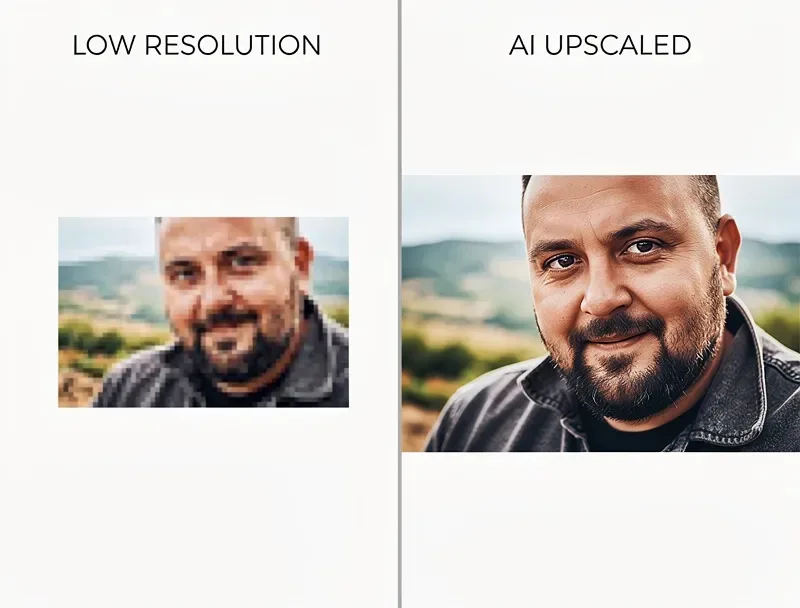
Blurry photos crush conversion rates. Small product images tank sales. Old family snapshots dissolve into pixels when you try to print them larger than a postcard. For decades, Photoshop’s “Image Size” dialog offered little more than disappointment — stretching pixels and hoping for the best. Modern AI rewrites that story completely.
Today’s best AI upscaler tools don’t just stretch. They reconstruct. They predict. They generate. Powered by neural networks trained on millions of image pairs, these tools invent believable detail, sharpen edges, remove noise, and rebuild textures — skin, hair, brick, fabric — with genuine fidelity.
The shift from interpolation to prediction explains why AI upscalers now dominate creative workflows worldwide. A traditional upscaler averages neighboring pixels and delivers a soft, muddy result. An AI upscaler recognizes a blurry patch as an eye, then rebuilds the iris, the eyelashes, and the surrounding skin with detail that never appeared in the source file.
In this guide, we tested and ranked the best AI upscalers of 2026 so you can pick the right one for your goals, your budget, and your image type — whether you rescue a beloved snapshot, size up a product photo for an Amazon listing, or prepare a client portrait for a wall-sized canvas.
🎯 Struggling with soft, low-resolution photos? Let our editors sharpen, resize, and polish your images at a professional studio level with our expert photo retouching service and hand off the heavy lifting.
What Is an AI Upscaler? A Clear, Quick Explanation
An AI upscaler is software that increases an image’s resolution — typically 2×, 4×, 8×, or higher — while adding detail rather than blurring pixels. Traditional upscaling averages neighboring pixels and delivers a soft result. AI upscaling uses deep learning models trained on millions of image pairs to predict believable pixels that should exist based on the content it recognizes.
Deep learning research shows these models can identify a blurry patch as hair, bricks, or grass, then rebuild pixels that match those materials realistically. That is why an AI-enlarged eye still looks like an eye, not a mosaic of squares.
Popular under-the-hood models include:
- Real-ESRGAN — fast, texture-rich, excellent for photos and illustrations
- SwinIR — Swin-Transformer-based, extremely sharp on structured detail
- BSRGAN — strong on real-world degraded images
- Diffusion-based upscalers (Magnific, Krea) — invent brand-new detail creatively
Understanding these engines helps you predict which tool will suit your image best — a portrait, a product shot, a scanned print, or an AI-generated artwork.
How We Ranked the Best AI Upscalers of 2026
We evaluated each tool on ten criteria that matter to working creators:
- Output sharpness at 2× and 4×
- Facial and skin realism (no plastic look)
- Text and logo preservation
- Noise and JPEG artifact removal
- Speed and batch processing
- Maximum output resolution
- Pricing and free-tier generosity
- Platform availability (web, desktop, mobile)
- Offline vs. cloud processing
- Commercial-use licensing
Now, let’s meet the winners.
1. Topaz Gigapixel AI — Best Overall for Photographers and Print
The Gold Standard for Faithful, High-Detail Upscaling
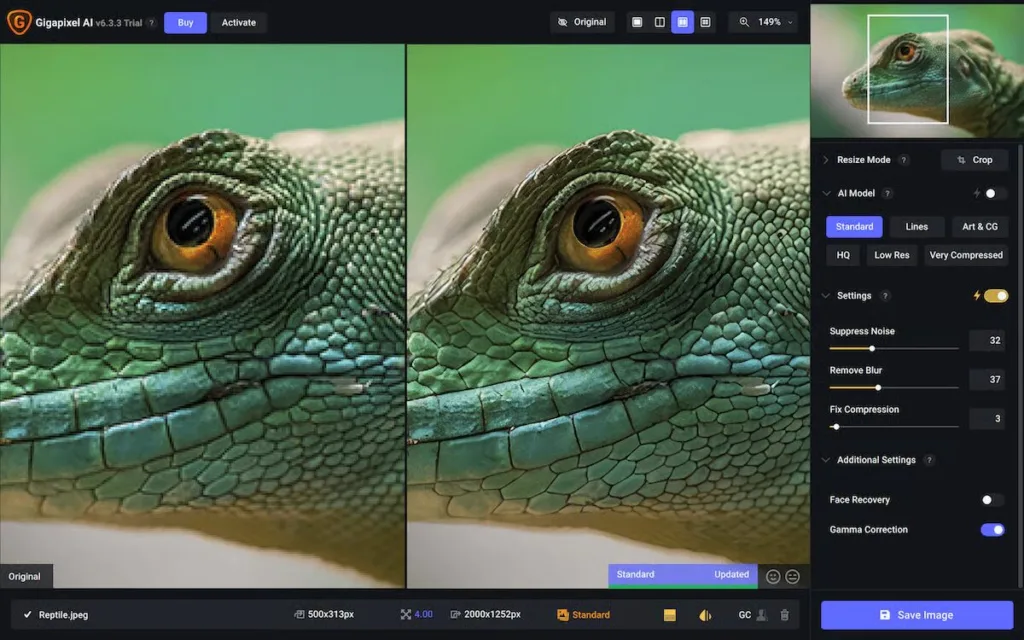
Topaz Gigapixel AI has held the top spot for years, and 2026 does nothing to shake that lead. It enlarges images up to 16× and ships with specialized models for faces, low-resolution originals, compressed JPEGs, standard photos, and even AI art. Photographers rely on Gigapixel before large-format printing because it preserves natural grain, skin tone, and texture without slathering on an over-cooked “AI look.”
As of 2026, Topaz Gigapixel AI runs on subscription pricing at roughly $50/month or $204/year. The bundled Topaz Photo AI package — which combines Gigapixel with DeNoise and Sharpen — costs around $199/year and delivers stronger value for photographers who need the full toolkit. Cameras like the Canon 80D pair especially well with Gigapixel when you need to squeeze extra resolution out of older files.
Standout strengths:
- Purpose-built AI models: Standard, High Fidelity, Low Res, Text & Shapes, Art & CG, Faces
- Preserves detail without hallucinating new elements
- Batch processing with GPU acceleration
- Offline desktop app for total privacy
Weaknesses to know:
- Subscription-only for new users (no more perpetual license)
- Demands a modern GPU for fast rendering
- Overkill for casual social media use
Best for: Wedding photographers, portrait retouchers, print labs, and archivists working with heritage negatives.
2. Upscayl — Best Free and Open-Source AI Upscaler
Powerful, Private, and Completely Free
Upscayl proves you don’t need to spend a dollar to get striking results. This free and open-source app runs entirely on your own machine using Real-ESRGAN and other community-built models. It handles true AI upscaling at up to 4×, then optionally stretches results up to 16× for larger outputs, and works fully offline on Windows, macOS, and Linux.
Why creators love Upscayl:
- 100% free, no watermark, no login
- Fully offline — nothing leaves your computer
- Supports Real-ESRGAN, ESRGAN, and custom .bin/.param models
- Batch processing for entire folders
- Actively maintained with regular releases
Trade-offs:
- Depends on your local GPU; slow on integrated graphics
- Interface is functional, not polished
- Weaker on faces than paid tools like Gigapixel
Hobbyists, students, and privacy-conscious users get the most out of Upscayl, especially when paired with a solid raster image editing workflow.
🛒 Selling on Shopify or Amazon? Get pixel-clean cutouts and consistent proportions with our multi clipping path service — perfect for catalogs, banners, and marketplace listings.
3. Magnific AI — Best Generative Upscaler for Creative Detail
When You Want the AI to Reimagine Detail, Not Just Recover It
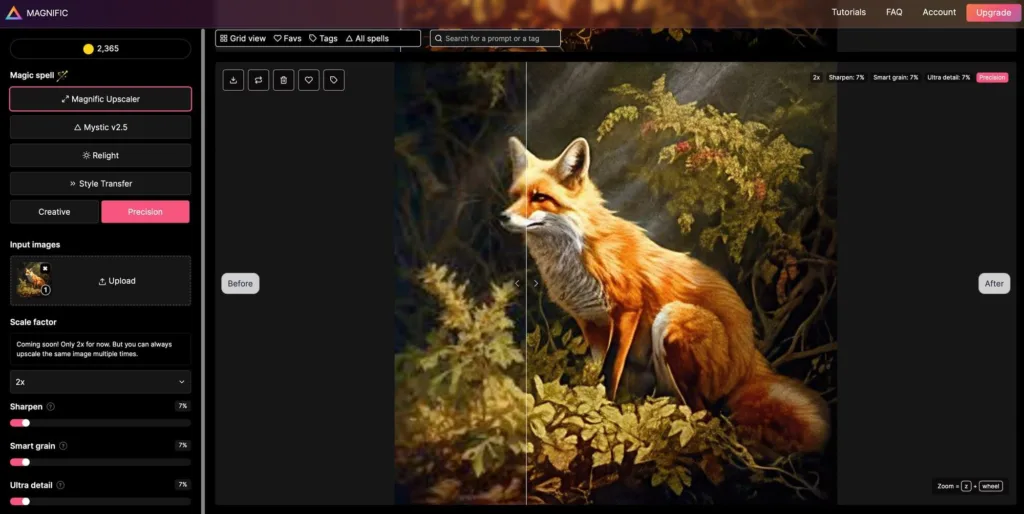
Magnific belongs to a different category. Instead of faithfully reconstructing what was there, it uses diffusion-based generation to invent micro-detail — skin pores, fabric weaves, individual leaves, brushstrokes. The results can be breathtaking on Midjourney art, concept renders, and stylised photography. Freepik acquired Magnific in May 2024 and then rebranded the entire company as Magnific on April 28, 2026, folding all its AI tools under the new banner.
Magnific handles up to 10K resolution with sliders for Creativity, HDR, Resemblance, and Engine choice. The current tiers include Premium at $20/month ($14.50/month billed annually) and Premium+ at $45/month ($33.75/month billed annually), with higher Pro, Business, and Enterprise tiers for teams.
Where Magnific shines:
- Generative texture creation with unmatched richness
- Fine-grained controls for creativity and realism
- Ideal for AI art, illustrations, 3D renders, and stylised portraits
- Integrates smoothly with Midjourney and Stable Diffusion workflows
Watch out for:
- Not designed for pixel-faithful photo restoration
- Credit-based pricing adds up on heavy use
- Can invent details that alter a subject’s identity
Best for: AI artists, concept designers, marketing creatives, and anyone pushing a base render to hero-image quality.
4. Let’s Enhance — Best Browser-Based AI Upscaler for Everyday Users
Fast, Friendly, and Surprisingly Powerful
Let’s Enhance runs entirely in your browser, so you skip GPU requirements and software installs completely. Upload an image, pick an enhancement type (Photo, Digital Art, Smart, or the flagship Ultra model), and download a sharper, brighter, larger version within seconds. The Ultra model — released as the platform’s most advanced upscaler — delivers noticeably cleaner textures and fewer artifacts than earlier engines.
Reasons it stays popular:
- Zero learning curve for non-technical users
- Works on any device with a browser
- Bundled tools for color correction, tone, and lighting
- Credit-based pricing with a free trial
Limits to consider:
- Requires internet and image upload
- Credit costs stack up on high-volume projects
- Not ideal for sensitive or confidential images
Social media managers, bloggers, and small business owners lean on Let’s Enhance for fast wins, and it pairs beautifully with any of the best AI photo editing tools already in your workflow.
5. Krea AI Enhancer — Best for Enhancing AI Art up to 22K
Boutique Detail with Cinematic Realism
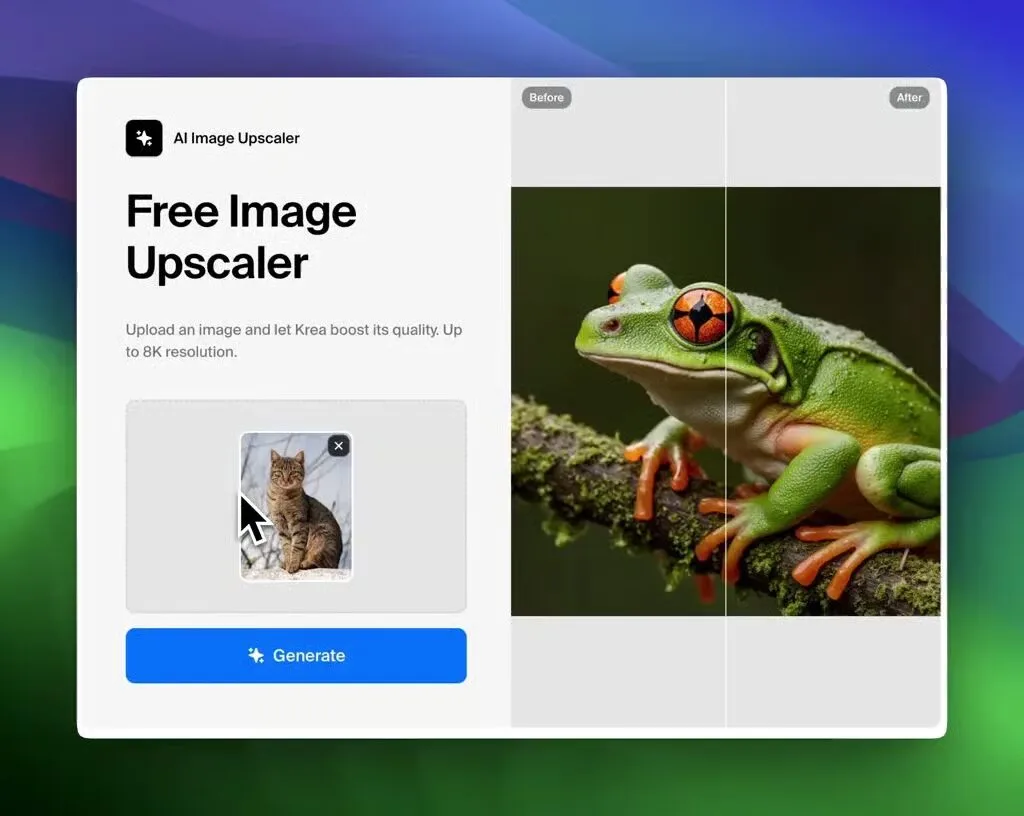
Krea has quickly become an AI-artist favorite thanks to its high-fidelity enhancer that reaches 22K resolution. Its diffusion-driven approach turns bland 3D renders into architectural-visualization quality and lifts simple sketches into photographic-grade outputs.
The free tier includes 100 compute units per day, which handles small projects nicely, while paid plans scale from hobbyist to enterprise team usage.
Highlight features:
- Enhance and upscale up to 22K resolution
- Preserves stylistic intent while adding realism
- Excellent for concept art, product renders, and architectural visualization
- Real-time editor with Enhance, Upscale, and Refine controls
Caveats:
- Free tier limits heavy usage
- High-resolution outputs eat credits quickly
- Not intended for identity-critical portrait work
Best for: Architects, product visualizers, digital painters, and anyone upgrading Midjourney or Stable Diffusion outputs to portfolio grade.
6. Adobe Firefly Generative Upscale — Best for Photoshop Users
One-Click AI Resolution Boost Inside the Tools You Already Use
Adobe’s Firefly-powered Generative Upscale now lives natively inside Photoshop’s edit tools. It turns low-resolution or damaged images into sharper, cleaner versions with a single click while preserving the original subject’s identity. The Photoshop 2026 release goes further by integrating Topaz Gigapixel and Topaz Bloom models directly, so you get world-class upscaling without leaving the app.
Why creators like it:
- Native integration with Photoshop and Creative Cloud
- Preserves subject identity while restoring detail
- Combines seamlessly with generative fill, expand, and remove
- Excellent for AI-assisted, non-destructive edits
Limitations:
- Requires an active Creative Cloud subscription
- Cloud-based processing means uploading proprietary images
- Less specialized than dedicated upscalers like Gigapixel
Photoshop users who spend their days deep inside the Photoshop toolbar get instant value from this feature.
💄 Need studio-perfect skin, cleanup, and glow? Our beauty retouching service polishes portraits without erasing personality — the ideal finish after an AI upscale.
7. Nero AI Image Upscaler — Best Simple Cloud Enhancer
Effortless Cloud Upscaling for Everyday Photos
Nero AI has upgraded significantly. Its Image Upscaler now supports 8× enlargement and pushes outputs up to 32K resolution, giving casual users desktop-grade power inside a clean browser interface. It performs strongly on family snapshots, older phone photos, and casual portraits.
Nero offers a generous free tier alongside subscription and one-time-purchase options, with the Nero AI Image Upscaler Pro available for around $129.99 on Steam.
Strong points:
- Straightforward UI, minimal learning curve
- Now supports 8× upscaling and 32K outputs
- Free tier available with reasonable paid upgrades
- Extra tools for restoration and colorization
Weak spots:
- Slower than desktop apps on complex images
- Watermarking may appear on some free outputs
- Face model can be inconsistent
Best for: Casual users, real estate agents, interior designers, and creators handling occasional upscaling alongside their favorite photo editing apps.
8. Picsart AI Upscaler — Best Mobile-Friendly Option
Enhance on the Go from Your Phone
Picsart delivers AI upscaling to mobile with a fast, free in-app 2× or 4× enhancer. It’s tuned for social content — Instagram, TikTok, Pinterest — and pairs naturally with Picsart’s massive editing suite.
Why mobile creators pick it:
- Free 2× and 4× upscaling
- Baked into the popular Picsart app
- Instant sharing to social platforms
- Bundled with filters, effects, and background tools
Downsides:
- Not ideal for large print work
- Ads and upsells in the free tier
- Less powerful than desktop-class tools
Best for: Influencers, mobile-first creators, and travel photographers editing shots straight from their phone.
🏠 Real estate photography looking flat? Add depth and dimension with our drop shadow service to make properties pop off the screen.
9. Photoshop Super Resolution + Lightroom Enhance — Best Built-In Option
The Quiet, Reliable Workhorse
Adobe Camera Raw’s “Enhance” feature — Super Resolution — creates a single output image with 2× the linear resolution, which delivers 4× the total pixel count. A 24MP RAW becomes roughly 96MP. It lives quietly inside Lightroom Classic and Camera Raw, but its results are excellent for photographers who need aggressive cropping flexibility.
Advantages:
- Included in an existing Lightroom / Photoshop subscription
- Preserves full RAW editability via non-destructive DNG output
- Perfect for tight crops that must remain print-worthy
- Consistent, predictable results
Limitations:
- 2× linear only, no higher factors
- Requires a capable GPU
- Not a substitute for creative upscalers
Wildlife, sports, and event photographers cropping deeply get the most value here — especially when paired with fast bodies covered in our roundup of the best mirrorless cameras.
10. Aiarty Image Enhancer — Best Budget Desktop Alternative to Topaz
Serious Upscaling Power Without a Subscription Wall
Aiarty offers a desktop-class enhancer with multiple AI models (More-Detail GAN, Smooth Diff, Real Photo) and lifetime licensing that avoids Topaz’s recurring fees. Reviewers frequently rank it just below Topaz Photo AI for output quality at a fraction of the cost.
Standard pricing includes a one-year license around $85 and a lifetime license around $99–$155 depending on the current promotion, with regular sales pushing that even lower.
Highlights:
- One-time purchase available (no forced subscription)
- Multiple AI models for photos and AI art
- Batch processing with GPU acceleration
- Built-in sharpening, denoising, and face restoration
Considerations:
- Newer brand with a smaller user community
- Interface still maturing
- Model performance varies by input type
Best for: Freelancers and small studios who want Topaz-level results without a subscription commitment.
Best AI Upscaler by Use Case — Quick Cheat Sheet
Different creators need different strengths. Use this matrix to pick fast:
| Use Case | Best Tool | Why |
|---|---|---|
| Print-ready photography | Topaz Gigapixel AI | Pixel-faithful detail preservation |
| Ecommerce product photos | Let’s Enhance or Claid | API-ready, batch-friendly |
| AI-generated art | Magnific AI or Krea AI | Generative detail invention |
| Old family photos | Topaz Gigapixel + Photoshop | Restoration + upscaling combo |
| Free and private | Upscayl | Offline, open-source, no limits |
| Inside Photoshop | Firefly Generative Upscale | Native integration |
| Mobile creators | Picsart AI Upscaler | On-the-go convenience |
| Budget desktop pro | Aiarty Image Enhancer | Lifetime license option |
🎨 Running an ecommerce store? Give every listing a crisp, retail-ready look with our professional background removal service and turn amateur shots into conversion-driving product photos.
How to Get the Best Results from Any AI Upscaler
Even the best tool needs the right workflow. Follow these field-tested tips:
Edit before you upscale. Handle colour, exposure, and crop first, then upscale. Enlarging JPEG artifacts or a bad tone curve only amplifies the flaws.
Feed the highest-quality source you can. RAW or lightly compressed JPEGs work best. Never upscale a heavily compressed thumbnail if you have a better original nearby.
Choose the right model. Most upscalers include Face, Low-Res, Text/Logo, and Art modes. Picking correctly is half the battle.
Avoid over-sharpening. Subtle detail beats plastic skin every time. If your subject starts to look like a wax figure, dial back.
Batch strategically. Group images by subject type so one model works well across the entire set.
Print test at small size first. A 5×7 test print reveals texture problems before you commit to a 24×36-inch enlargement.
Save the original. Always archive the source file. Anyone storing years of images should read our guide to the best cloud storage for photos before disaster strikes.
Layering upscaling inside a Lightroom or Capture One pipeline unlocks aggressive cropping without sacrificing print quality — a game-changer for wildlife and sports shooters.
AI Upscalers for Ecommerce: The Business Case
For online sellers, product photography connects directly to conversion rates. Amazon requires a minimum image size of 1,000 pixels on the longest side, and images below 1,600 pixels lose the coveted zoom feature that shoppers rely on. AI upscalers help you:
- Upgrade older catalog photos to marketplace-compliant sizes
- Recover blurry supplier images
- Create hero banners from small product shots
- Maintain visual consistency across every product line
- Rescue images taken on older phones or compact zoom cameras
Combining AI upscaling with a professional editing partner accelerates catalog production from weeks to days.
👗 Selling apparel or accessories? Achieve a floating, mannequin-free look with our ghost mannequin service and let your garments do the selling.
AI Upscalers for Old Photos: Bringing Memories Back to Life
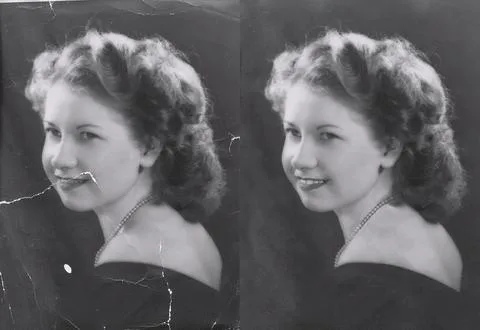
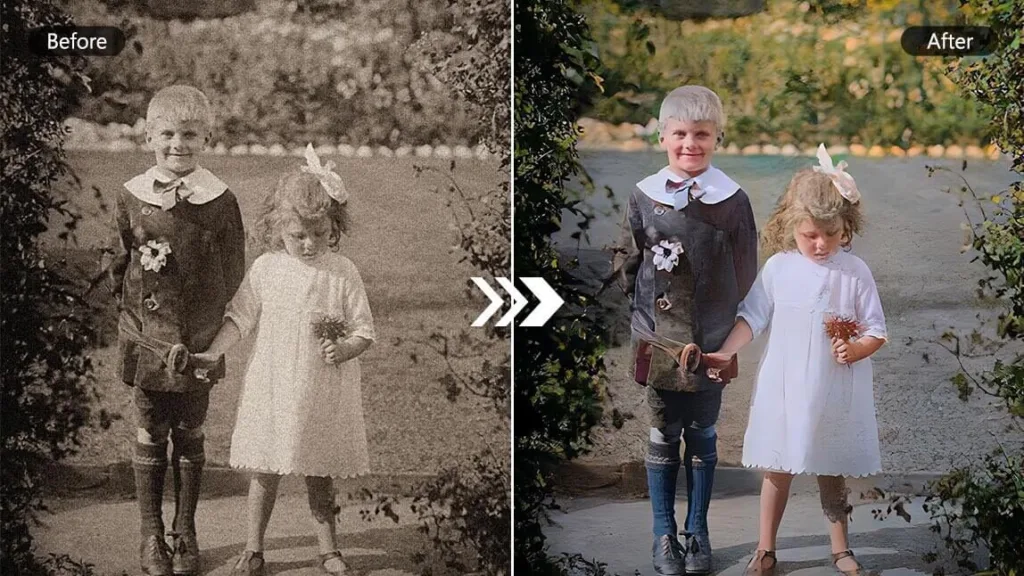
Restoring inherited photographs ranks among the most emotionally rewarding uses of AI upscaling. Aged prints often carry fading, colour shifts, scratches, and low-detail scans, but modern models bring them back beautifully.
Scan at high DPI first. Aim for 600 DPI minimum, or 1,200 DPI for damaged prints.
Use Topaz Gigapixel’s Low Res model to reconstruct skin and hair.
Layer Firefly Generative Upscale in Photoshop to repair cracks and tears.
Colorize carefully. Restrained colour reads far more authentically than saturated tones.
Preserve the original file as your archive master.
AI restoration performs especially well on faded prints from the 1970s through the 1990s, where physical detail still survives but microcontrast has faded.
Free vs. Paid AI Upscalers: Which One Should You Actually Buy?
Here’s a straight answer without the marketing fluff:
Choose Free (Upscayl, Nero, Picsart) if:
- You upscale occasionally
- Privacy matters (Upscayl runs offline)
- Print output is not your primary goal
Choose Paid (Topaz, Magnific, Krea, Let’s Enhance) if:
- You upscale weekly or daily
- You sell prints, run ecommerce, or produce client work
- You need dedicated face, art, or product models
- Vendor support and updates matter to your business
Most professionals mix both — Upscayl or Firefly for quick jobs, Gigapixel or Magnific for hero images.
AI Upscaling Pitfalls to Avoid
Even the best AI upscaler fails if you feed it the wrong image or push the wrong settings. Watch for these traps:
Plastic skin. Happens when you over-enhance faces or apply art models to portraits.
Text destruction. Algorithms often warp small text; switch to Text/Logo modes to protect it.
Identity drift. Magnific and Krea can subtly change facial features when Creativity sliders push too high.
Colour banding. Heavy noise reduction combined with 8-bit outputs produces visible bands in gradients.
Artifact amplification. Never upscale a heavily compressed image without denoising first.
Study side-by-side comparisons before committing to a large-format print.
Conclusion: Which AI Upscaler Should You Choose?
There’s no single “best AI upscaler” — there’s the best one for your specific job. Photographers chasing pixel-faithful enlargements still turn to Topaz Gigapixel AI. Creatives pushing AI art to hero-image territory choose Magnific AI or Krea. Anyone wanting a genuinely powerful free tool grabs Upscayl. Adobe users get one-click magic from Firefly Generative Upscale and Lightroom Super Resolution.
Regardless of which tool you pick, upscaling is only one link in the imaging chain. Colour correction, retouching, background cleanup, and consistent styling still separate photos that look “enhanced” from photos that look professional.
✨ Ready to hand your images to a human expert? Combine AI upscaling with our image masking service for flawless edges on hair, fur, and complex subjects — and get a quote today.
Frequently Asked Questions (FAQ)
What is the best AI upscaler in 2026?
Topaz Gigapixel AI leads for pixel-faithful photography. Magnific AI dominates creative and AI-art upscaling. Upscayl remains the top free option.
Can AI upscalers really add detail that wasn’t there?
Yes. Models trained on millions of image pairs can reconstruct textures—such as hair, skin, fabric, and foliage—that look plausible even when the source lacked them. It’s prediction, not literal recovery.
Is Upscayl safe and truly free?
Yes. Upscayl is fully open-source, runs entirely offline, and never sends your images to a server. It’s an excellent choice for privacy-conscious users.
Which AI upscaler is best for old family photos?
Topaz Gigapixel AI (Low Res + Face models), paired with Photoshop’s Firefly Generative Upscale, delivers the most natural restoration. You can also use Nero AI or Picsart for quick scratch removal and color repair.
Do I need a powerful computer to run an AI upscaler?
Desktop apps like Gigapixel and Upscayl perform best on modern GPUs, such as NVIDIA RTX graphics cards or Apple Silicon Macs. Browser-based tools like Let’s Enhance and Nero AI work on almost any computer because processing happens in the cloud.
Are AI upscalers safe for commercial and ecommerce work?
Yes. Most paid tools—including Topaz, Magnific, Krea, Let’s Enhance, and Adobe Firefly—allow commercial use. However, always review the licensing terms before using them for large commercial projects.
Can I upscale videos with these tools?
Some platforms offer dedicated video upscalers, such as Topaz Video AI, Nero Video Upscaler Pro, and Krea’s video enhancement features. Standard image upscalers are not designed to process video efficiently.
What resolution can I realistically upscale to?
Most AI upscalers consistently produce excellent results at 2× to 4× enlargement. Magnific supports outputs up to 10K, Krea up to 22K, and Nero up to 32K. However, the quality of the final image depends more on the original file than the maximum supported resolution.
What’s the difference between Topaz Gigapixel and Topaz Photo AI?
Topaz Gigapixel AI focuses exclusively on image upscaling. Topaz Photo AI combines Gigapixel with DeNoise and Sharpen in a single application, making it a better overall value for photographers who need a complete image enhancement workflow.
Does upscaling reduce image quality?
No. Proper AI upscaling generally improves perceived image quality by increasing sharpness and generating realistic details. However, it cannot recover information that was never captured. Using the highest-quality source image will always produce the best results.