How to Create a Panorama: The Four Locks That Make Stitching Work
TL;DR: The Short Answer
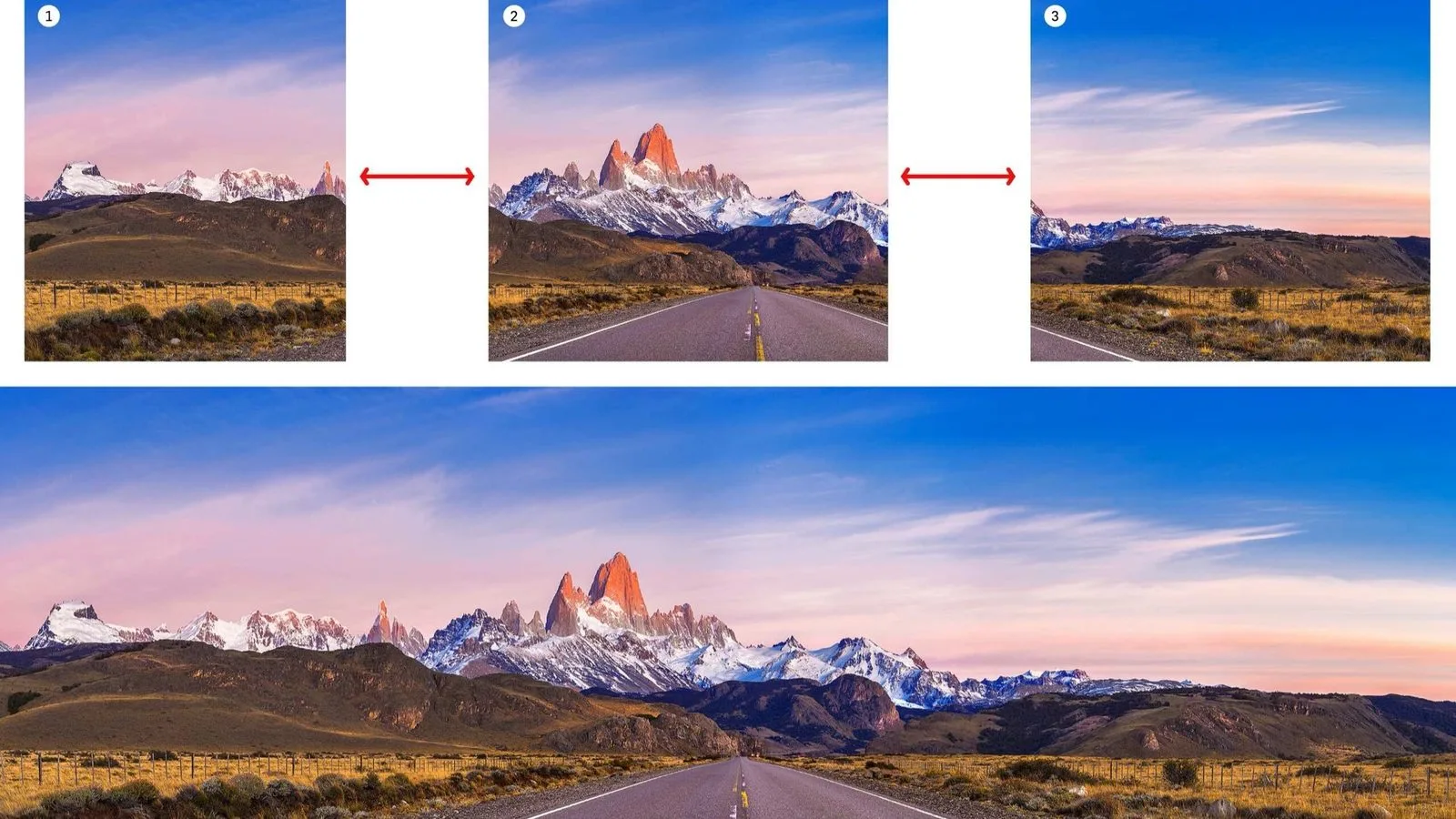
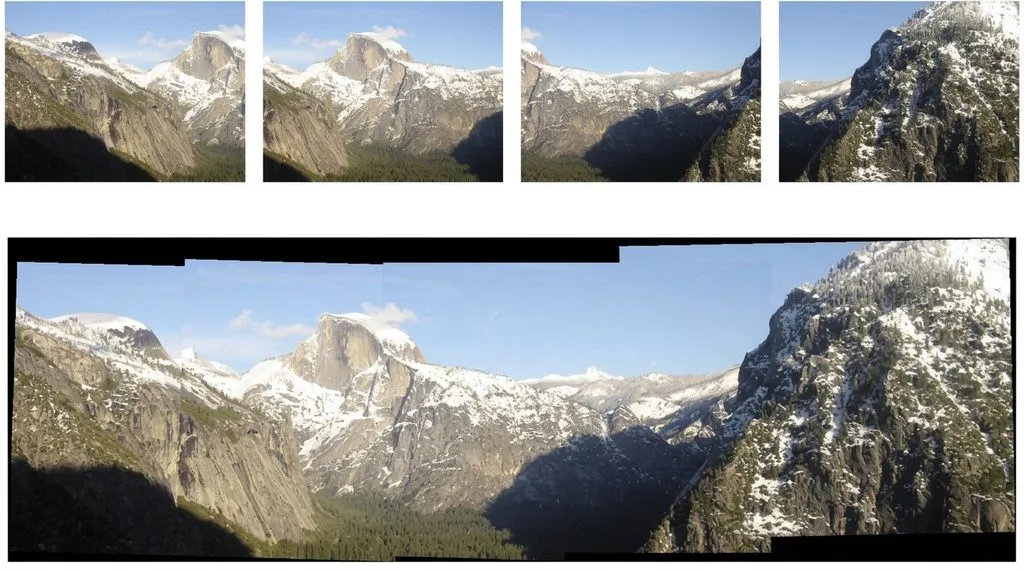
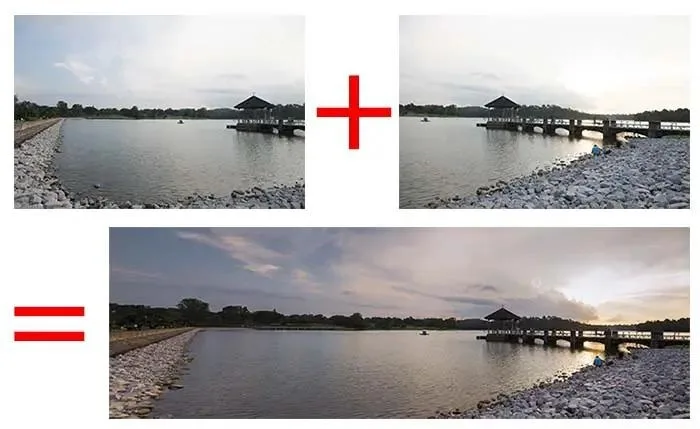
A panorama is multiple overlapping photos stitched into one wide image — and the difference between a clean stitch and a failed one is determined before you press the shutter. Lock four things before the first shot: manual exposure, manual white balance, manual focus, and the nodal point. Shoot in portrait orientation (more vertical resolution, more overlap data), pan left to right with 25–30% overlap between frames (40–50% for wide-angle lenses or repetitive scenes like open water). Use a tripod with a level head; for close foreground objects, rotate around the lens’s nodal point (entrance pupil) with a panoramic head to eliminate parallax.
Stitch in Lightroom Classic (Photo > Photo Merge > Panorama — choose Spherical/Cylindrical/Perspective, use Boundary Warp to fill missing edges and Deghosting for moving subjects), Photoshop (File > Automate > Photomerge), PTGui Pro (industry standard, $195 one-time, handles HDR and 360°), or Hugin (free, open-source, steeper learning curve). Projection: Perspective under 120°, Cylindrical 120–180°, Spherical over 120° and for 360° (equirectangular 2:1 ratio). Five-shot 24MP panorama with 30% overlap ≈ 80–100MP final — enough for a 4-foot print. Mobile: use the built-in panorama mode, sweep slowly, keep level, avoid moving subjects.
Why Not Just Use a Wide-Angle Lens?
A 16mm wide-angle lens captures a lot in one frame — but it also distorts straight lines, stretches edges, and limits resolution. A panorama shot at 50mm and stitched together gives you the wide field of view without the distortion, and at 3–5× the resolution. That’s why architectural and landscape photographers shoot panoramas even when a wide lens would fit the scene: you get straight lines, natural perspective, and enough megapixels to print billboard-sized. The tradeoff is time — a panorama takes 5–15 shots and a few minutes of stitching.
The Four Locks (Do This Before the First Shot)
Ninety percent of panorama failures happen at capture, not in software. Lock these four things and the stitch almost always works:
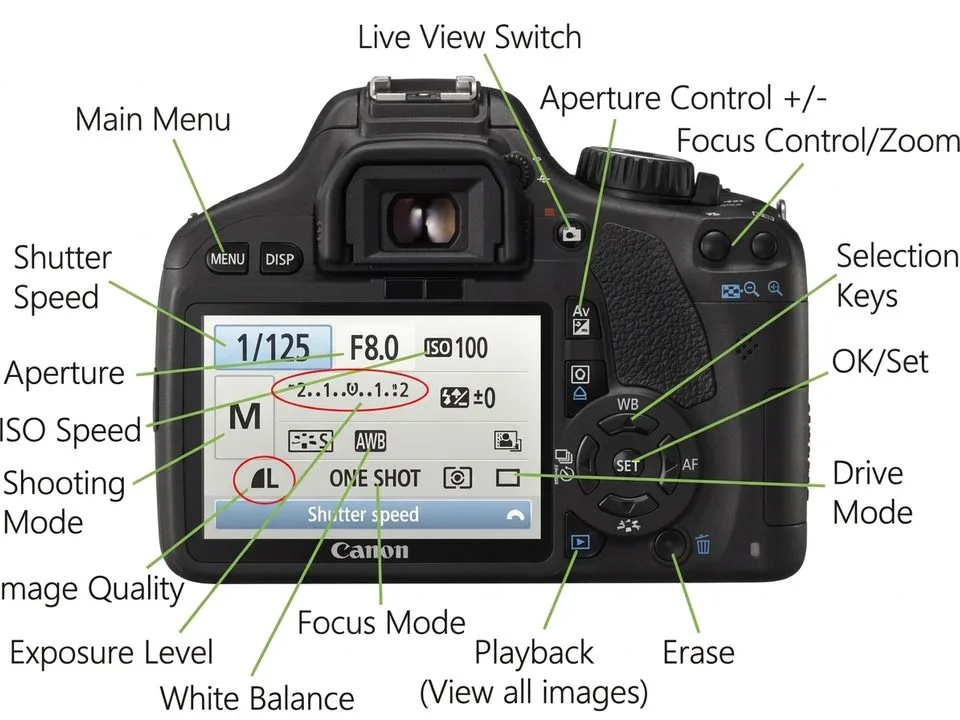
- Manual exposure. If you leave the camera in Auto or Aperture Priority, the camera will choose a different shutter speed for each frame as it pans across bright sky and dark foreground. The result: visible brightness seams between frames. Set ISO, aperture, and shutter manually. Meter for the midtones, not the brightest part. Base ISO (100–200) for maximum dynamic range.
- Manual white balance. Auto white balance will shift between frames — a warm frame next to a cool frame creates a color seam the stitcher can’t fully fix. Set a specific white balance (Sunny, Cloudy, or a custom Kelvin value) and leave it.
- Manual focus. Autofocus can hunt between frames, especially in low-contrast scenes like sky or water. Focus once on the hyperfocal distance (or a point one-third into the scene), switch to manual focus, and don’t touch it. f/8–f/11 gives enough depth of field for most landscape panoramas.
- Nodal point (entrance pupil). This is the one most people skip. If you rotate the camera around the tripod head’s center (which is behind the lens), foreground objects will shift position relative to the background between frames — that’s parallax, and it causes double images and stitching failures. Rotate around the lens’s nodal point instead. For distant landscapes (mountains, horizon) it barely matters. For close foreground (interiors, architecture, flowers within 2 meters) it’s critical. A panoramic head (Nodal Ninja, Nodal Ninja NN3 MkII achieves ±0.15° repeatability) lets you calibrate and rotate around the exact point. A consumer ball head introduces up to ±3.2° yaw error per shot.
Panoramas generate huge files. A 10-shot bracket at 24MP fills a card fast — how many photos a 32GB card holds matters when you’re shooting multi-row gigapixel scenes.
Shooting Technique: Overlap, Orientation, and Multi-Row
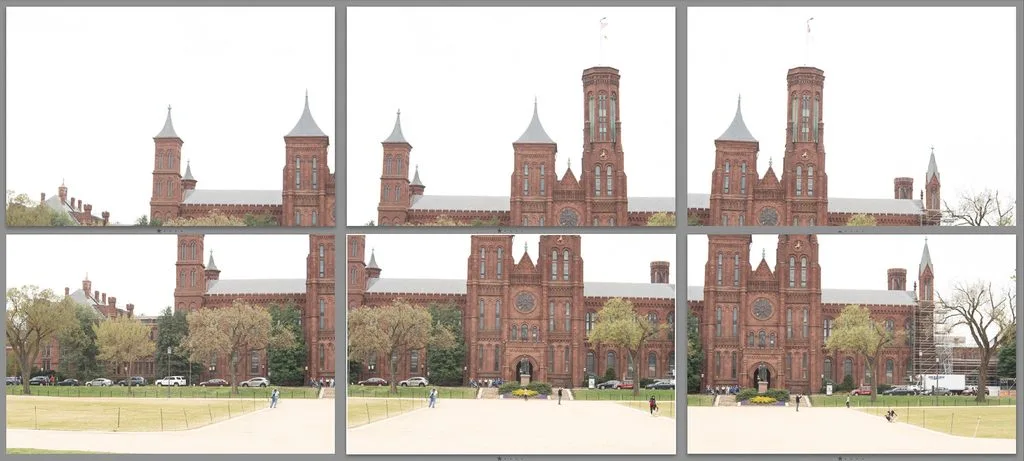
- Overlap: 25–30% between adjacent frames. This gives the stitching software enough shared features to align them. Increase to 40–50% for wide-angle lenses (which distort edges more) or repetitive scenes (open water, blank sky, sand dunes) where the software struggles to find anchor points.
- Shoot portrait orientation. Rotating the camera vertically gives you more vertical resolution in the final stitch (landscape orientation crops the top and bottom) and more overlap area per frame. Use an L-bracket on the tripod for quick switching.
- Level the tripod. A tilted horizon in every frame becomes a curved horizon in the stitch. Use a bubble level or the camera’s electronic level. Some heads have degree markings for consistent rotation.
- Pan left to right (or right to left), consistently. Keep the camera at the same height. Don’t tilt up or down between frames (unless shooting multi-row).
- Multi-row panoramas: for scenes that are both very wide and very tall (a mountain range with sky and foreground), shoot 2–3 rows — top row tilted up, middle level, bottom tilted down — with 30% vertical overlap too. PTGui and Hugin handle multi-row best; Lightroom handles single-row and limited multi-row.
- Exposure bracket each frame if the scene has high dynamic range — you can stitch an HDR panorama.
Stitching Software Comparison (2026)
| Software | Best for | Projection modes | Cost | Learning curve |
|---|---|---|---|---|
| Lightroom Classic | Quick single-row, already in workflow | Spherical, Cylindrical, Perspective | Subscription | Easy |
| Photoshop Photomerge | Simple stitches, then manual retouch | Auto, Perspective, Cylindrical, Spherical, Collage, Reposition | Subscription | Easy |
| PTGui Pro | Pro standard, multi-row, HDR, 360° VR | All + custom | $195 one-time | Medium |
| Hugin | Free, open-source, advanced control | All + custom | Free | Steep |
| PanoramaStudio Pro | Windows, 360×180 full sphere | Spherical, cylindrical, perspective, stereographic, Pannini | ~$50 | Easy |
| Affinity Photo | One-time purchase, Mac/Win/iPad | Stitch Panorama | ~$70 one-time | Easy |
| Mobile (iOS/Android) | Built-in panorama mode, sweep slowly | Cylindrical (auto) | Free | Trivial |
Lightroom’s panorama merge includes Boundary Warp (0–100 slider — warps the edges of the stitched image to fill the frame instead of leaving triangular gaps) and Deghosting (None/Low/Medium/High — removes double images from moving subjects like clouds, waves, people, or tree branches). Auto Crop trims the remaining uneven edges.
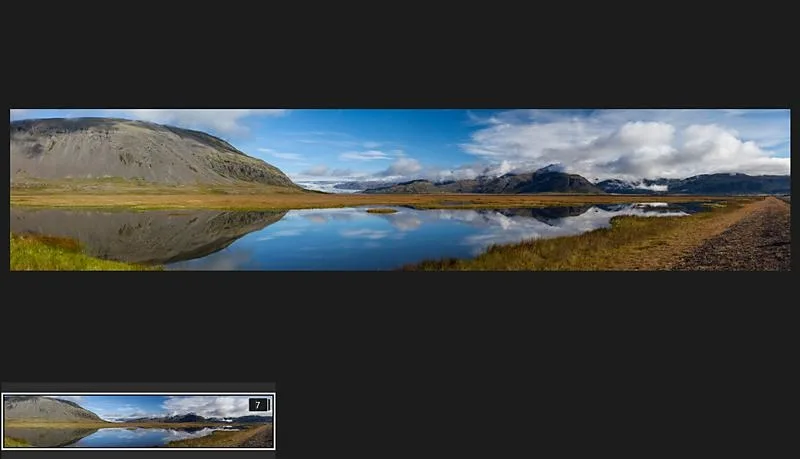
A five-shot 24MP panorama at 30% overlap produces roughly an 80–100MP final file. Multi-row gigapixel panoramas can reach 500MP+ — the highest-resolution cameras aren’t needed when stitching gives you more megapixels than any single sensor.
Projection Modes: Which One to Use When
The projection determines how the flat stitched frames are mapped onto the wide final image. Choose by field of view:
| Projection | Best for | Field of view | Tradeoff |
|---|---|---|---|
| Perspective / Rectilinear | Architecture, narrow scenes | < 120° | Straight lines stay straight; edges stretch/distort at wide angles |
| Cylindrical | Wide landscapes, horizon-heavy | 120–180° | Horizon stays straight; vertical lines curve at edges |
| Spherical / Equirectangular | Very wide, 360° full sphere | > 120°, up to 360×180° | 2:1 aspect ratio; standard for VR/virtual tours |
| Mercator | Maps, geographic | Wide | Distorts poles |
| Stereographic | “Little planet” effect, creative | 360° | Funky curved look, not for realism |
| Pannini | Cityscapes, painterly look | Wide | Compresses perspective artistically |
In Lightroom: start with Auto or Spherical for most landscape panoramas. If straight lines (buildings) look curved, try Perspective. If the horizon bends, try Cylindrical. In PTGui you can switch projections after stitching and compare.
Fixing Common Stitching Problems
- Parallax (double foreground objects): caused by rotating around the wrong point. Fix at capture with a nodal-point panoramic head. In post, PTGui’s control points can sometimes mask it; Hugin gives manual control point placement.
- Ghosting (moving clouds/waves/people doubled): Lightroom Deghosting (Low/Medium/High) analyzes overlapping regions and picks one frame’s version. In PTGui, use the mask tool to paint out moving objects from individual frames.
- Triangular missing edges: the stitched image has uneven borders. Lightroom Boundary Warp slider (try 50–75) stretches the edge content to fill gaps. Or use Auto Crop to trim to a clean rectangle. Or in Photoshop: Select > Modify > Expand 10px > Edit > Content-Aware Fill to paint in missing sky/foreground.
- Exposure seams (visible brightness bands): caused by auto exposure at capture. In post: use an adjustment brush in Lightroom to even out brightness, or Photoshop’s Match Color between layers. Prevention (manual exposure) is far better than fix.
- Color seams (warm/cool bands): caused by auto white balance. Fix with a graduated filter or global white balance unification.
- Stitching failure (software can’t align): usually too little overlap or too few shared features (blank sky, open water). Re-shoot with 40–50% overlap, or add control points manually in PTGui/Hugin.
360° and Drone Panoramas
- Full-sphere 360×180°: shoot a grid of photos (typically 4–6 columns × 3 rows + zenith/nadir), stitch in PTGui or Hugin to an equirectangular 2:1 file. Used for virtual tours, Google Street View, real estate.
- Drone panoramas: DJI drones have an automatic panorama mode (180°, wide, vertical, sphere) that shoots and stitches in-camera. For higher quality, shoot manually and stitch in PTGui. Drone panoramas have no parallax issue (the subject is far below), so a simple gimbal rotation works.
- 360 cameras: Insta360, Ricoh Theta — one-shot 360° capture, no stitching needed, but lower resolution than a stitched DSLR panorama. The best 360-degree cameras handle the capture automatically; stitched DSLR panoramas still win on resolution.
5 Common Panorama Mistakes
- Auto exposure / auto white balance. The #1 cause of visible seams. Lock both to manual before shooting.
- Too little overlap. Under 20% and the software can’t find enough shared features. 25–30% minimum, 40–50% for wide-angle or repetitive scenes.
- Shooting landscape orientation. You lose vertical resolution and end up with a thin strip panorama. Shoot portrait.
- Ignoring the nodal point with close foreground. Distant landscapes are forgiving; interiors and architecture with objects within 2 meters require nodal-point rotation or you get double images.
- Forgetting to shoot extra frames at the ends. The first and last frames get cropped heavily in the stitch. Shoot one frame beyond what you think you need on each end.
When the panorama is done and you want it on a wall, the ultra-wide aspect ratio (often 3:1 or wider) needs special print handling — the best photo printing software handles custom panorama sizes and borderless wide-format output.
Frequently Asked Questions
How do you create a panorama photo?
Shoot multiple overlapping photos (25–30% overlap, portrait orientation, manual exposure/white balance/focus, tripod level), then stitch them with software. In Lightroom: select the photos > Photo > Photo Merge > Panorama > choose projection (Spherical/Cylindrical/Perspective) > adjust Boundary Warp and Deghosting > Merge. In Photoshop: File > Automate > Photomerge. For advanced work: PTGui Pro or Hugin.
What is the best overlap between panorama photos?
25–30% is the standard minimum. Increase to 40–50% for wide-angle lenses (which distort edges) or repetitive scenes (open water, blank sky, sand dunes) where the software struggles to find anchor points. More overlap = larger files and longer stitching, but higher success rate.
Should I shoot panoramas in portrait or landscape orientation?
Portrait (vertical). It gives more vertical resolution in the final stitch (landscape orientation crops the top and bottom into a thin strip) and provides more overlap area per frame, making alignment easier. Use an L-bracket on the tripod for quick vertical mounting.
What is the nodal point and why does it matter?
The nodal point (entrance pupil) is the optical point in the lens where light rays converge. Rotating the camera around this point (instead of the tripod head’s center, which is behind the lens) keeps foreground and background objects in the same relative position between frames — eliminating parallax (double images of close objects). Critical for interiors, architecture, and any scene with objects within ~2 meters; less important for distant landscapes.
Which projection should I use for my panorama?
Under 120° field of view: Perspective/Rectilinear (straight lines stay straight). 120–180°: Cylindrical (horizon stays straight). Over 120° or full 360°: Spherical/Equirectangular (2:1 ratio, standard for VR). Stereographic for the “little planet” creative effect. When in doubt, try Auto first, then switch if lines look bent.
What is Boundary Warp in Lightroom?
A slider (0–100) in Lightroom’s Panorama Merge that warps (stretches) the edges of the stitched image to fill the frame, eliminating the triangular empty gaps that normally appear at the corners. 50–75 works for most scenes. Use Auto Crop to trim remaining uneven edges. Too much Boundary Warp distorts content — balance with cropping.
What is deghosting in panorama stitching?
Moving objects (clouds, waves, people, tree branches) appear in multiple positions across overlapping frames, creating double images (ghosts). Deghosting (Lightroom: None/Low/Medium/High; PTGui: mask tool) analyzes overlapping regions and selects one frame’s version of the moving object, removing the duplicate. Higher deghosting = more aggressive selection but may introduce artifacts.
Can I create a panorama on my phone?
Yes — iPhone and Android have a built-in Panorama mode. Open the camera, select Panorama, tap to start, and sweep slowly and steadily across the scene (keep the arrow on the guide line). Tap Done. For higher quality, use a third-party app (AutoStitch, DMD Panorama) or shoot individual frames and stitch in Lightroom Mobile. Avoid moving subjects in the frame — they’ll appear multiple times.
Final Verdict
Panoramas fail or succeed at capture, not in software. Lock manual exposure, manual white balance, manual focus, and the nodal point; shoot portrait orientation with 25–30% overlap; keep the tripod level. Then stitch in Lightroom (fast, easy) or PTGui (pro control, multi-row, HDR, 360°). Choose projection by field of view: Perspective under 120°, Cylindrical 120–180°, Spherical beyond that. Use Boundary Warp for missing edges and Deghosting for moving subjects. Get the four locks right and a five-shot 24MP panorama becomes an 80–100MP wide image with straight lines, no seams, and enough resolution for a 4-foot print — something no single wide-angle lens can match.