How to Merge Photos: The Five Layers of Realism That Make Composites Look Real
TL;DR: The Short Answer
Merging two photos is technically trivial — open both as layers, add a mask, brush away what you don’t want. The hard part is making the result look like one photograph. A believable merge requires matching five layers of realism: perspective (vanishing points align), light direction (highlights and shadows fall the same way), color temperature (both lit by the same kind of light), focus and depth of field (background blur matches), and grain/noise (both images have the same texture). Skip any one of these and the composite looks “off” even if nobody can say why. In Photoshop: Select Subject → Select and Mask (Refine Edge brush for hair) → add layer mask → position with Free Transform (hold Shift to keep proportions) → match color with clipped Hue/Saturation and Color Balance layers → add a contact shadow under the subject → add 3–5% grain over everything to unify.
For free: Photopea (browser, full Photoshop clone) or Snapseed Double Exposure (mobile). Specialized merges: focus stacking (Auto-Align + Auto-Blend), HDR (bracket exposures, Lightroom Photo Merge), sky replacement (Edit > Sky Replacement), double exposure (Screen/Overlay blend mode). The #1 giveaway of a fake merge is a floating subject with no shadow — always add a contact shadow.
What “Merging Photos” Actually Means (Six Different Jobs)
Before you start, know which kind of merge you’re doing — the technique is different for each:
| Merge type | What it does | Best tool |
|---|---|---|
| Composite / cutout | Put a subject on a new background | Photoshop, Photopea, remove.bg + editor |
| Double exposure | Blend two images artistically (portrait + landscape) | Photoshop blend modes, Snapseed, PicsArt |
| Collage / grid | Place multiple photos side by side | Canva, Photoshop, PicStitch |
| Focus stacking | Merge multiple focus distances into one sharp image | Photoshop Auto-Blend, Helicon Focus |
| HDR merge | Merge multiple exposures into one high-dynamic-range image | Lightroom Photo Merge, Photoshop Merge to HDR |
| Sky replacement | Swap a boring sky for a dramatic one | Photoshop Edit > Sky Replacement, Luminar |
Panorama stitching is a seventh type, but it’s a specialized enough job that it gets its own workflow (Auto-Align + spherical/cylindrical projection). This guide covers the first six.
For product and ecommerce work, merging is routine — placing a product on a clean background, adding reflection, compositing lifestyle scenes. An ecommerce product editing workflow builds merging into every step so consistency stays automatic across a whole catalog.
The Five Layers of Realism (The Part Everyone Skips)
Cutting and pasting takes two minutes. Making the result look real takes ten. These five layers, in order, are what separate a professional composite from an obvious fake:
- Perspective. Both photos must share the same vanishing point. If the subject was shot with a 50mm lens eye-level and the background was shot with a 24mm lens from below, the merge will look wrong even with perfect edges. Use Free Transform (Ctrl+T), Perspective Warp (Edit > Perspective Warp), and rulers/guides (Ctrl+R) to align horizon lines. If you can’t match perspective, pick a different background photo.
- Light direction. Find the highlights on the subject. Find the shadows in the background. They must come from the same direction. If the subject is lit from the left and the background sun is on the right, flip one horizontally (Edit > Transform > Flip Horizontal) or choose a different photo.
- Color temperature. A subject shot in warm tungsten light pasted onto a cool overcast background screams “fake.” Clip a Hue/Saturation layer to the subject (Alt-click between layers). Shift hue no more than 5–8° toward the background’s dominant temperature. Add a clipped Color Balance layer — push shadows slightly warm if the background is warm, cool if it’s cool. You’re not color-grading; you’re making the light sources agree.
- Focus and depth of field. If the background is a sharp 24mm landscape and the subject is a soft 85mm f/1.4 portrait, they don’t belong in the same photo. Apply a subtle Gaussian Blur (0.5–2px) to the background, or sharpen the subject, until depth cues match.
- Grain and noise. Digital photos from different cameras/ISOs have different grain. Add a unified grain layer at the end: Stamp Visible (Ctrl+Shift+Alt+E), Filter > Noise > Add Noise (3–5%, Gaussian, Monochromatic), blend mode Luminosity, opacity 20–40%. This single step fixes more “fake-looking” composites than any color adjustment.
When extracting a subject against a solid-color background (green screen, blue screen, white seamless), removing a specific color gives you a cleaner mask than brushing by hand — color-based selection is the fastest extraction method when the background is uniform.
Step-by-Step: Merge Two Photos in Photoshop
- Open both photos in the same document (drag one layer tab into the other document, or File > Place Embedded). The subject goes on top.
- Select the subject. Click Select Subject (AI-powered, one click) or use the Object Selection Tool. For clean edges (product, building), use the Pen Tool for a precise path.
- Refine the edge. Click Select and Mask. Use the Refine Edge Brush over hair, fur, and fuzzy edges — it detects individual strands. Set Smart Radius to 1–3px. Smooth 1–2, Feather 0.5–1px, Contrast +5–10%. Output to “New Layer with Layer Mask.”
- Verify the mask. Check the edge against pure white, pure black, and mid-gray backgrounds (create solid-color layers below). An edge that looks good on one background often fails on another.
- Position and scale. Ctrl+T (Free Transform), hold Shift to preserve proportions. Match the subject’s eye line to the background’s horizon. Use Perspective Warp if the subject’s plane doesn’t match.
- Match color and light. Clipped Hue/Saturation + Color Balance layers (as above). In 2026, try Edit > Harmonize (Firefly AI) — it studies the background and generates three variations of the subject with matched lighting and color. Pick the closest, then fine-tune manually.
- Add shadows. This is the step that makes a subject stop floating. Create a layer below the subject, paint a soft black ellipse at the contact point (feet, base of object), Gaussian Blur it, opacity 20–40%. Then add a longer cast shadow in the direction opposite the light source, at 30–40° angle, using the background’s shadow color.
- Unify with grain. Stamp visible, add 3–5% monochromatic noise, Luminosity blend, 20–40% opacity.
- Final global grade. One Color Lookup or Camera Raw filter over everything to tie the image together.
Before merging, make sure both files are at sufficient pixels and file size — upscaling a small subject pasted onto a high-res background will look soft and wrong. Match resolutions before you start.
Specialized Merge #1: Focus Stacking (Infinite Depth of Field)
When one photo can’t hold everything sharp (macro, product, architecture), shoot a series at different focus distances and merge:
- Shoot on tripod, same exposure, focus from front to back in small increments (10–30 shots).
- In Photoshop: File > Scripts > Load Files into Stack. Check “Attempt to Automatically Align Source Images.”
- Select all layers. Edit > Auto-Align Layers (Auto projection).
- Edit > Auto-Blend Layers > Stack Images. Check “Seamless Tones and Colors.”
- Photoshop masks each layer to only its sharpest region. Flatten when satisfied.
- Dedicated tools: Helicon Focus, Zerene Stacker (better alignment for tricky macro).
Specialized Merge #2: HDR (High Dynamic Range)
When a scene has brighter highlights and darker shadows than one exposure can capture:
- Bracket exposures: shoot −2 EV, 0 EV, +2 EV (five brackets if you have them: −4, −2, 0, +2, +4).
- In Lightroom: select all bracketed photos > Photo > Photo Merge > HDR (or Ctrl+H). Check “Auto Align” and “Auto Settings.” Deghost amount: Low/Medium/High if something moved.
- In Photoshop: File > Automate > Merge to HDR Pro. Choose 32-bit, then tone-map.
- Keep it subtle — the “HDR look” of crushed halos is dated. Aim for natural, just with detail in both shadows and highlights.
Specialized Merge #3: Sky Replacement & Double Exposure
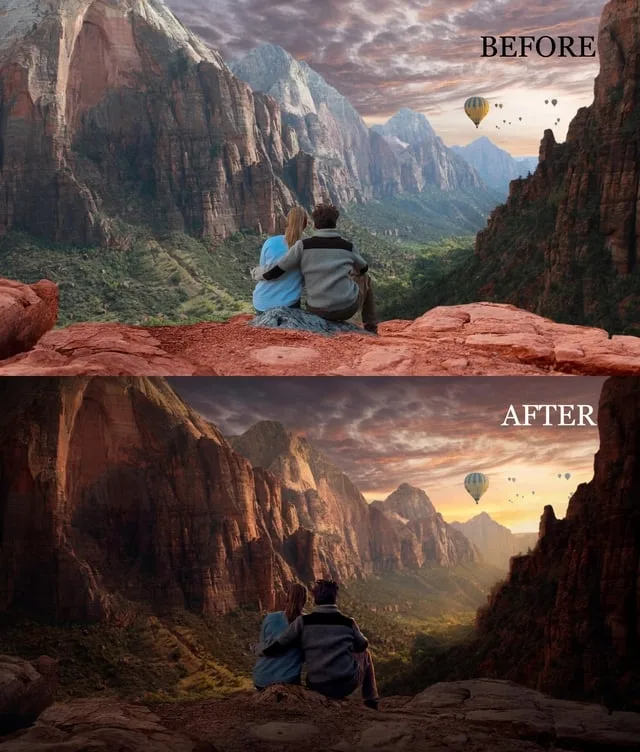
- Sky replacement: Photoshop Edit > Sky Replacement (2021+). It auto-detects and masks the sky, drops in a new one, and adjusts the foreground color/lighting to match. Pick a sky with light direction matching your scene.
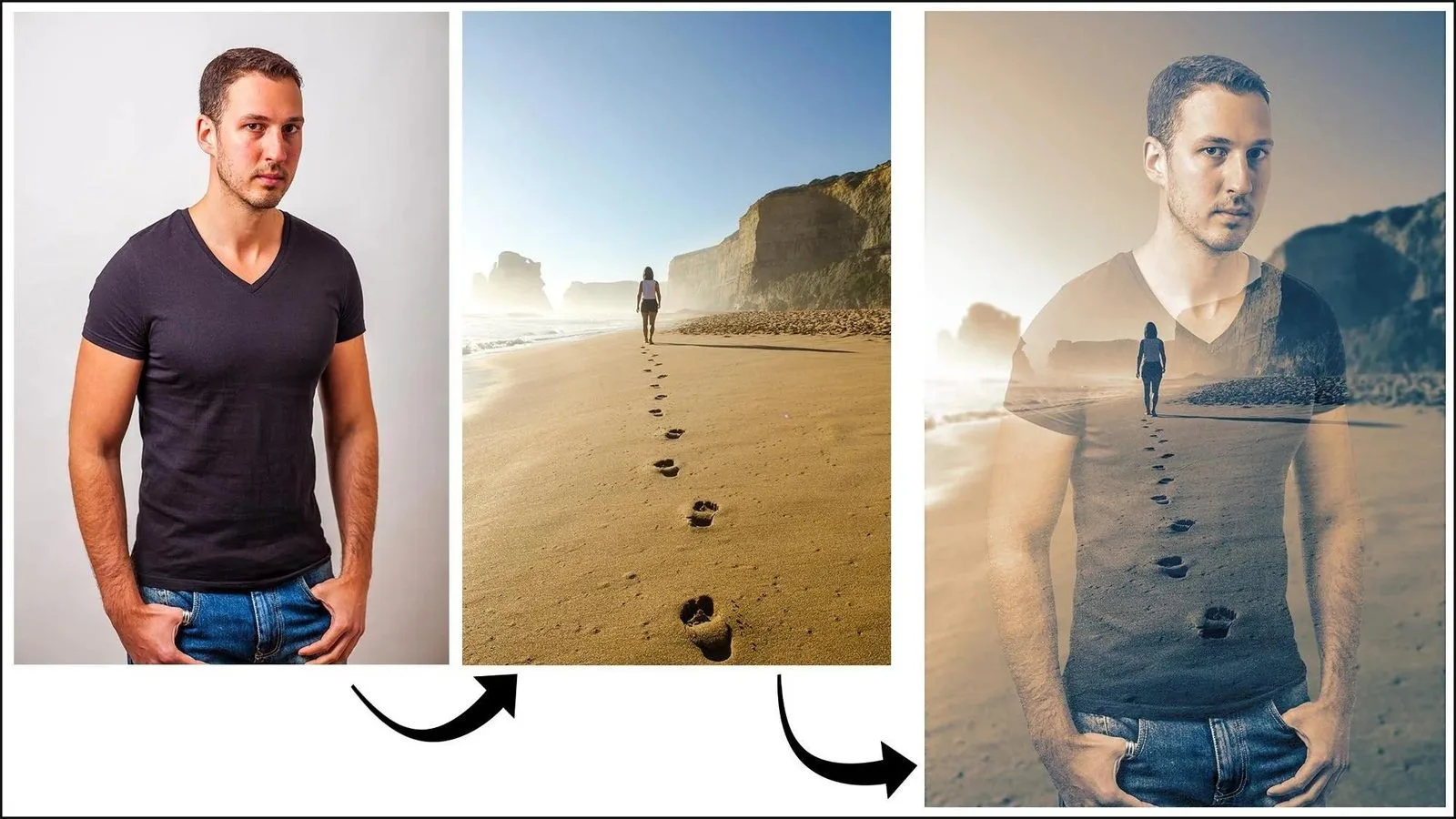
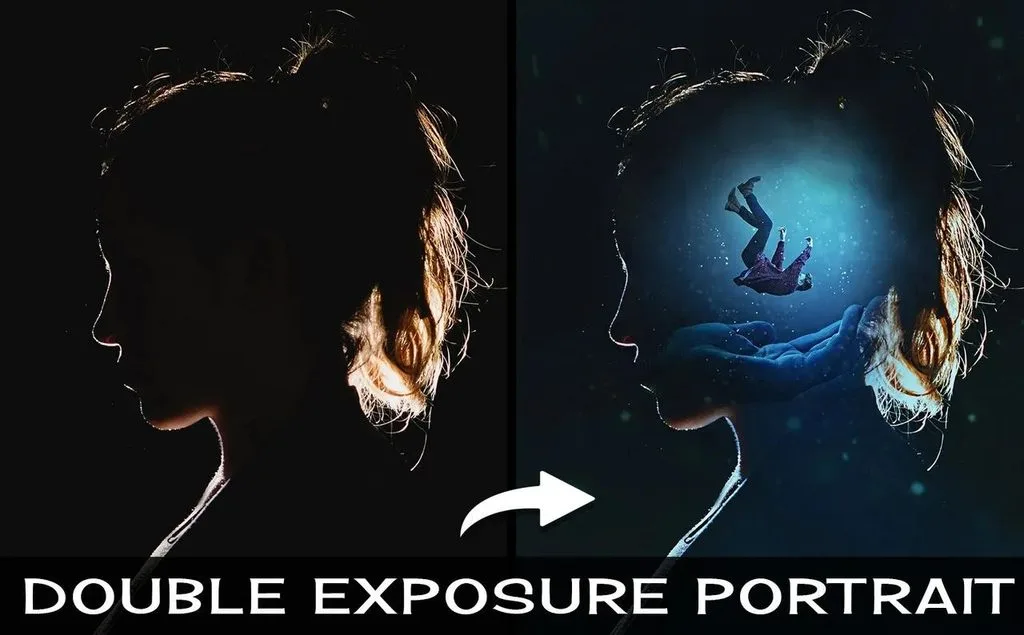
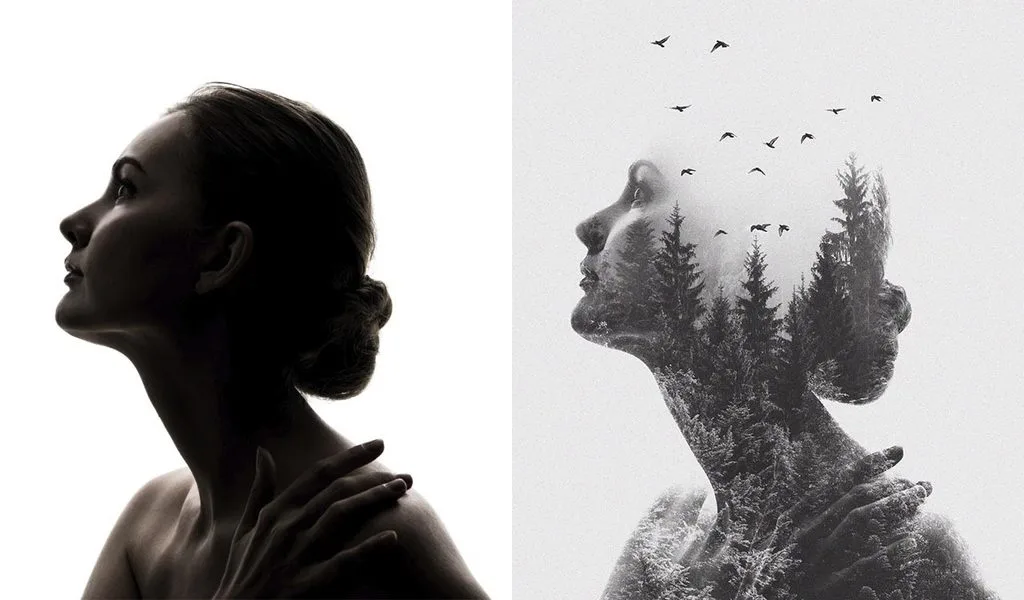
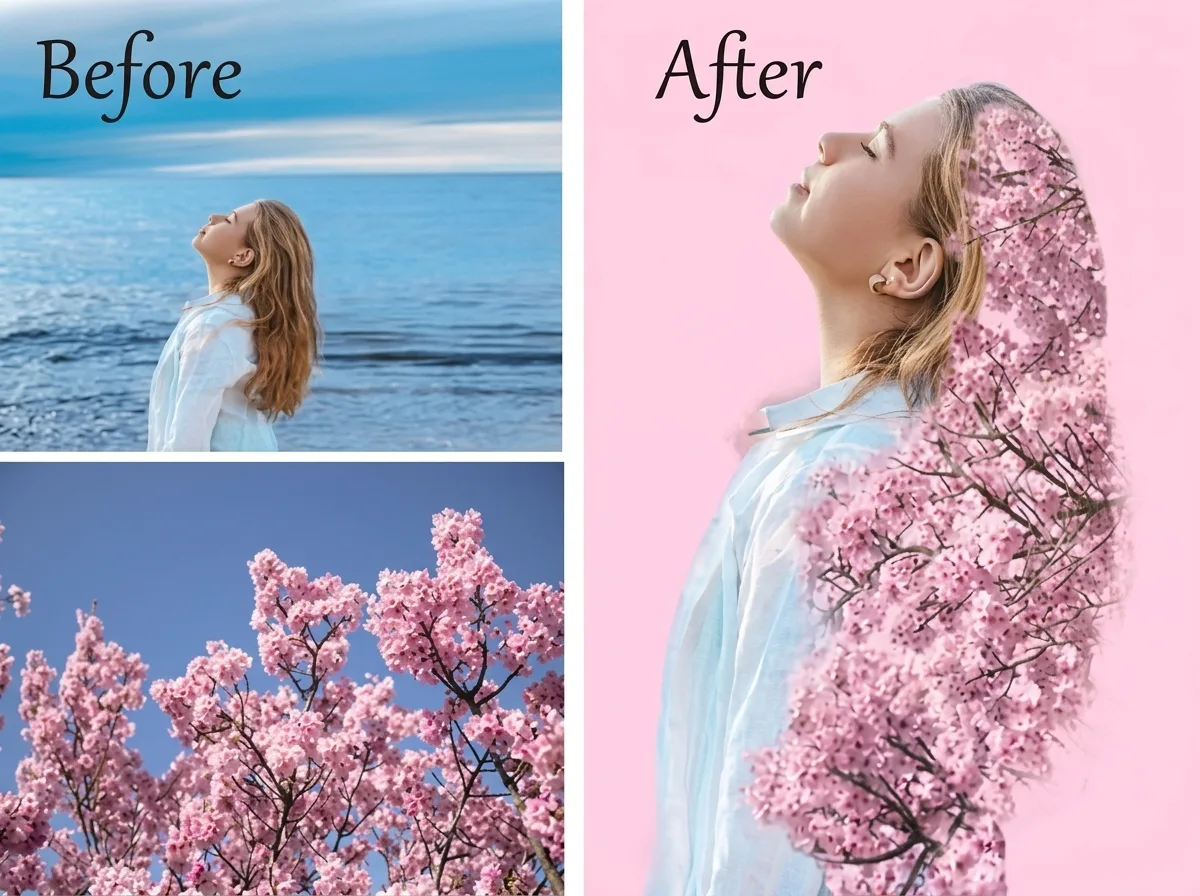
- Double exposure: Place the second image above the portrait. Set blend mode to Screen (for light subjects on dark background) or Lighten, opacity 50–70%. Add a black layer mask, paint white where you want the second image to show (typically inside the silhouette). A clipping mask (Alt-click between layers) confines it to the portrait shape.
Free & Mobile Tools (No Photoshop Needed)
- Photopea (browser, free): Full Photoshop clone — layers, masks, blend modes, Select Subject, even opens PSD files. Runs locally on your machine, no upload. The best free option by far.
- Snapseed (mobile, free, no ads): Tools > Double Exposure. Add the second image, choose a blend mode, adjust opacity, use the mask (View Edits > Double Exposure > brush) to paint where it shows. Save the result and repeat to add more than two images.
- Canva (web/mobile, freemium): Best for collages and grid layouts. Upload both images, use the “Edit image > Blend” modes for overlays. Transparency slider for simple merges.
- GIMP (desktop, free): Open-source Photoshop alternative. Layers and masks work identically; interface is clunkier but capable.
- Pixlr / Fotor (browser, freemium): Quick cutout + background replacement with AI selection.
5 Common Merge Mistakes (And How to Fix Them)
- Floating subject (no shadow). The #1 giveaway. Add a soft contact shadow at the anchor point and a cast shadow opposite the light source. Without these, the subject looks pasted on.
- Hard edges. A cutout with a 1px hard edge looks like a sticker. Feather 0.5–1px, or use Select and Mask Refine Edge. Verify on white, black, and gray backgrounds.
- Mismatched light direction. Subject lit from left, background sun from right. Flip one horizontally or pick a matching background. Check both highlights AND shadows.
- Mismatched color temperature. Warm subject on cool background (or vice versa). Clip Hue/Saturation + Color Balance to the subject and nudge 5–8° toward the background.
- Skipping grain. Two photos from different cameras/ISOs have different noise. A unified grain layer (3–5%, Luminosity, 20–40% opacity) is the cheapest realism fix available.
If you plan to print the merged result, size it for the final output first — a 16×20 print needs 4800×6000 pixels at 300 PPI, so merge at full resolution and only downsize at export.
Frequently Asked Questions
How do I merge two photos in Photoshop?
Open both in the same document (subject on top). Select the subject (Select Subject or Pen Tool), refine edges in Select and Mask (Refine Edge brush for hair), output to a layer mask. Position with Free Transform (hold Shift for proportions). Match color with clipped Hue/Saturation and Color Balance layers (shift hue 5–8° toward the background). Add a contact shadow and cast shadow. Finish with 3–5% unified grain.
How do I make a merged photo look real?
Match five things: perspective (vanishing points and horizon), light direction (highlights and shadows fall the same way), color temperature (both lit by the same kind of light — nudge hue 5–8°), focus and depth of field (blur or sharpen to match), and grain/noise (add unified 3–5% grain). The most common failure is skipping shadows — a subject with no contact shadow looks like it’s floating.
Can I merge photos for free?
Yes. Photopea (browser) is a full Photoshop clone with layers, masks, and blend modes — free, runs locally, no upload. Snapseed (mobile) has Double Exposure for artistic blends. Canva handles collages and simple overlays. GIMP is a free desktop alternative. For AI cutout + background swap, Pixlr and remove.bg have free tiers.
What is focus stacking and how do I do it?
Focus stacking merges multiple photos shot at different focus distances into one image where everything is sharp — used in macro, product, and architecture photography. Shoot on a tripod (10–30 shots, focus from front to back). In Photoshop: Load Files into Stack > Auto-Align Layers > Auto-Blend Layers > Stack Images. Dedicated tools: Helicon Focus, Zerene Stacker.
How do I merge multiple exposures into HDR?
Bracket your exposures: shoot at −2, 0, and +2 EV (five brackets if possible). In Lightroom, select all bracketed photos > Photo > Photo Merge > HDR (Ctrl+H). Check Auto Align and Auto Settings; use Deghosting if something moved between shots. In Photoshop: File > Automate > Merge to HDR Pro. Keep tone-mapping subtle for a natural look.
How do I replace the sky in a photo?
Photoshop (2021+): Edit > Sky Replacement. It auto-detects and masks the sky, drops in a new sky from its library (or your own), and adjusts the foreground color and lighting to match. Choose a sky with light direction matching your scene — if the original sun was low and warm, pick a sunset sky, not midday. Luminar and many mobile apps do the same.
What is double exposure and how do I create it?
Double exposure blends two images artistically — a portrait silhouette filled with a landscape, for example. In Photoshop: place the second image above the portrait, set blend mode to Screen or Lighten, opacity 50–70%, add a clipping mask or layer mask to confine it to the silhouette. On mobile: Snapseed > Tools > Double Exposure. Save and repeat to add more layers.
How do I merge photos on my phone?
Snapseed (free, Google) > Tools > Double Exposure — add a second image, choose blend mode, adjust opacity, use the brush mask to control where it shows. PicsArt and PhotoDirector have cutout + background swap with AI. For collages, Canva and Layout (Instagram’s app, though discontinued in some regions) work well. Save at maximum resolution.
Final Verdict
Merging photos is easy; making them look real is the work. Cut and paste takes two minutes — matching perspective, light, color, focus, and grain takes ten, and it’s what separates a pro composite from an obvious fake. Use layer masks (never erase — masks are reversible), refine hair with Select and Mask, match color with clipped adjustment layers, always add a contact shadow, and finish with a unified grain layer. Photoshop is the full-power tool; Photopea (free browser) and Snapseed (free mobile) handle most jobs. For specialized merges — focus stacking, HDR, sky replacement — use the dedicated auto-merge functions; they’re faster and more accurate than manual work. Get the five realism layers right and nobody will know it wasn’t shot as one frame.