Image Formats Compared: JPEG vs PNG vs WebP vs HEIC 2026
Introduction: Why This Choice Matters More Than You Think
Every photo on your phone, every product shot on your store, and every hero image on your homepage lives inside a container called a file format. That container decides how sharp the picture looks, how quickly the page loads, and how much storage you burn through in a year. Pick the right one, and your site flies. Pick the wrong one, and Google’s Core Web Vitals will punish you before a single customer sees your work.
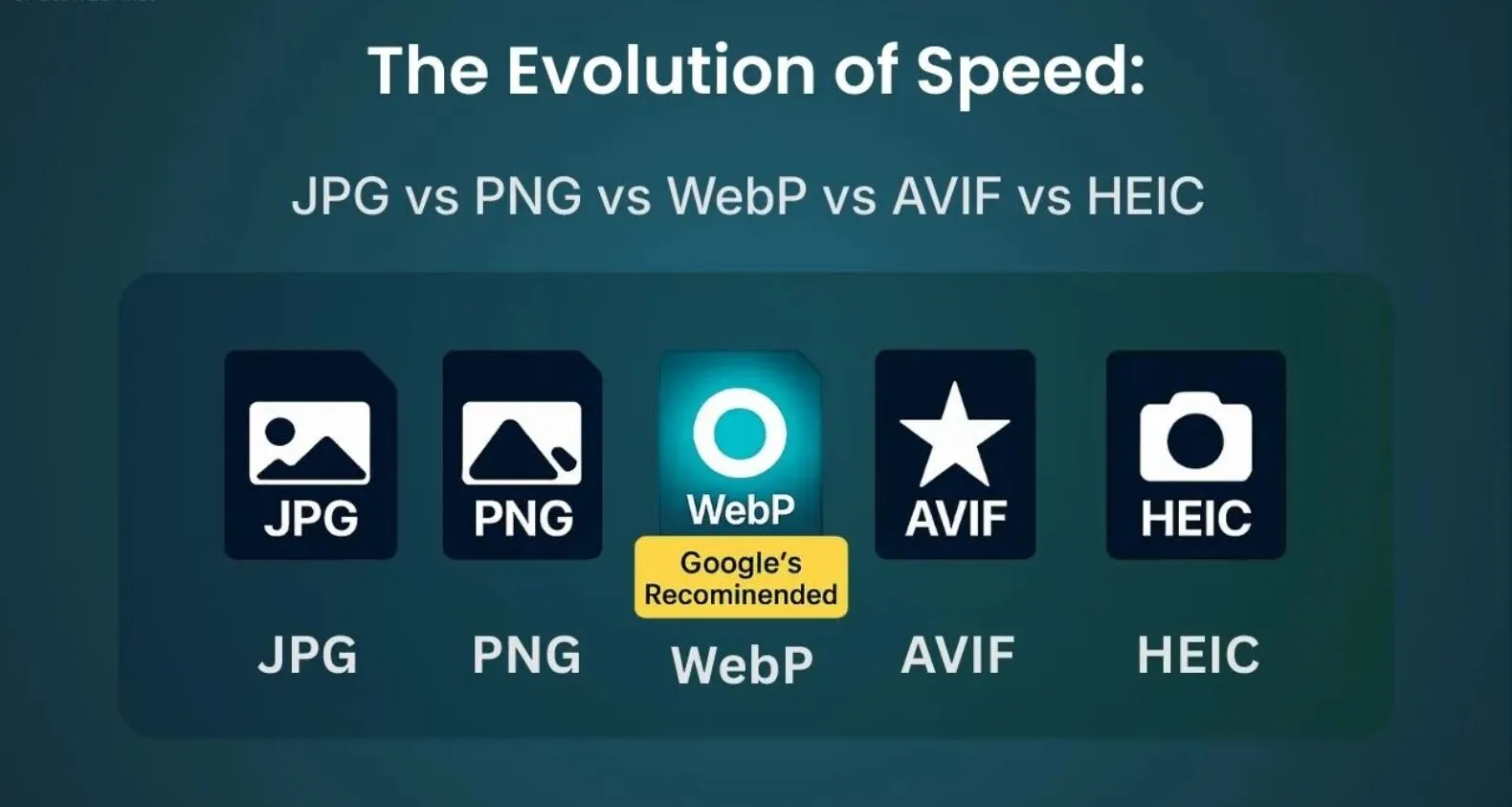
Four formats dominate the conversation in 2026: JPEG, PNG, WebP, and HEIC. Each one solves a specific problem — and each one fails badly outside its lane. This guide breaks down the science, the trade-offs, and the practical picks so you can stop guessing and start shipping images that load fast and look flawless.
💡 Direct answer for the impatient: Use JPEG for standard photographs, PNG for logos and transparency, WebP as your default for the web, and HEIC to save space on your iPhone. Everything below explains exactly when to break these rules.
🎯 Free your product photos from clunky, oversized backgrounds — our expert background removal service delivers pixel-perfect cutouts ready for JPEG, PNG, or WebP export.
What Actually Happens Inside an Image File
Before we compare formats, let’s clear up the vocabulary that trips most people up. An image file stores color values for every pixel, but the way it packs those values changes everything.
Lossy compression discards data your eye barely notices — smaller files, slightly softer detail. Lossless compression rebuilds the picture bit-for-bit — larger files, zero quality loss. Alpha channels carry transparency information. Color depth decides how many shades your image can display, from 256 colors all the way up to billions.
If you’ve ever wondered whether your files are quietly eating your storage, our explainer on KB vs MB helps you read those file-size numbers with confidence.
JPEG: The Universal Workhorse
The format that still runs the internet
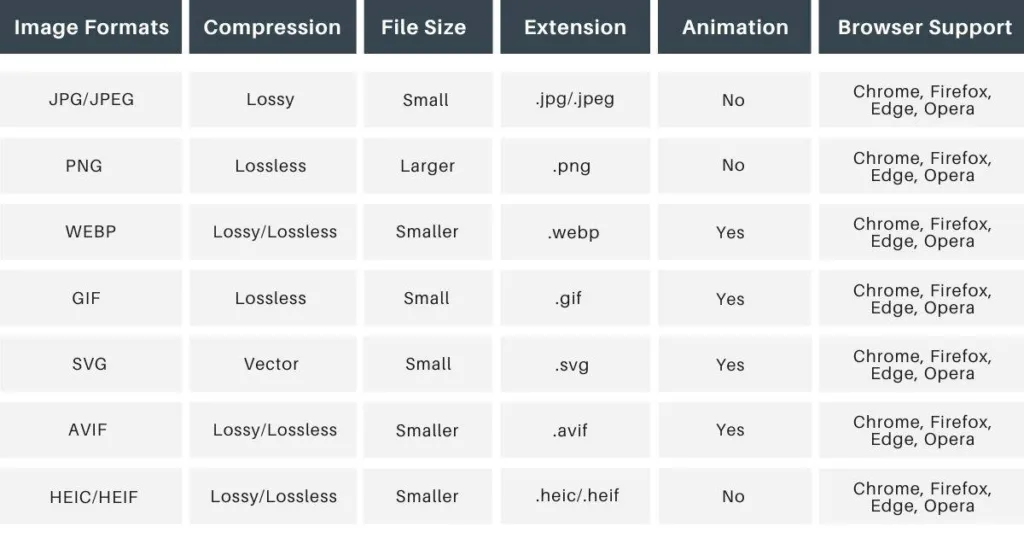
JPEG (Joint Photographic Experts Group) was standardized in 1992 and still handles the majority of photos on the web. The format shines when you shoot real-world scenes — sunsets, portraits, landscapes — because its lossy DCT (discrete cosine transform) algorithm hides compression artifacts inside busy, colorful areas your brain filters out.
Where JPEG wins
- Photography with millions of colors — beach shots, food photography, travel snaps
- Universal compatibility — every browser, every camera, every printer, every email client
- Adjustable quality slider — you decide the trade-off, usually landing at quality 80 for the sweet spot
- Progressive rendering — the picture loads in blurry passes and sharpens as more data arrives
Where JPEG breaks down
JPEG cannot hold transparency, so a logo saved as JPEG shows an ugly white or gray square around it. The format also crushes text and sharp graphics into a blurry mess because chroma subsampling (Wikipedia’s technical breakdown here) throws away color detail near hard edges. Every re-save cooks the image a little more — this is called generation loss, and it stacks up fast if you edit a JPEG ten times.
Key takeaway: Use JPEG for real photographs destined for the web, email, or print. Avoid JPEG for anything with text, sharp edges, or transparency.
PNG: The King of Clean Edges and Transparency
Why designers still default to PNG
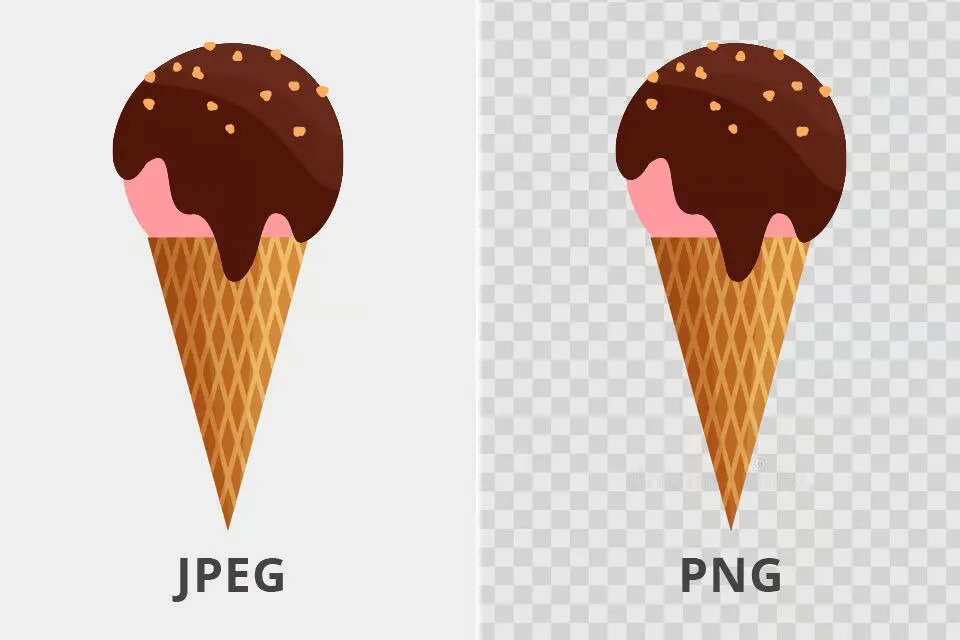
PNG (Portable Network Graphics) was published as an official W3C recommendation in October 1996 to replace the licensed GIF format, and it does one job better than anything else: lossless compression with full transparency. Every pixel survives compression intact, which is why designers, illustrators, and UI teams live inside PNG.
According to the W3C PNG specification, the format uses a two-stage lossless pipeline — a filtering step followed by DEFLATE compression — so your image reconstructs bit-for-bit from the source data.
Where PNG dominates
- Logos, icons, and vector-style graphics that need crisp edges and zero artifacts
- Images with a transparent background for layering over any color or photo
- Screenshots and text-heavy graphics where JPEG’s blurriness looks amateur
- Master files for repeated editing — no generation loss ever
The PNG variants nobody explains clearly
Adobe’s “Save for Web” popularized three flavors, and the naming still trips people up:
- PNG-8 — a 256-color palette. Historically shipped with 1-bit “on/off” transparency, but the PNG spec fully allows 8-bit alpha per palette entry (tools like Fireworks and pngquant use this).
- PNG-24 — 24-bit color (16.7 million shades). In Adobe’s terminology this means no alpha channel; the true ISO PNG spec calls this “truecolor without alpha.”
- PNG-32 — 24-bit color plus an 8-bit alpha channel for smooth semi-transparency. This is the “PNG with transparency” everyone actually means when they say “PNG.”
Where PNG stumbles
PNG files for a full photograph often run 5 to 10 times larger than the equivalent JPEG, because lossless compression cannot exploit the eye’s blind spots. Uploading PNG photos to a website is one of the fastest ways to tank your loading speed.
Key takeaway: Use PNG for graphics, logos, and screenshots. Never use PNG for full-resolution photos on a live website.
🎯 Need crisp, transparent logos and product cutouts? Our precision-driven clipping path service delivers hand-drawn paths that keep every edge sharp in PNG or WebP.
WebP: Google’s Modern Web Champion
The format built for the modern browser
Google released WebP on September 30, 2010 to solve a real problem: JPEG was too fat, PNG was too fat, and GIF was ancient. WebP combines everything — lossy compression, lossless compression, transparency, animation — inside one container based on the VP8 video codec (Google confirms this in the official WebP FAQ).
According to Google’s own documentation, WebP achieves an average of 30% more compression than JPEG at equivalent quality. MDN Web Docs pins the number between 25% and 35% smaller than JPEG for lossy photography and 26% smaller than PNG for lossless graphics.
What WebP brings to the table
- Lossy AND lossless modes — one format for both photos and graphics
- Alpha transparency even in lossy mode (JPEG cannot do this)
- Animation support — typically 50–70% smaller than the equivalent GIF for the same motion
- Wide browser support — Can I Use data shows around 97% global coverage in 2026
- Same visual quality with a dramatically smaller footprint, which directly improves LCP (Largest Contentful Paint) and search ranking
Where WebP still has friction
Older desktop software occasionally refuses to open WebP without a plugin, and some marketplaces (Etsy, eBay, certain Amazon backends) still ask for JPEG or PNG uploads. Print shops also frequently reject WebP files, so keep a JPEG or TIFF master for anything heading to paper. If you’re managing thousands of images across formats, comparing options in our best cloud storage for photos guide can save you real money.
Key takeaway: WebP is the correct default for every image on a modern website, with a JPEG or PNG fallback for the last ~3% of visitors.
HEIC: Apple’s High-Efficiency Powerhouse
The container that made iPhones lighter
HEIC (High Efficiency Image Container) arrived with iOS 11 in September 2017 and became the default iPhone camera format almost overnight. HEIC is actually the Apple-branded flavor of the wider HEIF standard (introduced by MPEG in 2015, per Wikipedia), and it stores images encoded with the HEVC (H.265) video codec.
The result impresses even skeptical photographers. According to Apple’s official HEIF documentation, HEIC files “offer better compression than JPEG,” typically cutting storage use roughly in half while preserving equal or better visual quality.
The HEIC advantages nobody talks about
- Up to 16-bit color depth in the standard (Apple currently outputs 8-bit or 10-bit; Fujifilm and Canon ship 10-bit HEIC) — a huge jump over JPEG’s 8-bit ceiling, which unlocks smoother gradients and richer HDR shots
- Multi-image containers — one HEIC file can hold Live Photos, burst sequences, and depth maps together
- Better transparency support than JPEG
- Non-destructive edits — crops and rotations save without re-encoding the pixels
- Roughly half the file size of an equivalent JPEG, which is why iPhone owners suddenly stopped running out of storage
The interoperability tax
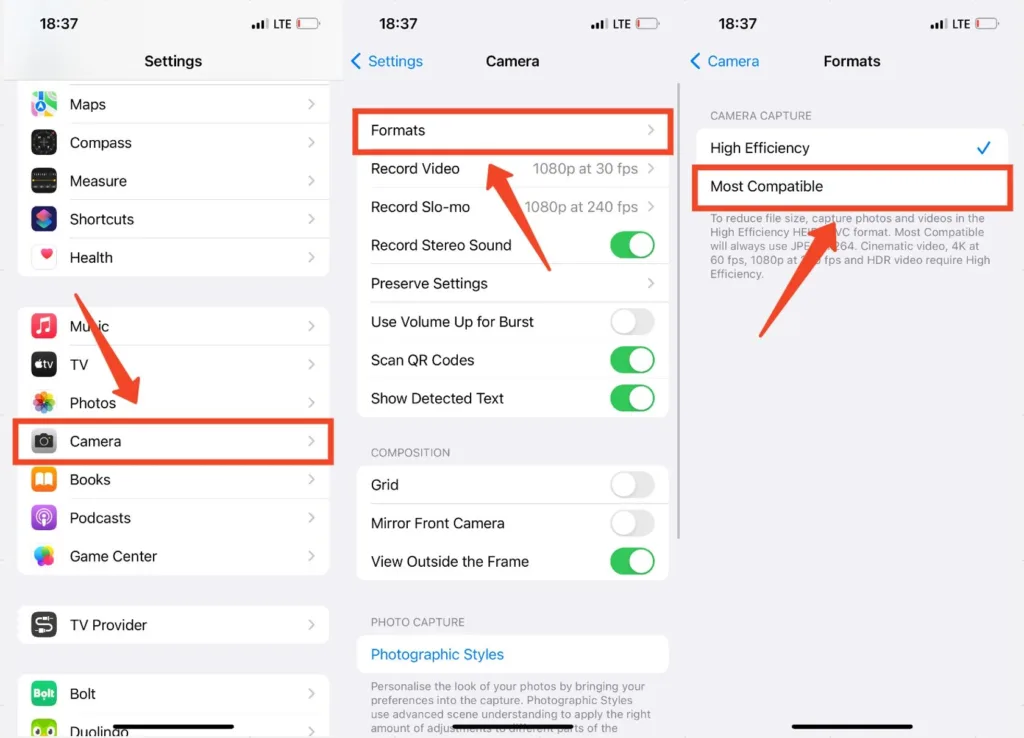
Here’s the catch that costs users hours every week: HEIC does not play nicely outside the Apple ecosystem. Android phones need a converter, Windows requires the free HEIF Image Extensions from the Microsoft Store, and most social platforms auto-convert HEIC to JPEG (sometimes poorly). Older editing software chokes on the format entirely. If your workflow crosses platforms, either shoot in “Most Compatible” mode on iPhone or convert HEIC to JPEG before sharing.
Key takeaway: Keep HEIC on your iPhone for storage. Convert to JPEG before sending anywhere outside Apple’s walls.
Head-to-Head Comparison Table
| Feature | JPEG | PNG | WebP | HEIC |
|---|---|---|---|---|
| Compression | Lossy | Lossless | Lossy + Lossless | Lossy (HEVC) |
| Transparency | ❌ No | ✅ Full alpha | ✅ Full alpha | ✅ Yes |
| Animation | ❌ No | ❌ No (APNG separate) | ✅ Yes | ✅ Yes |
| Color depth | 8-bit only | Up to 16-bit | 8-bit | Up to 16-bit (spec) |
| Typical size vs JPEG | Baseline | 5–10× larger for photos | 25–35% smaller | ~50% smaller |
| Browser support (2026) | Universal | Universal | ~97% global | Limited outside Apple |
| Best for | Photos on web | Logos, graphics, screenshots | Modern websites | iPhone storage |
| Editing loss | Loses on every save | Zero loss | Loses on every lossy save | Non-destructive edits |
| License / patents | Free / open | Free / open | Free / open (Google) | HEVC patents apply |
| Year introduced | 1992 | 1996 | 2010 | 2015 (HEIF) / 2017 (Apple) |
🎯 Selling fashion or apparel online? Discover how our specialized ghost mannequin service creates the invisible-model effect that boosts conversions on every platform.
Compression: The Numbers That Actually Matter
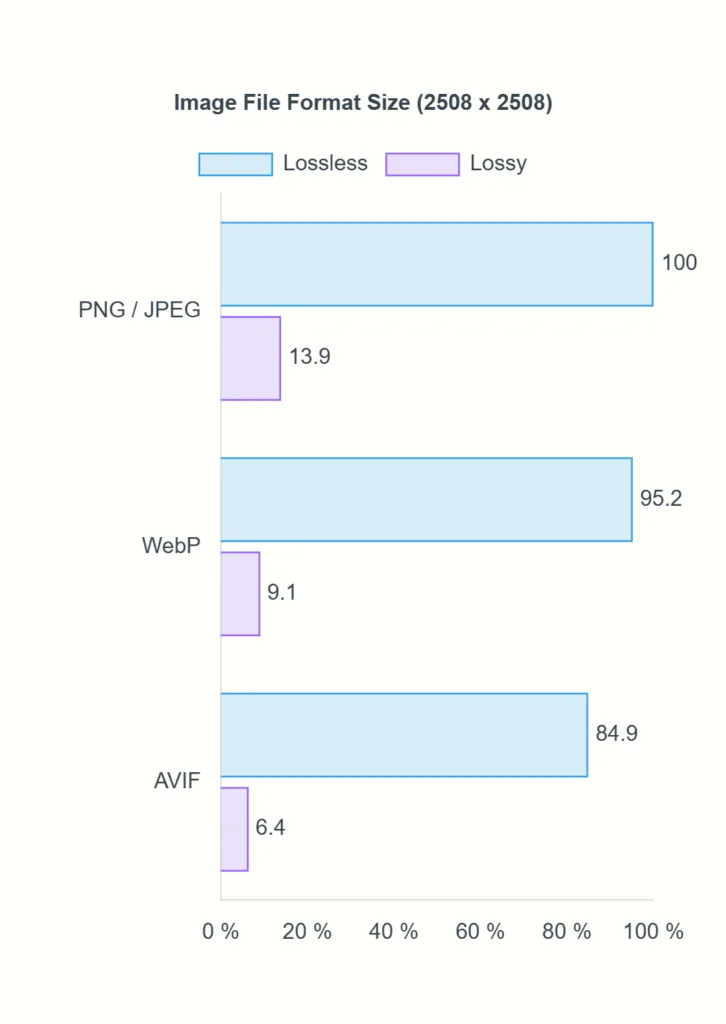
Compression is where these formats show their real personalities. Here is what independent testing and MDN’s format guide reveal about a typical 2000×1300 photograph:
- JPEG (quality 85): ~450 KB
- PNG (lossless): ~4.2 MB
- WebP (lossy, matching JPEG quality): ~300 KB
- HEIC (default iPhone quality): ~230 KB
- AVIF (next-gen bonus): ~200 KB
For simple graphics with flat color and text, the ranking flips completely:
- PNG (lossless): baseline
- WebP (lossless): roughly 26% smaller than PNG
- JPEG: artifacts near edges make it unusable
- HEIC: decent, but transparency handling for graphics is inconsistent
If you’re curious about how many of these files a memory card can actually hold, our breakdown of 32GB storage capacity puts the numbers into practical shooting terms.
Browser and Device Compatibility in 2026
Compatibility used to be the tie-breaker. In 2026, the picture looks like this:
- JPEG — 100% universal, everywhere, forever
- PNG — 100% universal, same story
- WebP — Chrome, Edge, Firefox, Safari (macOS 11+ / iOS 14+), Opera, Samsung Internet. Coverage sits around 97% globally per caniuse.
- HEIC — Native only on Apple devices. Windows needs the HEIF Image Extensions from the Microsoft Store, Android requires a third-party viewer, and browsers still refuse to render HEIC directly on the web
The practical rule: serve WebP as your primary web format with a JPEG or PNG fallback using the HTML <picture> element. Keep HEIC for personal storage, and convert before sharing outside Apple devices.
Which Format Should You Actually Use? A Decision Guide
For website hero images and product photos
Use WebP with a JPEG fallback. This combination gives you the smallest possible file for modern browsers and full compatibility for older ones. Speed matters — Google’s own research shows that as page load time climbs from one to three seconds, the probability of bounce rises by 32%.
For logos, icons, and UI elements
Use PNG-32 for masters and WebP lossless for delivery. Both preserve sharp edges and transparency perfectly.
For iPhone camera storage
Keep HEIC on. You save roughly half your storage without losing quality. Switch to “Most Compatible” only when you know the recipient uses Windows or Android.
For email attachments and universal sharing
Use JPEG. Every recipient can open it, no exceptions.
For screenshots and text-heavy graphics
Use PNG or WebP lossless. JPEG’s chroma subsampling will smear your text into unreadable soup.
For animations replacing GIF
Use WebP animation or APNG. Both crush GIF’s file size by 50–70% while delivering true-color frames instead of GIF’s 256-color palette.
For editing masters and archival
Save originals in PNG, TIFF, or RAW/DNG. Never edit and re-save JPEGs repeatedly — the quality bleeds out fast. Our guide to resizing images in Photoshop walks through non-destructive workflows that protect your masters.
🎯 Complex products with holes, wires, or reflective surfaces? Our multi-clipping path service isolates each element for flawless color changes, background swaps, and format exports.
Why Google Cares About Your Image Choice
Search rankings and image formats intertwine more than most site owners realize. Google’s Core Web Vitals — specifically Largest Contentful Paint (LCP) — measure how quickly the biggest visual element on your page appears. Nine times out of ten, that element is an image.
The direct SEO wins from choosing modern formats
- Faster page load — WebP alone can shave 30% off image weight, which drops LCP and lifts mobile rankings
- Better mobile performance — smaller files stream faster on 4G/5G and cost users less data
- Higher engagement metrics — faster pages hold visitors longer, which sends positive signals back to Google
- Improved crawl budget — leaner images mean the Googlebot indexes more of your site per visit
- Higher Google Images visibility — properly named files, descriptive alt text, and modern formats all help images rank in visual search
Practical Conversion Workflows That Actually Save Time
Converting HEIC to JPEG on any platform
- iPhone (built-in): Settings → Camera → Formats → Most Compatible. New photos save as JPEG going forward.
- Windows 11: Install HEIF Image Extensions from the Microsoft Store, then open and re-save with the Photos app.
- macOS: Open in Preview → File → Export → choose JPEG.
- Web: Free tools like heic.online or CloudConvert handle bulk conversion in seconds.
Converting JPEG or PNG to WebP
- Photoshop 23+ exports WebP natively through File → Save a Copy
- Squoosh.app (built by the Google Chrome team) handles single-image conversion with a live preview
- cwebp command-line tool batch-processes entire folders —
cwebp -q 80 input.jpg -o output.webp - WordPress plugins like ShortPixel or Imagify auto-convert your entire media library
Batch converting an entire product catalog
Use ImageMagick for scriptable batch jobs, or Cloudinary/Imgix for automatic on-the-fly delivery. Both hand back the perfect format based on the requesting browser.
The Next Generation: AVIF and JPEG XL
Two contenders are pushing to replace even WebP.
AVIF (AV1 Image File Format) reaches roughly 50% smaller than JPEG at matching quality, according to MDN’s format guide. Browser support crossed 95% global coverage in 2025 and keeps climbing. AVIF handles HDR, wide color gamut, and film-grain synthesis beautifully — the future of photography formats sits here.
JPEG XL offers even better compression, lossless JPEG re-encoding (recover a 20% smaller file with zero quality loss), and features professional photographers dream about. Adoption stalled when Google dropped Chrome support in late 2022, but Apple added Safari 17 support in June 2023 (per Apple Developer documentation), and the ISO PDF 2.0 draft now lists JPEG XL as an official image type.
For 2026, treat AVIF as the upcoming default and WebP as the current default.
Common Mistakes That Cost Quality and Ranking
Even experienced designers slip on the same traps.
- Saving logos as JPEG — the artifacts around text and edges look unprofessional forever
- Uploading PNG photos to a website — files run 5–10× the necessary size and destroy load speed
- Re-saving JPEGs after every edit — generation loss compounds, and by the tenth save your image looks noticeably degraded
- Sending HEIC files to Android or Windows users — recipients see broken thumbnails and give up
- Ignoring EXIF and metadata — this data often bloats files without adding user value; strip it before web delivery
- Skipping responsive images — one massive image loaded on both desktop and mobile wastes bandwidth on mobile users
Our step-by-step guide on how to remove background in GIMP shows the correct workflow for producing transparency-ready PNGs without artifacts.
🎯 Skin blemishes, dust, and color casts ruining your shoots? Our expert photo retouching service delivers magazine-quality results across every image format you deliver.
Real-World Scenarios: Which Format Wins?
Scenario 1 — An e-commerce store with 5,000 products
Winner: WebP with JPEG fallback, sourced from PNG masters. Cuts image weight by ~30%, improves LCP, and satisfies every browser.
Scenario 2 — A portrait photographer’s client galleries
Winner: JPEG at quality 85–90, with RAW originals archived separately. Balances quality and download speed for clients.
Scenario 3 — A SaaS marketing site with lots of screenshots
Winner: WebP lossless or PNG-8 for smaller UI screenshots. Preserves text clarity without waste.
Scenario 4 — iPhone user shooting daily life
Winner: HEIC for storage, converted to JPEG before sharing off-platform.
Scenario 5 — A print shop preparing brochures
Winner: TIFF or high-quality JPEG. Never use WebP or HEIC for print — commercial print RIPs still stumble on them.
Frequently Asked Questions
1. Is WebP really better than JPEG for every photo?
Almost always — but not universally. WebP saves roughly 25–35% file size at matching visual quality per MDN’s testing. However, some print workflows and older CMS platforms still reject WebP, so keep a JPEG copy for those cases.
2. Can I convert HEIC to JPEG without losing quality?
You will always lose some quality during any lossy-to-lossy conversion, but the difference stays invisible to the naked eye if you use high-quality settings. Convert once and save the result — do not repeatedly re-convert the same file.
3. Does PNG really support transparency better than WebP?
Both handle full 8-bit alpha transparency correctly. WebP simply does it at smaller file sizes. Use PNG when you need maximum compatibility with older software; use WebP everywhere else.
4. Why does my iPhone save photos as HEIC and not JPEG?
Apple defaults to HEIC because it stores photos at roughly half the file size of JPEG with equal or better visual quality. You can switch back through Settings → Camera → Formats → Most Compatible if you need JPEGs for cross-platform sharing.
5. Which format is best for SEO in 2026?
WebP wins as the default for web delivery because it reduces page weight without sacrificing quality, which directly improves Core Web Vitals and search ranking. Serve WebP with a JPEG fallback for maximum coverage.
6. Can Google Search read WebP and HEIC files?
Yes to both. Google indexes WebP without issues and added HEIC support in 2023. That said, WebP delivers better SEO outcomes because of its smaller file sizes and near-universal browser support.
7. Should I still use PNG in 2026, or has WebP replaced it?
Keep PNG for master files, printing, and any workflow that touches software older than five years. Use WebP for web delivery. The two coexist — they solve slightly different problems.
8. What happens if I upload HEIC images to my website?
Most browsers cannot render HEIC natively, so visitors see broken images or a blank space. Always convert HEIC to WebP or JPEG before publishing to the web.
Final Verdict: The 2026 Cheat Sheet
Choosing the right image format finally stops being complicated once you match the format to the job:
- Photos on the web → WebP with JPEG fallback
- Logos, icons, transparency → PNG (delivered as WebP lossless)
- iPhone storage → HEIC, converted before sharing
- Universal compatibility → JPEG
- Next-gen frontier → AVIF for photos, JPEG XL when broader browser support arrives
- Print → TIFF or high-quality JPEG (never WebP or HEIC)
Modern browsers handle WebP natively, HEIC saves iPhone storage effortlessly, PNG protects your logos, and JPEG remains the safe fallback for everything else. Layer these formats intelligently, and your site loads faster, your storage lasts longer, and your images look sharper across every device.
For anyone running an online store, product photography sits at the exact intersection of image quality, format choice, and conversion rate — and that’s where most brands leak money without noticing.
🎯 Ready to ship faster-loading, conversion-ready product images across every platform? Explore our full range of professional image editing services — precision editing that scales with your catalog and every image format you deliver.