Raster Image Editing: The Complete Guide + Best Software (2026)
Every photo you’ve ever taken on a phone, every meme you’ve ever shared, and every product shot on an online store is the same thing underneath: a grid of tiny colored squares called pixels. Raster image editing is the art and craft of changing those squares — brightening a face, removing a stray person, swapping a sky, or turning a flat snapshot into something that stops a thumb mid-scroll. If you’ve ever moved a slider in an app and watched a photo get better, you’ve done raster editing. You just might not have known it had a name.
This guide walks you through what raster images actually are, how the editing process works under the hood, which software is worth your time and money in 2026, and the workflow habits that separate people who destroy their photos from people who never lose a pixel of quality. Whether you’re a complete beginner or a working photographer checking whether the free tools have finally caught up, you’ll leave here with a clear plan.
What Is a Raster Image, Exactly?
A raster image — sometimes called a bitmap — is a rectangular grid of pixels. Each pixel is one solid color, and each one lives at a fixed address on the grid: row 412, column 890, that kind of thing. Stand far enough back and the squares blend into a photograph. Zoom in far enough and the illusion breaks and you see the mosaic. That moment, when a smooth curve turns into jagged blocks, is the defining trait of every raster file.
Three numbers describe a raster image completely, and understanding them saves you from 90% of beginner mistakes:
- Dimensions — the width and height in pixels (for example, 6000 × 4000). This is the actual amount of image data you own.
- Resolution / density — how tightly those pixels are packed, measured in PPI (pixels per inch) for screens and DPI for print. Density is just an instruction for printing; it does not change how many pixels you have.
- Bit depth — how many colors each pixel can store. An 8-bit pixel holds 256 levels per red, green, and blue channel. A 16-bit pixel holds 65,536 levels per channel, which is why heavy edits look smooth instead of banded.
A common myth is that “more DPI means a sharper image.” It doesn’t, on its own. A 6000-pixel-wide photo is 6000 pixels whether you label it 72 PPI or 300 PPI. What matters for quality is the total pixel count, and understanding pixels and DPI is what keeps you from accidentally upscaling a small file into a blurry mess.
Raster vs. Vector: When Each One Wins
Raster is only half of the digital-graphics story. The other half is vector — artwork built from mathematical curves and points rather than pixels. A vector circle stays perfectly smooth at business-card size or billboard size, because the math just re-renders at any scale. A raster circle, blown up past its pixel count, turns into stair steps. Adobe’s own raster vs. vector explainer frames it as “captured vs. drawn,” and that’s the cleanest way to remember it.
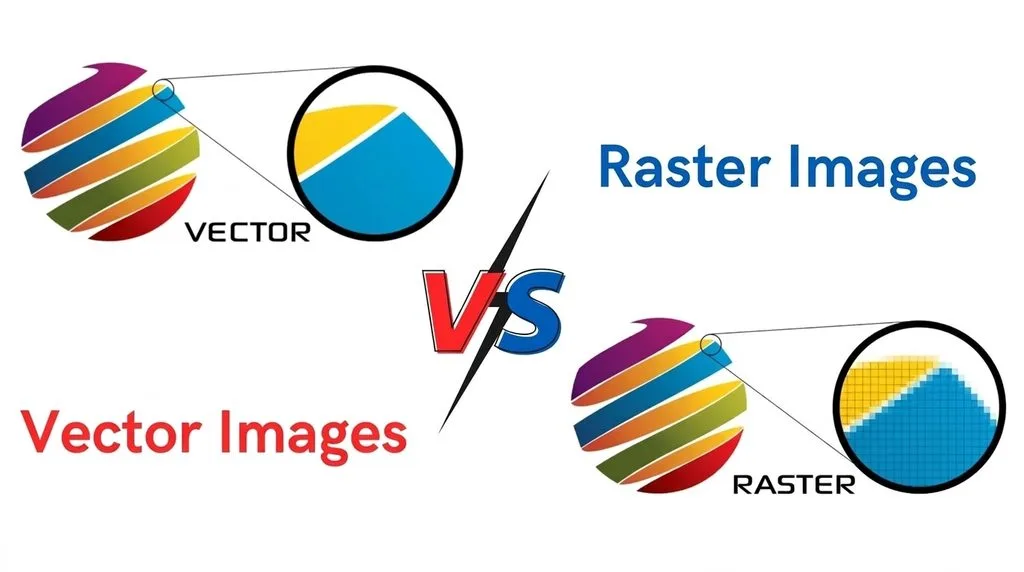
| Raster | Vector | |
|---|---|---|
| Built from | Pixels on a fixed grid | Math: paths, curves, anchors |
| Scales up | Loses quality, pixelates | Stays razor sharp at any size |
| Best at | Photos, textures, painting, retouching | Logos, icons, type, geometric illustration |
| Common formats | JPEG, PNG, WebP, TIFF, PSD, HEIC | SVG, AI, EPS, PDF |
| Editing software | Photoshop, Affinity Photo, GIMP, Photopea | Illustrator, Inkscape, Figma, Affinity Designer |
The practical rule: if a camera captured it, it’s raster and you edit it in a raster editor. If you drew it from scratch and it needs to resize forever (a logo, an icon), build it in vector and export raster copies for the web. Most real projects mix both — a poster might have a vector logo and typography sitting on top of a raster photograph.
How Raster Image Editing Actually Works
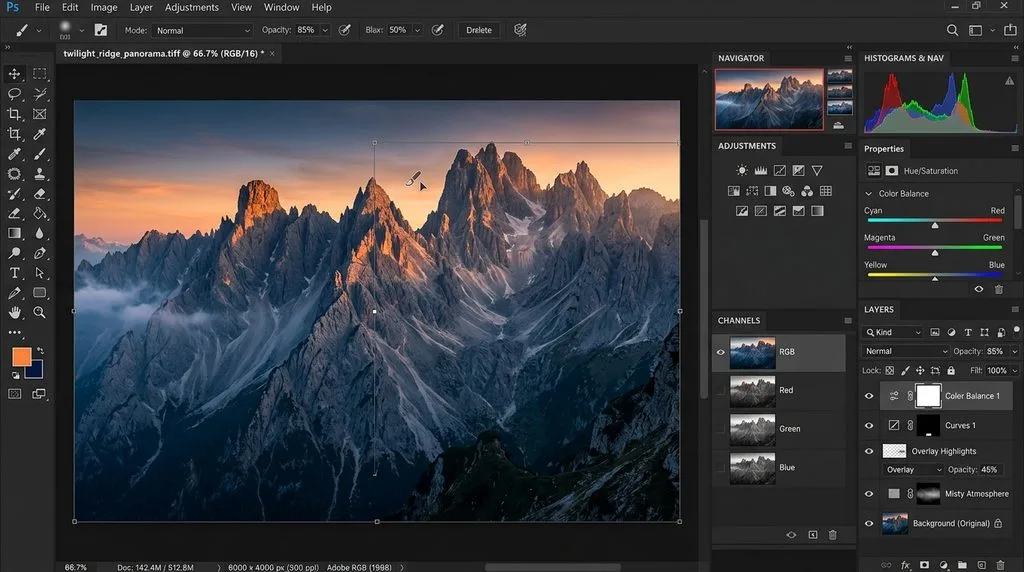
When you open a photo in an editor, you’re looking at three (or four) grayscale images stacked together: a red channel, a green channel, and a blue channel, plus optionally an alpha channel for transparency. Every color you see is just a mixture of brightness values across those channels. When you drag the “warmth” slider toward orange, the editor raises the red and green values and lowers blue — pixel by pixel, millions of times per second.
That pixel-by-pixel nature is why raster editing is so flexible and also so easy to get wrong. Every destructive change rewrites the actual color values, and once they’re overwritten, you can’t get the original data back. A 30% brighter JPEG saved over the original is a new file with new numbers; the darker original is gone. This is the single most important fact in the whole craft, and the entire professional workflow — layers, masks, adjustment layers, Smart Objects — exists to work around it.
A few concepts you’ll meet in every raster editor, from free to pro:
- Selections — telling the editor “only change these pixels.” Marquee, lasso, quick-select, and AI subject selection are all just selection tools with different levels of cleverness.
- Layers — stacking edits on transparent sheets above the photo, so each change lives independently.
- Masks — painting with black to hide a layer and white to reveal it, instead of erasing. Masks never delete pixels.
- Clone stamp & healing — copying texture from one part of the image to another to remove blemishes, dust, or objects.
- Adjustments — exposure, contrast, white balance, curves, hue/saturation. These are the “color and tone” sliders.
- Filters & effects — blur, sharpen, noise, sharpening, and stylized looks. Use sharpen an image restraint; over-sharpening is the #1 giveaway of an amateur edit.
The Golden Rule: Edit Non-Destructively
If you remember one thing from this guide, remember this: never edit the original pixels directly. Adobe’s official guidance on non-destructive editing boils down to four habits, and they apply in every serious editor — not just Photoshop.
- Duplicate the background layer first. Lock the original. Do all work on copies above it. If anything goes wrong, the untouched photo is one click away.
- Use adjustment layers instead of applying adjustments to the image. A Curves adjustment layer sits on top and can be reopened, tweaked, masked, or deleted at any time — forever. A Curves applied directly to pixels is permanent after you save.
- Use masks, not the eraser. The eraser deletes pixels. A mask just hides them; paint white back and they return.
- Convert to Smart Objects before scaling or filtering. Smart Objects remember the original data, so you can scale down, scale back up, or change a blur radius three months later with zero quality loss.
Work in 16-bit mode whenever you can, especially for RAW files. The extra color headroom means you can push exposure and color hard without the sky turning into ugly bands of stepped color. Save your master file in the editor’s native format (PSD, XCF, AFPHOTO) with all layers intact, and export a fresh flattened copy for each destination — web, print, social — rather than reusing one file for everything.
File Formats & Bit Depth: What to Save When
Choosing the wrong export format is how good edits get ruined at the last step. Here’s the short version, and for a deeper dive across modern codecs see our comparison of image formats. MDN’s image format reference is the authoritative technical source if you want the byte-level details.
| Format | Compression | Best for | Watch out |
|---|---|---|---|
| PSD / AFPHOTO / XCF | Lossless, layered | Your working master file | Huge; never use for the web |
| TIFF | Lossless (or none) | Print, archiving, high-res | Large file sizes |
| JPEG | Lossy | Photos on web, sharing | Re-saving repeatedly degrades quality |
| PNG | Lossless + alpha | Graphics with transparency, screenshots | Too big for photos |
| WebP / AVIF | Lossy or lossless | Modern web images (small + sharp) | Old software compatibility |
| HEIC | Lossy (HEVC) | iPhone photos, ~50% smaller than JPEG | Limited support outside Apple |
| RAW (NEF/CR2/ARW/DNG) | None / lossless | Camera source files | Must be “developed” first |
The workflow is: shoot RAW or keep the highest-quality original → edit in 16-bit in a layered master → export a JPEG/WebP for the web and a TIFF/max-quality JPEG for print. When you need to shrink a file for email or a website, learn to compress images the right way instead of dragging a quality slider to 30.
Best Raster Image Editing Software in 2026
The raster-software landscape shifted hard in the last two years. Canva bought Serif and made Affinity free for individuals, GIMP 3.2 finally shipped non-destructive layers in March 2026, and every major editor now ships some form of AI. The gap between “free” and “$120/year” is narrower than it has ever been. For a second opinion on the paid tier, this roundup of photo editing software is solid, and their dedicated raster editor picks overlap closely with ours.
The big comparison table
| Software | Price (2026) | Platforms | Opens PSD? | Best for | Main weakness |
|---|---|---|---|---|---|
| Adobe Photoshop | ~$10–23/mo (plans vary) | Win, Mac, iPad | Native | Pro retouching, compositing, AI | Subscription only |
| Affinity (by Canva) | Free (AI needs Canva plan) | Win, Mac | Yes | Free pro-grade all-rounder | iPad build still maturing |
| GIMP 3.2 | Free, open source | Win, Mac, Linux | Yes (improved) | Customizable power users | No native CMYK; UI is dated |
| Photopea | Free with ads; ~$5/mo premium | Any browser | Yes (best in class) | Editing a PSD anywhere, no install | Ad-supported free tier |
| Krita | Free, open source | Win, Mac, Linux | Limited | Digital painting, illustration, comics | Not a photo-retouching tool first |
| Paint.NET | Free (donation) | Windows only | Via plugin | Fast, simple Windows edits | Windows only; limited RAW |
| Pixelmator Pro | ~$40 one-time | Mac, iPad | Limited | Apple Silicon speed & simplicity | macOS/iPad only |
| Luminar Neo | Subscription / lifetime | Win, Mac | No (its own format) | Fast AI-driven photo looks | Less precise for hard retouching |
| darktable / RawTherapee | Free, open source | Win, Mac, Linux | No | RAW development at zero cost | Steep learning curve |
Adobe Photoshop — the industry standard, now heavily AI-augmented
Photoshop is still the reference point every competitor is measured against. The 2026 v27.x releases (v27.11, September 2026) added AI edge refinement and integrated GPT Image 2 alongside Adobe’s own Firefly models, so Generative Fill now lets you pick which model generates the pixels. If you make a living retouching, compositing, or producing commercial imagery, Photoshop’s automation, plugin ecosystem, and seamless handoff to Illustrator/InDesign still justify the subscription. It’s overkill for a beginner who just brightens vacation photos.
Affinity by Canva — the free professional option nobody expected
When Canva acquired Serif and made the Affinity suite free for individuals, a $70 professional editor with layers, RAW development, HDR merging, and full PSD support suddenly cost zero dollars. If you want Photoshop-level desktop editing without a subscription and without ads, this is your first stop. The catch: the most advanced AI features require a paid Canva plan, and the iPad version is still catching up to the desktop. For 90% of people reading this, Affinity is the rational default in 2026.
GIMP 3.2 — open source finally closes the gap
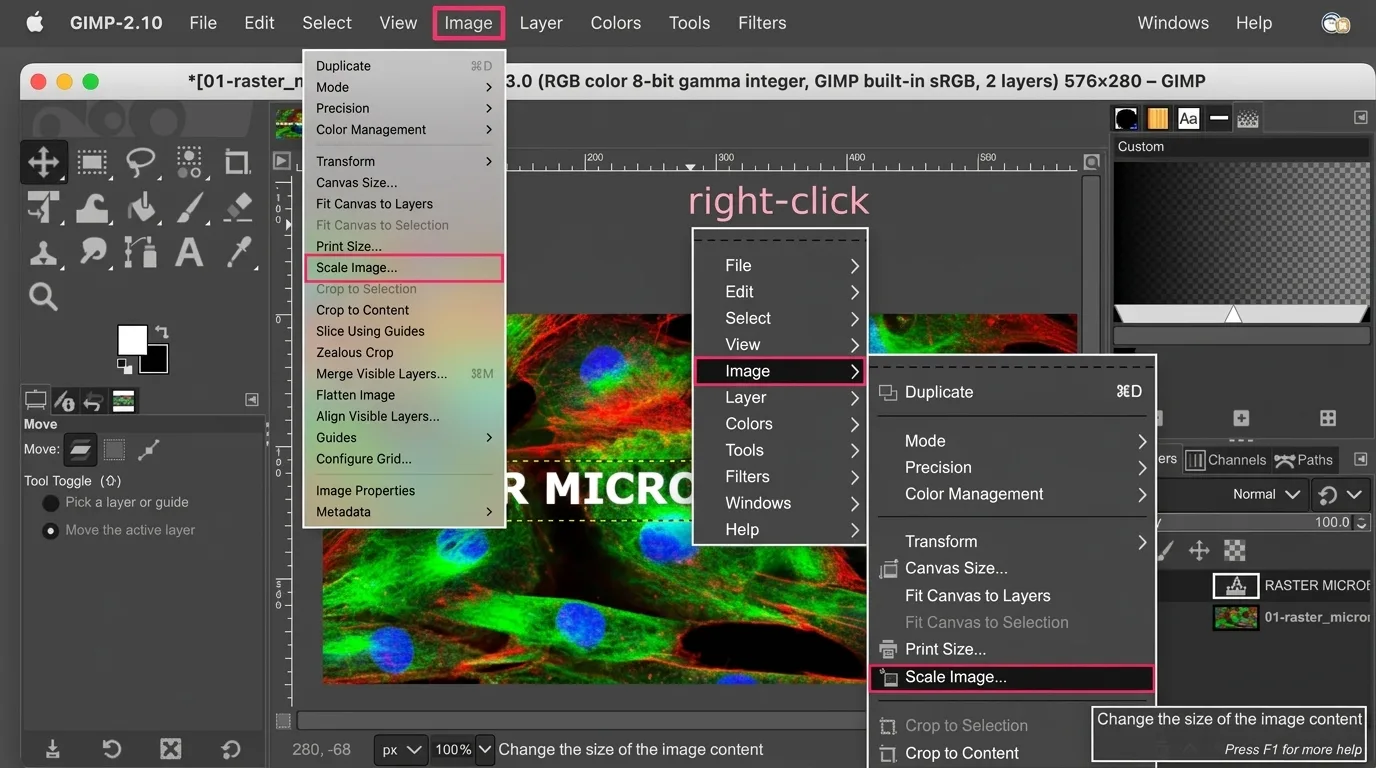
GIMP (GNU Image Manipulation Program) has been the free Photoshop alternative for decades, but its old architecture lacked true non-destructive editing. GIMP 3.2, released in March 2026, changed that with Link Layers and Vector Layers — a system similar in spirit to Photoshop’s Smart Objects — plus improved PSD/PSB import and a proper CMYK selector. It’s still not as pretty as Affinity, and some Photoshop plugins won’t run, but if you want fully free, fully offline, fully yours software on Windows, Mac, or Linux, GIMP is now genuinely competitive rather than “good for free.”
Photopea — Photoshop in a browser tab
Photopea looks and feels almost exactly like Photoshop, runs in any browser, and opens layered PSD files better than anything that isn’t Photoshop. It’s free with ads, or about $5/month to remove them. Its superpower is the rescue mission: a client emails you a layered PSD at 11 PM and you’re on a Chromebook. Photopea handles it. For full-time work the ad tier gets tiresome, but as a zero-install Swiss Army knife it’s unbeatable.
Krita, Paint.NET, and the specialists
Krita is free and open source, but it’s built for digital painters and illustrators — brush engines, canvas rotation, comic panels. It can retouch photos, but that’s not its home. Paint.NET is a Windows-only free editor that’s faster and friendlier than GIMP for quick jobs but lacks RAW and CMYK out of the box. Pixelmator Pro is the best pick if you’re on an Apple Silicon Mac and want speed and simplicity at a one-time cost. On the photography side, Luminar Neo leads on AI speed (sky replacement, portrait AI, relighting), DxO PhotoLab leads on RAW noise reduction, and the free darktable is a genuine Lightroom alternative for cataloging and developing RAW shoots.
How to Pick the Right Editor for You
The “best” raster editor depends entirely on what you actually do. Use this as your decision shortcut:
- Total beginner, casual photos: Start free — Affinity (desktop) or Photopea (browser). Don’t pay for Photoshop until you hit a wall.
- Photographer editing RAW shoots: Lightroom Classic + Photoshop if you’re all-in, or Affinity Photo + darktable for a one-time/free combo. Luminar Neo if you value speed over manual control.
- Digital artist / illustrator: Krita (free) or Photoshop; Procreate on iPad.
- E-commerce / product photos in bulk: Photoshop or Affinity for precise masking, plus tools to batch edit hundreds of files consistently.
- Pro retoucher / compositor: Photoshop, full stop — the precision, plugins, and industry file exchange are still unmatched.
- Chromebook / no-install / shared computer: Photopea.
AI Has Changed Raster Editing Forever
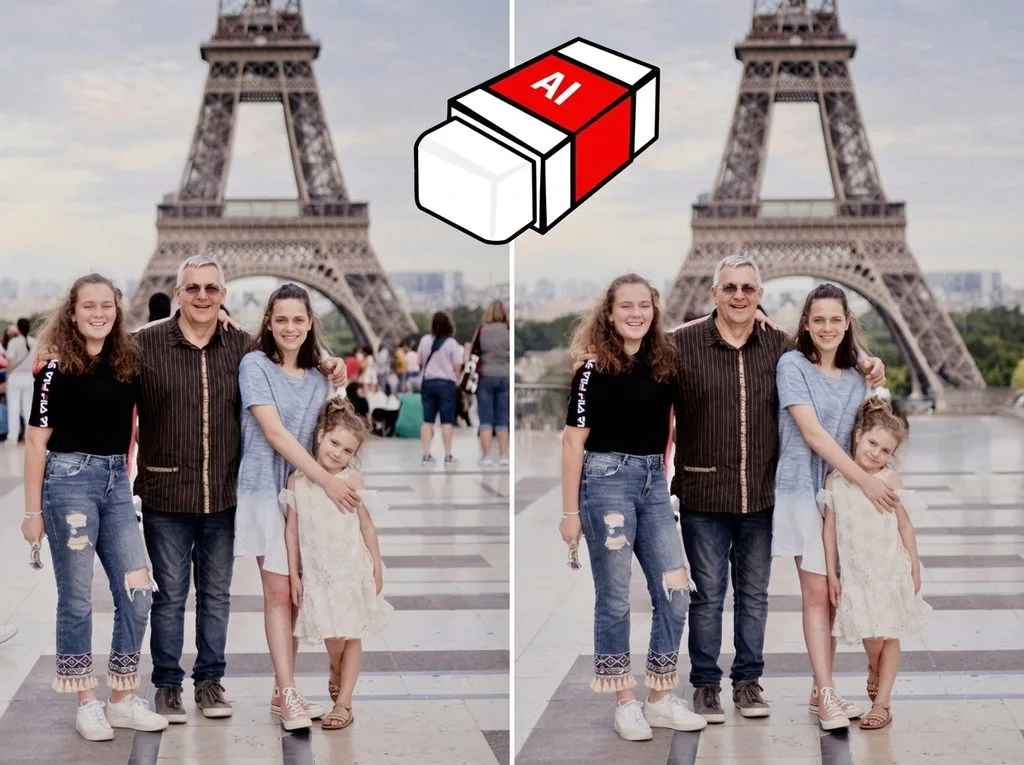
The biggest shift since 2023 is that you no longer have to paint every pixel by hand. Generative tools can remove a tourist from a travel photo, extend a background, swap a sky, or reconstruct a missing corner — all from a text prompt — and they do it non-destructively on new layers. Adobe’s Firefly Image 4 generates at native 2K resolution rather than upscaling from 1K, which means skin texture and hair detail hold up far better. Upscaling AI can turn a 1000-pixel web image into a print-ready file with invented-but-plausible detail; our ranked AI upscaler list covers the current leaders. If you use ChatGPT or Gemini to plan edits or write prompts, well-crafted image prompts make the results dramatically more predictable.
The honest caveat: AI is an accelerator, not a replacement. It hallucinates hands, invents brand logos, and melts fine detail on tricky edges. A pro uses Generative Fill for the 80% of boring work (remove, extend, fill) and then hand-retouches the 20% where money is made eyes, hair, jewelry, product edges. Keep your AI-generated content on its own labeled layer so you can always turn it off.
7 Common Raster Editing Mistakes (and How to Avoid Them)
Even experienced editors fall into these. If you can avoid them, your work will look cleaner than 90% of what gets posted.
- Editing the original file directly. Always work on a copy or a duplicate layer. Your original is your safety net.
- Upscaling small images and expecting magic. You can’t create detail that was never captured. If a file is too small, AI upscaling helps a little, but starting with more pixels is always better — otherwise you’ll need to fix pixelated images after the fact.
- Sharpening too much, too early. Sharpen last, at the final export size, and only as much as the output needs. Mask sharpening away from skin and skies.
- Saving JPEGs over and over. Every JPEG re-save recompresses and loses a little data. Edit from a master; export a fresh JPEG once.
- Ignoring color space. Work in sRGB for web and social; switch to Adobe RGB or ProPhoto only if your whole pipeline (camera → editor → printer) supports it. A mismatched profile is why colors look fine on your screen and dull everywhere else.
- Retouching on the background layer. Clone-stamping directly onto the photo means a mistake is permanent. Do retouching on a new empty layer with “sample all layers” turned on.
- Forgetting to save a layered master. Flatten to JPEG for delivery, but keep the PSD/XCF/AFPHOTO with every layer. Six months later the client will ask for “just one small change.”
A Simple Beginner Workflow That Never Ruins a Photo
If you’re new, follow this exact sequence every time. It’s boring, and it works.
- Import and back up. Copy the original somewhere safe. Never edit the only copy.
- Open as 16-bit if possible. RAW files give you the most headroom.
- Crop and straighten first. With “delete cropped pixels” turned off, so the crop is reversible.
- Lens correction & geometry. Fix distortion and perspective before touching color.
- Global adjustments with adjustment layers. Exposure, contrast, white balance, then a gentle S-curve for contrast.
- Local adjustments with masks. Brighten the subject, darken a distracting corner, adjust only the sky.
- Retouch on a separate layer. Healing, clone stamp, blemish removal all on empty layers above the photo.
- Sharpen at the very end. Apply it to a merged copy of everything, sized for the output.
- Save the layered master. Then export a JPEG/WebP for web and a high-quality file for print.
Frequently Asked Questions
What’s the difference between raster image editing and photo editing?
They’re almost the same thing. “Photo editing” is the everyday term; “raster image editing” is the technical term, because photos are raster images. Raster editing also covers digital painting, scanning restoration, and web graphics — anything pixel-based.
Is Canva a raster image editor?
Partly. Canva is primarily a design tool that lets you place and lightly edit raster photos (filters, crop, basic adjust). For serious pixel-level retouching, masking, and compositing, you want a true raster editor like Photoshop, Affinity, GIMP, or Photopea — though since Canva acquired Affinity, the lines are blurring fast.
Do I need to pay for Photoshop to edit raster images?
No. In 2026, Affinity Photo (free), GIMP 3.2 (free), and Photopea (free with ads) cover most people’s needs. Pay for Photoshop only if you need pro retouching precision, the plugin ecosystem, or seamless Adobe workflow.
Why do my raster images look blurry when I make them bigger?
Because a raster file has a fixed number of pixels. Scaling it up forces the editor to invent new pixels (interpolation), which softens detail. Start with a larger original, or use an AI upscaler for moderate enlargements.
What’s the best free raster editor for a beginner?
Affinity by Canva if you want a desktop app with no ads and a modern interface. Photopea if you want something that works in a browser and opens PSD files. GIMP if you want maximum power and customizability and don’t mind a dated interface.
Is PNG or JPEG better for editing?
Neither is ideal as a working format — both are flattened. Edit from RAW, TIFF, or the editor’s native layered format. Export to JPEG for photos on the web, PNG for graphics with transparency.
Can raster images be converted to vector?
Yes, through “image tracing” or “vectorization,” but it works best on high-contrast line art, logos, and simple shapes. A detailed photograph vectorizes into a stylized poster look, not a scalable photo.
What does “non-destructive” actually mean?
It means your edits are stored as instructions (layers, masks, adjustment settings) on top of the original pixels, instead of overwriting them. You can reopen the file a year later and change, reduce, or remove any edit with zero quality loss.
Wrapping Up
Raster image editing isn’t magic — it’s pixels, channels, layers, and masks, learned one habit at a time. The software matters less than the workflow: protect the original, edit non-destructively, work in 16-bit when you can, and export fresh copies for each destination. Pick an editor from the table above based on what you actually do, not based on what everyone else says is “professional.” In 2026, the best free tools are good enough that the only real limit is your willingness to practice.