Large Format Photo Printing: The Complete Guide to Big, Sharp, Wall-Worthy Prints
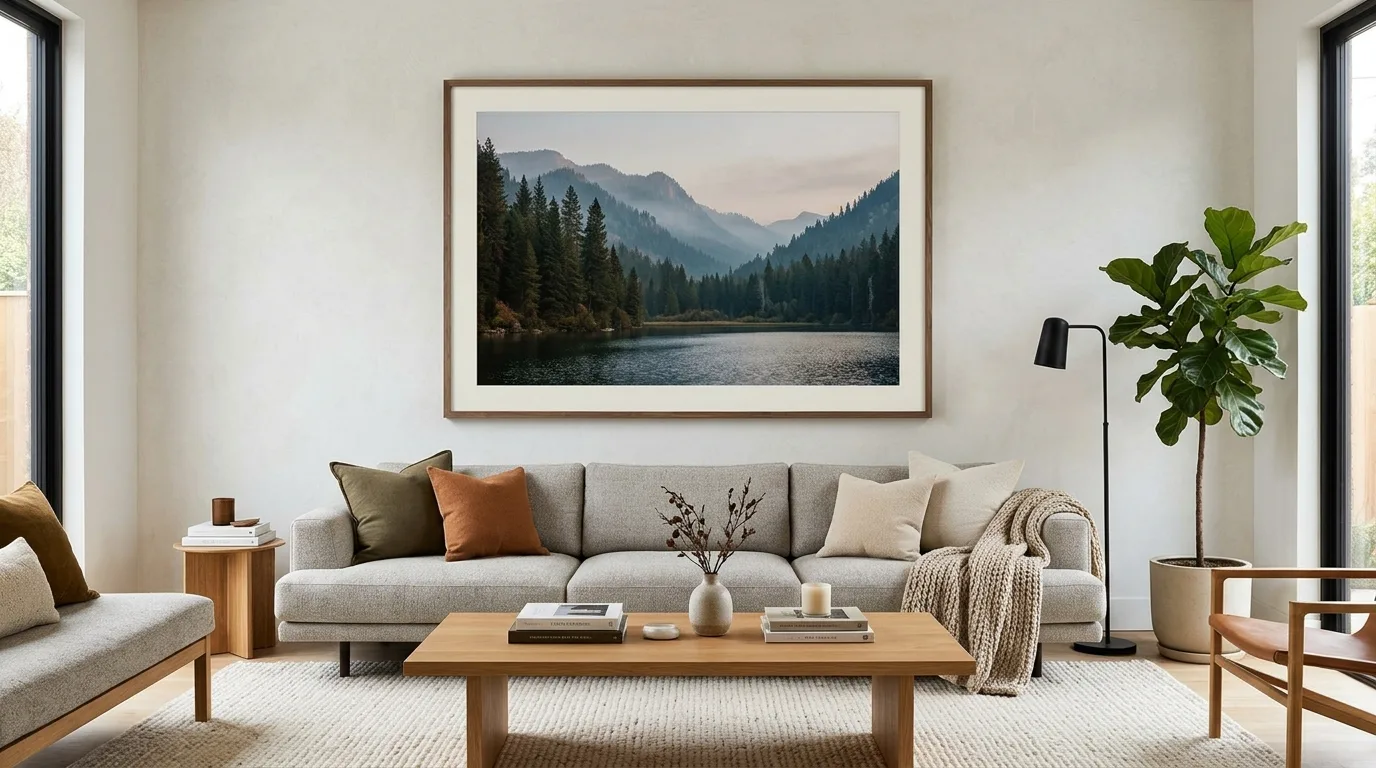
TL;DR — The short answer: For high quality large photo prints, match the print size to your wall and viewing distance, aim for roughly 300 PPI when the print will be seen up close (150 PPI is fine from 6+ feet away), export in sRGB with gentle output sharpening, and pick your medium (paper, canvas, metal, acrylic) based on the room’s light and the mood you want. Get those four things right and almost any photo can become a statement piece.
There’s a moment every photographer recognizes: you scroll back to a shot you love, pinch to zoom on your phone, and think, “This deserves to be bigger than a screen.” Large format photo printing is how you make that feeling physical. But going from a 6-inch phone preview to a 30-inch wall print is where a lot of people get lost — sizes, DPI, paper types, color shifts. This guide walks through every decision so your first big print looks like you meant it.
What Counts as a “Large” Photo Print?
Anything bigger than the classic 8×10 is generally considered large, because it crosses from “frame on a desk” into “art on a wall.” The most popular entry sizes are 11×14 and 16×20, with 20×30 and 24×36 as the true statement pieces, and panoramic shapes like 8×24 and 12×36 for wide landscapes and skylines.
What makes large prints different isn’t just size — it’s that every flaw gets enlarged with the image. A tiny bit of blur or noise you’d never notice in a 4×6 becomes obvious at 20×30. That’s why preparation matters more than the printer itself.
Large Photo Print Sizes: The Full Chart
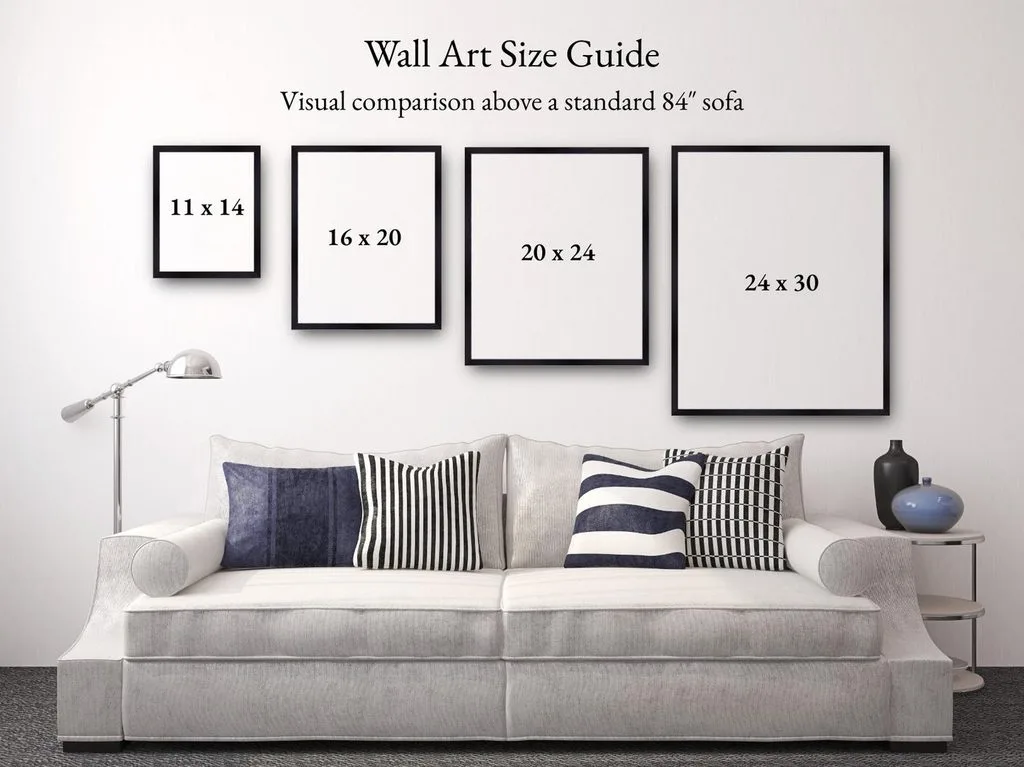
Before you order, know exactly what you’re getting. Different labs use slightly different catalogs, but these are the standard large photo print sizes and the pixel dimensions they demand at 300 PPI (gallery quality) and 150 PPI (wall-viewing quality).
| Print Size | Aspect Ratio | Pixels @ 300 PPI | Pixels @ 150 PPI | MP Needed (300) | Best For |
|---|---|---|---|---|---|
| 11×14 in | ~4:5 | 3300 × 4200 | 1650 × 2100 | 14 MP | Small gallery walls, offices |
| 12×18 in | 2:3 | 3600 × 5400 | 1800 × 2700 | 19 MP | DSLR-native ratio, no crop |
| 16×20 in | 4:5 | 4800 × 6000 | 2400 × 3000 | 29 MP | Portraits, family photos |
| 16×24 in | 2:3 | 4800 × 7200 | 2400 × 3600 | 35 MP | Full-frame camera files |
| 20×30 in | 2:3 | 6000 × 9000 | 3000 × 4500 | 54 MP | Statement piece above a sofa |
| 24×36 in | 2:3 | 7200 × 10800 | 3600 × 5400 | 78 MP | Oversized wall art |
| 8×24 in (pano) | 1:3 | 2400 × 7200 | 1200 × 3600 | 17 MP | Beaches, skylines, horizons |
| 12×36 in (pano) | 1:3 | 3600 × 10800 | 1800 × 5400 | 39 MP | Dramatic panoramic landscapes |
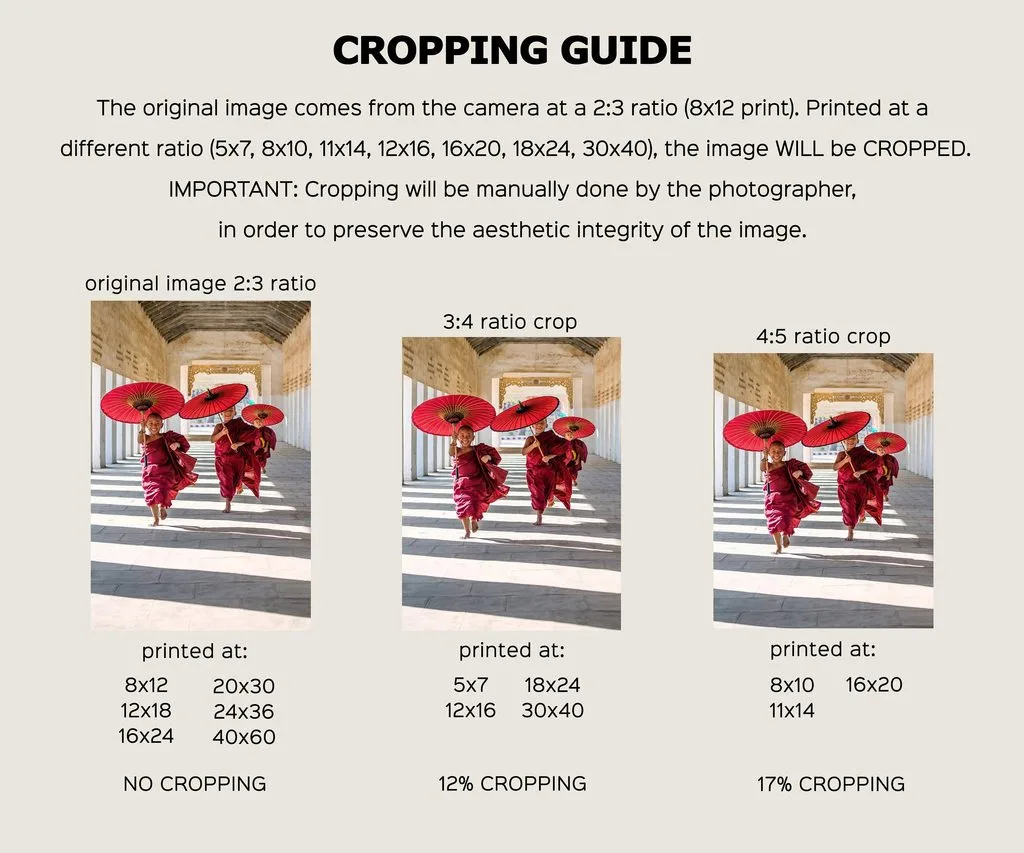
A quick rule of thumb: your camera’s aspect ratio decides which size crops cleanly. Most DSLRs and mirrorless cameras shoot 2:3, so 12×18, 16×24, and 20×30 need no cropping at all. Smartphones shoot 4:5 or 3:4, so 11×14 and 16×20 fit them better. If you’re curious how a specific size feels in a room, our 16×20 photo breakdown shows exactly how it sits above furniture.
How Much Resolution Do You Really Need?
This is the question everyone asks, and the honest answer is: it depends on how far away people will stand. Let’s break it down without the jargon.
PPI vs DPI — and why it matters
PPI (pixels per inch) describes your digital file. DPI (dots per inch) describes the printer’s ink. People swap them constantly, and for ordering prints it usually doesn’t matter — what matters is the real pixel count of your file divided by the inches you want to print. A 6000×4000 pixel file printed 20 inches wide lands at 300 PPI, which is the gold standard for close viewing.
For a deeper dive into the numbers, read up on pixels, DPI, and file size or our dedicated best DPI for printing guide.
The viewing-distance formula that saves you from overkill
Here’s the secret most guides skip: a 24×36 print above your couch is viewed from 6–10 feet away, not 12 inches. The human eye can only resolve so much detail at that distance. A widely used formula puts the minimum visible PPI at roughly 3438 ÷ (viewing distance in inches).
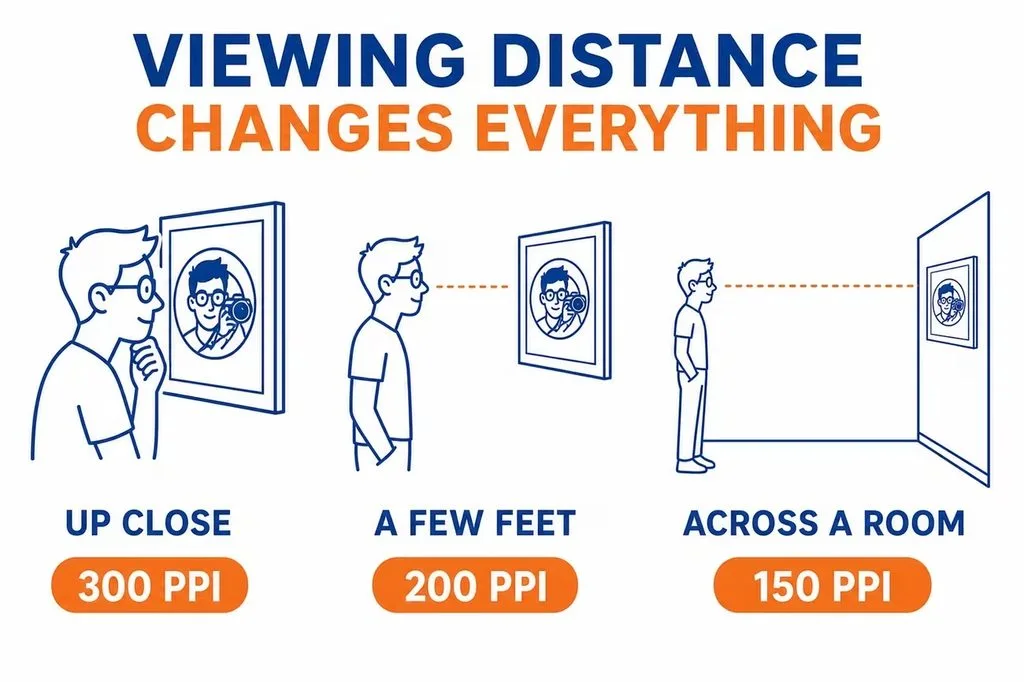
- 12 inches (arm’s length): ~285 PPI → 300 PPI is right
- 3 feet (desk/close wall): ~95 PPI → 150 PPI is comfortable
- 6 feet (across a room): ~48 PPI → 100–150 PPI is plenty
- 10+ feet (hallway, lobby): ~29 PPI → 75–100 PPI works
That’s why billboards look sharp from the highway but would look like mush up close. For a full explanation with a calculator, see our viewing-distance formula article — it’ll stop you from paying for resolution your eye can’t actually use.
What your camera can actually print
| Camera Megapixels | Max @ 300 PPI (close) | Max @ 150 PPI (wall) |
|---|---|---|
| 12 MP (4000×3000) | ~13×10 in | ~27×20 in |
| 20 MP (5472×3648) | ~18×12 in | ~36×24 in |
| 24 MP (6000×4000) | ~20×13 in | ~40×27 in |
| 36 MP (7360×4912) | ~24×16 in | ~49×33 in |
| 45+ MP | ~30×20 in | ~60×40 in |
If your file falls short, you have two sane options: print smaller, or upscale intelligently. We’ll cover both below.
Preparing Your File: Step-by-Step
The difference between a good print and a great one happens before you upload. HP’s large-format team puts it plainly: success comes from technical discipline at the file-prep stage, not from the fanciest printer. Here’s the workflow the pros use.
1. Crop to the exact aspect ratio first
Decide your print size, then crop your image to that exact ratio. If you order a 16×20 (4:5) from an uncropped 2:3 camera file, the lab will chop off the sides — and you might lose a head or a horizon. Do the crop yourself so you control what stays.
2. Get color space right (this is where most prints fail)
Your monitor emits light; your print reflects it. They will never match perfectly, but you can get close by working in the right color space. For 95% of consumer labs, export in sRGB — it’s the universal safe baseline. If your lab explicitly supports Adobe RGB and provides an ICC profile, you can use the wider gamut, but never switch color spaces mid-workflow without converting properly.
Confused about the two? Our sRGB vs Adobe RGB guide breaks down exactly when each one wins. Pro move: ask your lab for their ICC profile and soft-proof against it in Photoshop (View → Proof Setup) before ordering.
3. Sharpen for output, not for screen
Screen sharpening and print sharpening are different animals. What looks crisp on your display can look harsh and haloed on paper. Stick to a small radius (0.3–1.5 pixels) at modest opacity, or let the lab apply final output sharpening. If you want full control, learn how to sharpen an image properly — over-sharpening is the single most common print-killer.
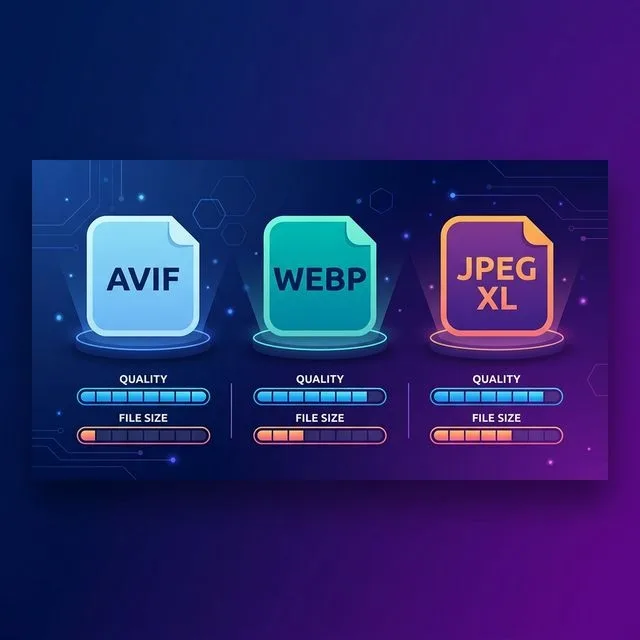
4. Pick the right file format
- TIFF (uncompressed or LZW): the pro choice for large prints. No data loss, full color depth.
- JPEG at 95–100% quality: acceptable for most labs, but every save discards a little data. Export once at high quality.
- PSD/PNG: fine for archiving, but most labs want flattened TIFF or JPEG.
If you’re weighing formats, our image formats compared guide covers the tradeoffs. And never resize images by stretching — resample properly or not at all.
5. When your file is too small: upscale the smart way
If your photo doesn’t have enough pixels for the size you want, don’t just crank up the scale in Photoshop — that invents empty pixels. Modern AI upscalers can genuinely recover detail for moderate enlargements (1.5×–2×). For anything bigger, print smaller or accept a longer viewing distance. We rank the leading tools in our AI upscaler roundup, and external testers compare the latest AI photo enhancers too.
Choosing a Print Medium: Paper, Canvas, Metal, or Acrylic
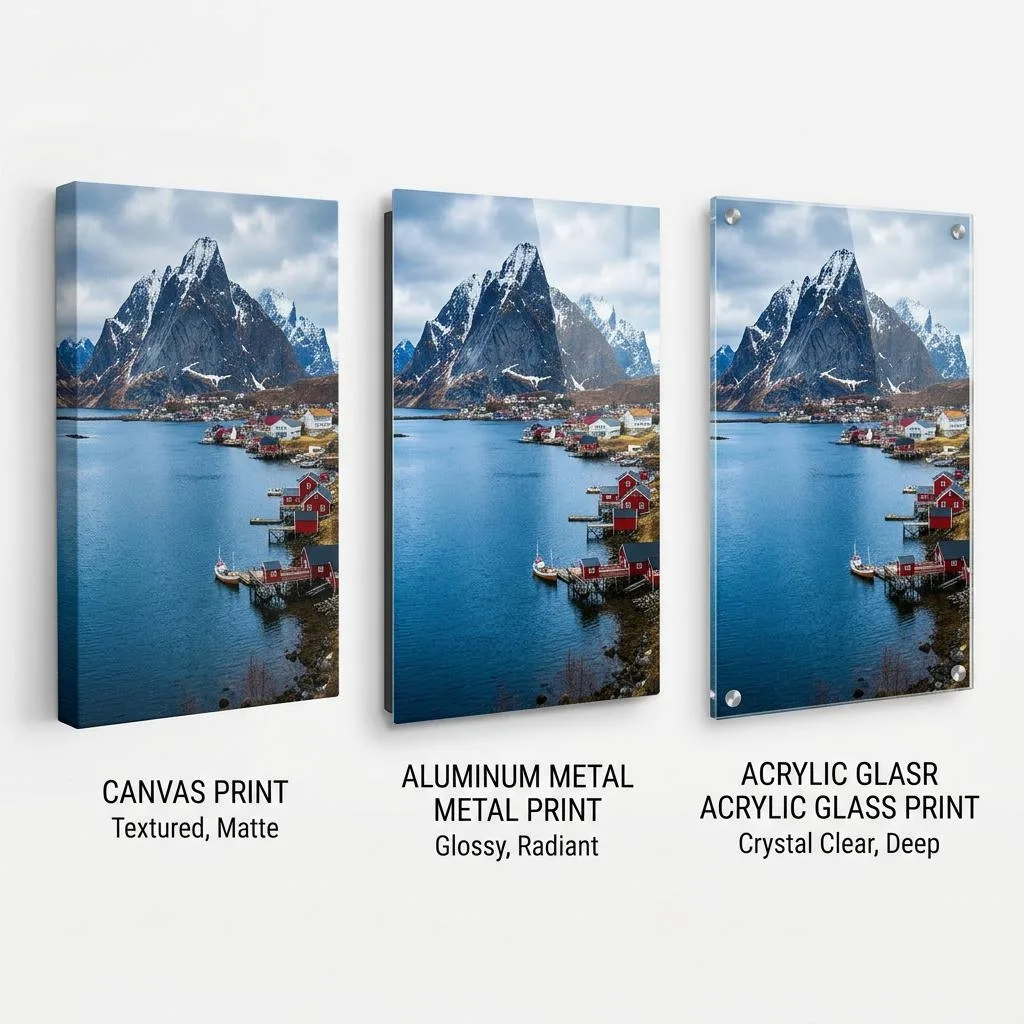
The surface you print on changes the image more than most people expect. Glossy paper makes colors pop; canvas softens them into fine-art texture; metal and acrylic add luminous depth. Here’s how to choose.
| Medium | Look & Feel | Best For | Watch Out For |
|---|---|---|---|
| Glossy/lustre photo paper | Deepest blacks, richest color, slight sheen | Portraits, vibrant landscapes | Glare in bright rooms |
| Matte photo paper | Soft, non-reflective, classic | Bright rooms, black & white | Slightly muted saturation |
| Fine art paper (cotton rag) | Textured, archival, gallery-grade | Exhibitions, collectors | Premium price, needs framing |
| Canvas | Warm texture, painterly, no glass needed | Living rooms, casual elegance | Less sharp detail than paper |
| Metal (dye-sublimation) | Ultra-vibrant, luminous, waterproof | Modern spaces, kitchens/baths | Reflective surface shows flaws |
| Acrylic | Glossy, high-end, gallery depth | Statement pieces, bold color | Expensive, heavy, glare |
A practical shortcut: for a room with lots of natural light, choose matte, canvas, or framed-behind-UV-glass to kill glare. For a dim, modern living room, metal or acrylic will look stunning. For portraits and weddings, lustre paper or canvas rarely disappoints.
Common Mistakes That Ruin Large Prints
After reviewing pro lab guides and photographer war stories, these are the failures that come up again and again.
- Over-sharpening: halos and crunchy edges that looked fine on screen become ugly at 20×30.
- Wrong color space: sending Adobe RGB to a lab expecting sRGB is the #1 cause of “why does my print look different?”
- Heavy JPEG compression: that 80%-quality file you emailed yourself? Re-export at 95%+.
- Forgetting bleed/crop: leave a little margin; don’t put faces right at the edge.
- Skipping a test print: for big or expensive orders, print a small section first — it’s cheap insurance.
- Hanging in direct sunlight: even archival prints fade. Use UV-protective glass or a shaded wall.
- Ignoring the room: a glossy print opposite a window is a mirror, not art.
Display & Framing Ideas
A great print deserves a great wall. Here are the layouts that consistently work.
One statement piece. A single 20×30 or 24×36 centered above a sofa, bed, or console table is the easiest win. Hang it so the center sits at eye level (about 57–60 inches from the floor).
The gallery wall. Mix one large anchor print with smaller supporting frames in a grid or organic cluster. Keep frame colors consistent for a calm look, or mix finishes for an eclectic feel.
Panoramic in narrow spaces. An 8×24 or 12×36 print is perfect above a headboard, a desk, or along a hallway — places where a tall print would feel cramped but a wide one sings.
Rotate with the seasons. Large prints don’t have to be permanent. Swap a beach panorama for a fall foliage shot as the year changes — it keeps your walls feeling alive.
What Large Prints Cost (Rough Guide)
Prices vary wildly by medium and lab, but here’s a realistic ballpark for a 16×20–20×30 print: basic photo paper runs $10–$40, canvas $40–$120, metal $60–$200, and acrylic $100–$300+. Framing adds $30–$150 on top. For your first big print, start with paper or canvas at a mid-size (16×20) — it’s the lowest-risk way to learn your lab’s color and sharpening.
Frequently Asked Questions
Can I print large photos from my phone?
Yes — modern phones capture 12–48 MP, which comfortably handles 16×20 at 300 PPI and 20×30 at 150 PPI. Just upload the original full-resolution file, not a compressed WhatsApp or social-media copy.
What’s the largest size I can print from a normal photo?
A 24 MP camera file prints beautifully up to 20×30 at 150 PPI (wall-viewing distance). Beyond that, you’ll want a high-res camera file, a medium-format scan, or a careful AI upscale.
Is 300 DPI always required?
No. 300 PPI is for close viewing. For wall art seen from 6+ feet, 150 PPI is the practical standard, and 100 PPI can still look great. It’s about viewing distance, not a magic number.
Will enlarging a photo reduce quality?
Only if you push past the file’s pixel budget. A high-res file enlarged within its limits stays sharp. A low-res file stretched too far gets soft or pixelated. When in doubt, print smaller or upscale with AI.
Do large prints fade over time?
Quality archival prints (pigment inks on acid-free paper) last decades. Keep them out of direct sunlight, frame behind UV glass, and avoid humid rooms — and they’ll outlast your decor.
What file format should I send to the lab?
TIFF (uncompressed or LZW) is the pro standard. High-quality JPEG (95%+) is accepted almost everywhere and is fine for most consumer orders. Avoid PNG, PSD, or heavily compressed files.
Canvas or framed print — which is better?
Framed photo paper gives you sharper detail and deeper blacks; canvas gives texture, no glass glare, and a warmer, more casual feel. For portraits and fine detail, frame it. For landscapes and living-room warmth, canvas.
How do I make sure colors match my screen?
Calibrate your monitor, work in sRGB (or your lab’s specified space), soft-proof against the lab’s ICC profile if they provide one, and order a small test print before a big expensive order.
Your Pre-Print Checklist
Before you hit “order,” tick these off:
- Cropped to the exact print aspect ratio
- Pixel count meets 150–300 PPI at final size
- Exported in sRGB (or lab-specified space) with profile embedded
- Gentle output sharpening (no halos at 100% zoom)
- Saved as TIFF or high-quality JPEG
- Faces and key details away from the edges
- Medium chosen for the room’s light (matte for bright rooms)
- Hanging spot measured — center at ~57–60 in from the floor
Large format photo printing isn’t about the biggest printer or the most expensive paper. It’s about matching your file to the size, the distance, and the room. Do that, and the photo you love on your phone becomes the piece people stop to look at on your wall.