Lossy vs Lossless Compression: The Complete Guide (With Real Examples)
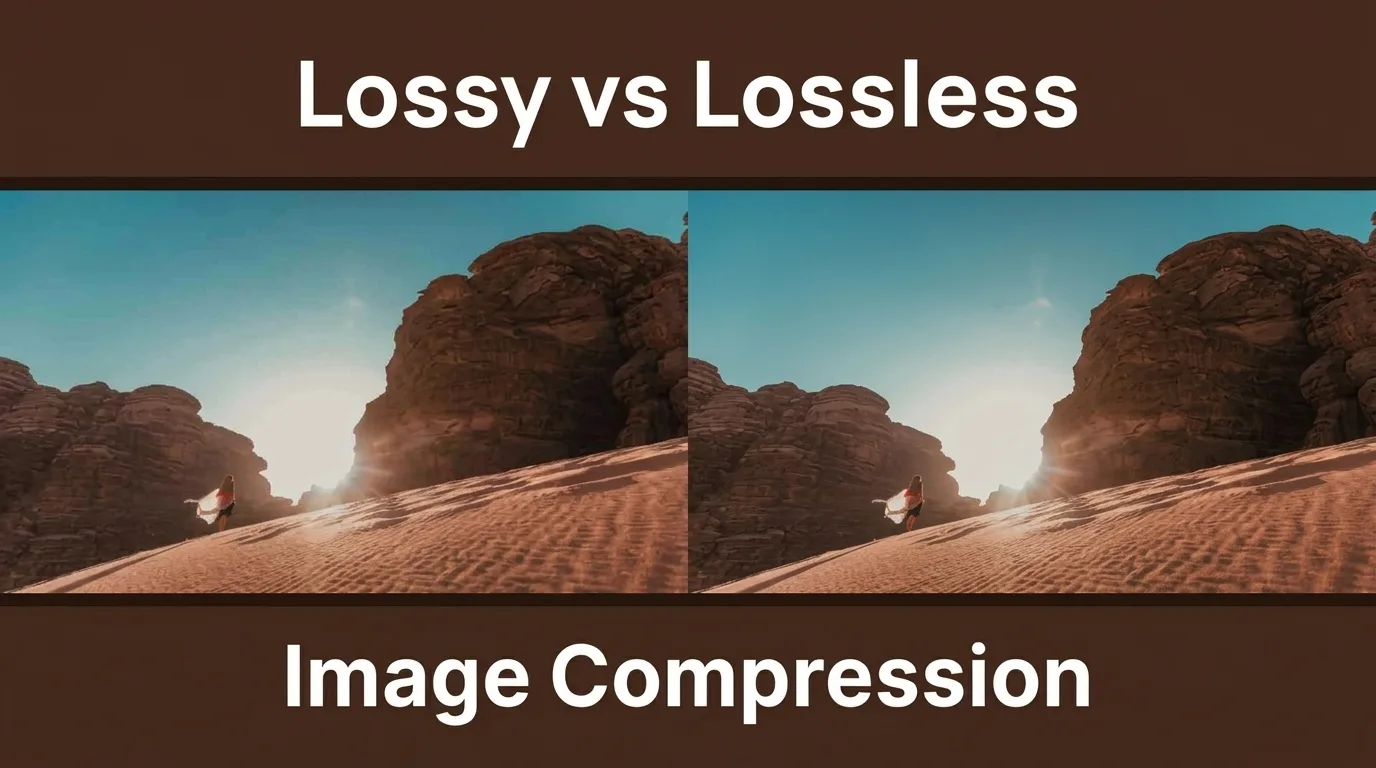
TL;DR — The short answer: Lossy compression shrinks a file by permanently throwing away some of its data (you can never get that data back), while lossless compression shrinks a file by reorganizing it without deleting anything, so it decompresses bit-for-bit identical to the original. For web photos, social media, and streaming, lossy is almost always the right call. For editing masters, archives, logos, text, and anything where every pixel matters, use lossless. Most pros use both: edit in lossless, export in lossy.
Why This Question Matters More Than You Think
Every photo you take, every song you stream, and every webpage you load depends on compression. A single uncompressed 24-megapixel photo is roughly 72 MB. Your phone would fill up in a few hundred shots, and a webpage with five images would take a minute to load. Compression is the invisible trick that makes digital media fit on our devices and fly across the internet.
But “compression” is not one thing. There are two fundamentally different families — lossy and lossless — and picking the wrong one can silently ruin your images or waste gigabytes of storage. The difference is simple to understand, yet even experienced photographers mix them up. In this guide we’ll break down exactly how each works, what gets thrown away, real file-size numbers from actual tests, and a dead-simple decision rule you can apply every time.
What Is Data Compression, Exactly?
At its core, compression is just clever bookkeeping. A raw digital file stores every piece of information separately. If 200 pixels in a row are exactly the same shade of blue, an uncompressed file writes that blue value 200 times. Compression writes it once and says “repeat 200 times.” That’s the basic idea behind every compression algorithm ever invented.
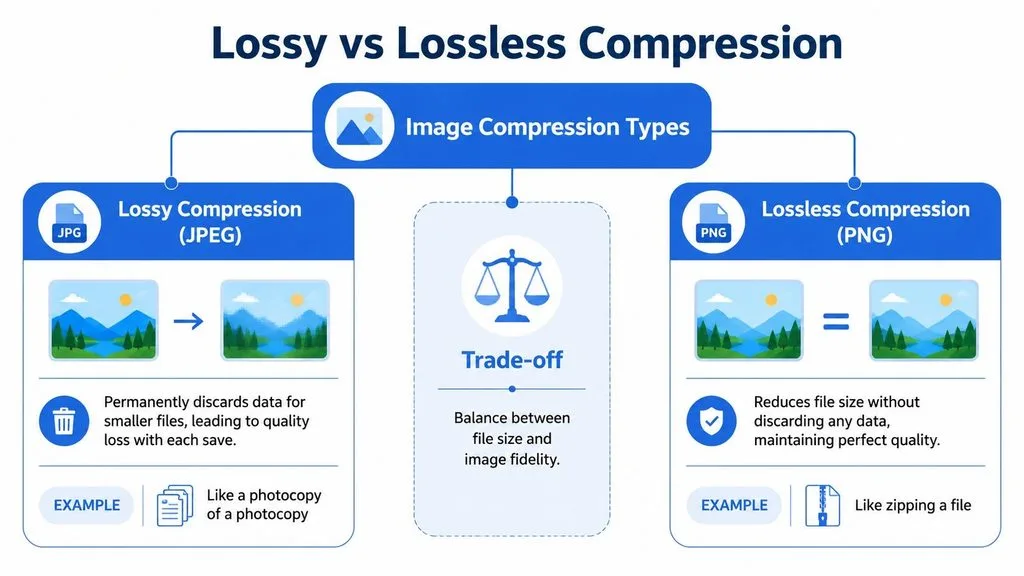
Where lossy and lossless split apart is what they do when the data isn’t perfectly repetitive. Lossless stops there — it only removes redundancy, so the original can always be rebuilt perfectly. Lossy goes one step further: it changes the data slightly so it becomes more repetitive, then compresses the altered version. That extra step is why lossy files can be 5–10 times smaller, and why the original can never be fully recovered.
Lossy Compression: Smaller Files, Permanent Trade-Offs
How lossy compression actually works
Lossy algorithms exploit a quirk of human perception: we don’t notice small details equally. Your eyes are much worse at seeing color detail than brightness detail, and your ears can’t hear a quiet sound when a louder one is playing at the same frequency. Lossy compression leans on this by discarding information you’re unlikely to miss.
For images, the standard pipeline (used by JPEG and, in evolved form, by WebP and AVIF) looks like this:
- Chroma subsampling — color resolution is cut in half or more, because our eyes barely notice.
- Discrete Cosine Transform (DCT) — the image is broken into 8×8 blocks and converted into frequency patterns.
- Quantization — the high-frequency (fine-detail) numbers are divided and rounded down, which is where most data is thrown away. This step is irreversible.
- Lossless packing — the remaining numbers are then compressed losslessly for a little extra savings.
For audio, MP3 and AAC use a “psychoacoustic model” that removes sounds masked by louder ones. For video, codecs like H.264 and HEVC additionally store only the changes between frames, which is why a talking-head video can be tiny even at high resolution.
Common lossy formats and where you’ll find them
| Media type | Lossy formats | Typical savings vs. original |
|---|---|---|
| Images | JPEG, WebP (lossy), AVIF (lossy), HEIC | 70–95% |
| Audio | MP3, AAC, Ogg Vorbis, Opus | 80–95% |
| Video | MP4 (H.264/HEVC), WebM, MOV (H.264) | 90–99% |
The key thing to remember: once a file is saved in a lossy format, the discarded data is gone forever. No amount of editing, upscaling, or “enhancing” can bring it back. If you want to know how different formats stack up, our image formats guide compares JPEG, PNG, WebP, and HEIC side by side.
The pros and cons of lossy
Advantages:
- Dramatically smaller files — often 5–10 times smaller than lossless at a quality most people can’t distinguish.
- Faster page loads, which helps SEO and keeps visitors from bouncing.
- Universally supported; every device and app opens a JPEG.
- Adjustable quality slider lets you dial the size-to-quality trade-off precisely.
Disadvantages:
- Data loss is permanent and irreversible.
- Aggressive settings produce visible artifacts (we’ll look at these next).
- Re-saving a lossy file compounds the damage — a phenomenon called generation loss.
- Not suitable for text, line art, logos, or anything with sharp edges, where artifacts show immediately.
Lossless Compression: Perfect Fidelity, Modest Savings
How lossless compression actually works
Lossless compression never changes a single pixel or sample. Instead, it looks for patterns and rewrites the data more efficiently. The workhorse algorithm is called DEFLATE (a combination of LZ77 and Huffman coding), which powers PNG, ZIP, gzip, and lossless WebP. Here’s the simplified version:
- LZ77 finds repeated sequences (like that run of 200 blue pixels) and replaces them with a short “copy from earlier” pointer.
- Huffman coding assigns the shortest codes to the most common values, like how Morse code gives “E” a single dot.
- Run-length encoding handles long stretches of identical values — great for screenshots and flat-color graphics.
When you decompress a lossless file, you get back a byte-for-byte copy of the original. That’s why lossless is the only acceptable choice for software, text, medical scans, legal documents, and your editing masters.
Common lossless formats
| Media type | Lossless formats | Typical savings vs. original |
|---|---|---|
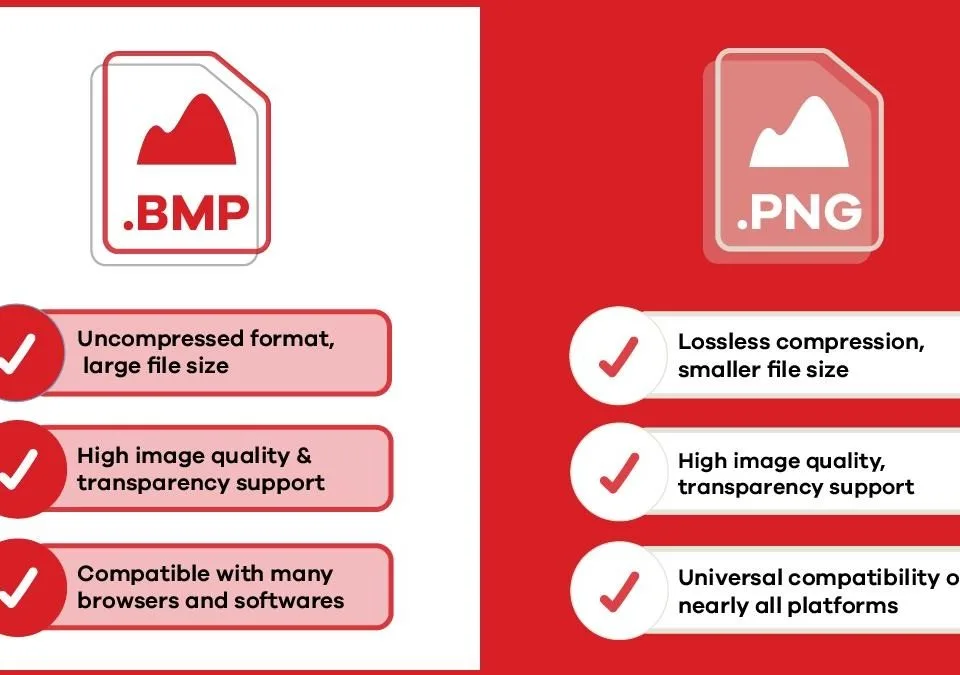
| Images | PNG, TIFF (LZW/ZIP), WebP (lossless), AVIF (lossless), RAW, BMP (uncompressed) | 20–60% |
| Audio | FLAC, ALAC, WAV, AIFF | 30–60% (FLAC/ALAC) |
| General files | ZIP, 7z, gzip, RAR | varies widely |
| Video | ProRes, DNxHR, FFV1 (rare in consumer use) | modest |
A common misconception: people hear “lossless” and assume the file stays huge. In reality, lossless compress images by a useful 20–60%. It’s just nowhere near the 90%+ that lossy achieves.
The pros and cons of lossless
Advantages:
- Zero quality loss — ever. The file is identical after a thousand open-save cycles.
- Reversible and future-proof; you can always convert to a lossy export later.
- Safe for editing, archiving, printing, and anything legally or medically sensitive.
- No artifacts, no banding, no generation loss.
Disadvantages:
- Much larger files — often 3–10 times bigger than an equivalent lossy file.
- Slower uploads and page loads; heavier on bandwidth and storage.
- Overkill for web delivery where a visually identical lossy file would load 5× faster.
Lossy vs Lossless: Side-by-Side Comparison
| Feature | Lossy Compression | Lossless Compression |
|---|---|---|
| What happens to data | Some data is permanently discarded | No data is discarded |
| Reversible? | No — original cannot be restored | Yes — bit-for-bit identical |
| Typical file reduction | 70–95% | 20–60% |
| Visual / audio quality | Slight to significant loss, usually imperceptible at moderate settings | Perfect fidelity |
| Re-saving impact | Compounds damage (generation loss) | No impact at all |
| Best for | Web photos, streaming, social, sharing | Editing masters, archives, print, logos, text |
| Common formats | JPEG, MP3, MP4/H.264, WebP (lossy), AVIF (lossy) | PNG, TIFF, FLAC, ZIP, RAW, WebP (lossless) |
| Algorithms | DCT, quantization, chroma subsampling, psychoacoustic modeling | DEFLATE (LZ77 + Huffman), run-length, LZW |
When Lossy Goes Wrong: Compression Artifacts Explained
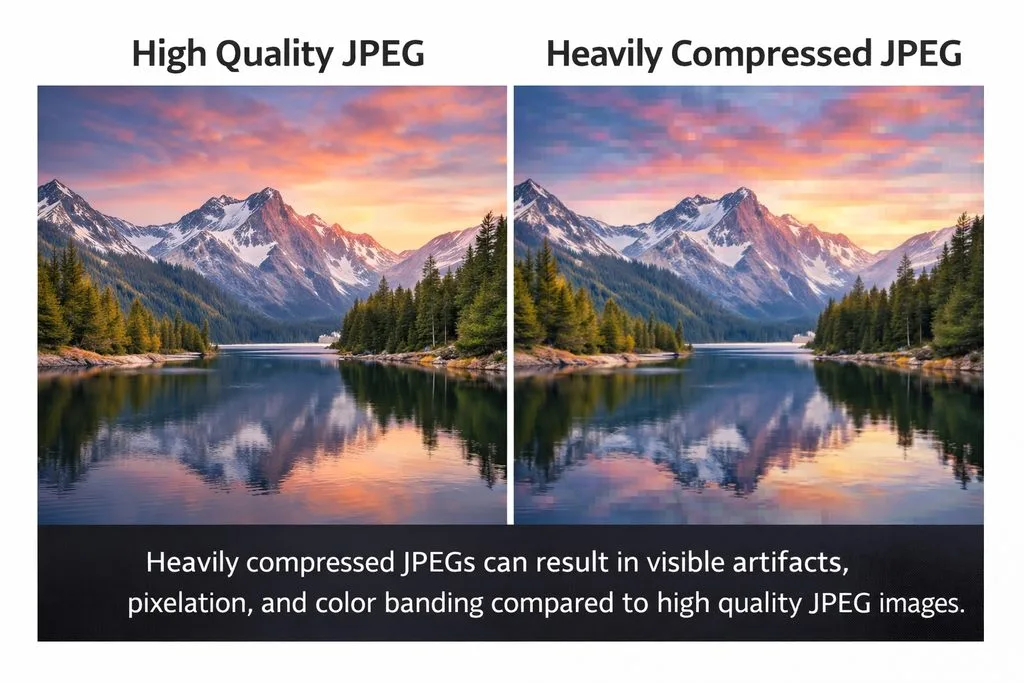
At moderate quality settings (JPEG 80–90, for example), lossy compression is genuinely invisible to almost everyone. Push it too far, though, and the discarded data becomes visible as artifacts. Knowing what these look like helps you spot when a file has been over-compressed — and why you should never grab a heavily compressed JPEG from a website and try to print it.
The four artifacts you’ll actually see
- Blocking (macroblocking) — the 8×8 grid JPEG uses becomes visible. Smooth areas look like a patchwork quilt. This is the classic “JPEG look” at low quality.
- Banding (posterization) — smooth gradients like skies and sunsets break into visible stripes of color, because subtle color steps got rounded away.
- Ringing / mosquito noise — shimmering halos appear around sharp edges like text, tree branches, and building outlines, caused by the DCT overshooting at high contrast.
- Blurring and smearing — fine repetitive detail (fabric, hair, grass) gets mushed together because the encoder treats it as unimportant high-frequency noise.
If you’re dealing with an image that already has these problems, our guide to fix pixelated images can help recover what’s salvageable.
Generation loss: the silent killer
Here’s the trap that catches even professionals. Saving a JPEG once at quality 90 looks perfect. But every time you open that JPEG, edit it, and save it again, the encoder compresses the already-compressed data — artifacts from the first save get treated as real detail and compressed again, adding a new layer of damage on top.
It’s a photocopy of a photocopy. One copy looks fine. The tenth is a smeary ghost. Tests show each re-encode introduces measurable new artifacts, and after 5–10 saves at moderate quality the blockiness and color shifts become obvious. Social platforms make it worse: every time you upload, sites like Instagram and Facebook re-compress your image automatically, often at a lower quality setting. That’s why a photo that looked great on your phone can look soft after a few upload-and-download cycles.
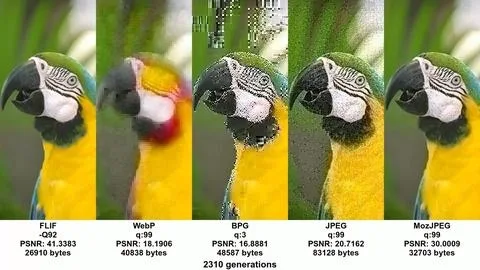
The rule is simple: never use a lossy file as your editing master. Keep your original (RAW, TIFF, or PNG) and export a fresh JPEG/WebP as the very last step. If you shoot JPEG in-camera, that’s fine — just don’t re-save it repeatedly. For a deeper dive on camera files, see our RAW vs JPEG breakdown.
Real Numbers: How Much Space Does Each Actually Save?
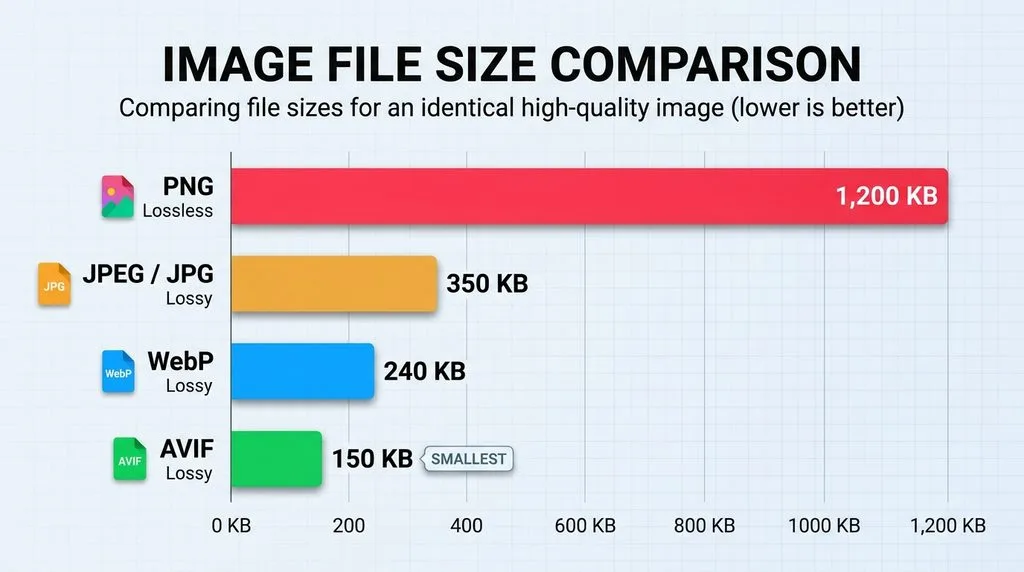
Percentages are abstract. Let’s look at real test data for the same source image encoded into different formats at visually similar quality (figures aggregated from independent tests by Google, MDN, and multiple format benchmarks):
| Format | Compression type | Approx. file size (relative) | Savings vs. JPEG |
|---|---|---|---|
| PNG | Lossless | ~5–9× larger than JPEG | n/a (much larger) |
| JPEG (q85) | Lossy | 100% baseline | — |
| WebP (lossy) | Lossy | ~65–75% of JPEG | 25–35% smaller |
| AVIF (lossy) | Lossy | ~50–60% of JPEG | 40–50% smaller |
| WebP (lossless) | Lossless | ~74% of PNG | 26% smaller than PNG |
For a concrete example: a typical 1920×1280 photo might be 2.1 MB as PNG, 245 KB as JPEG (quality 85), 172 KB as WebP, and 128 KB as AVIF — all looking nearly identical on screen. Multiply that across a website with 30 images and you’re looking at megabytes of savings per page load. Google’s own WebP research across over a million images confirms these ratios, and AVIF and WebP now lead the pack for next-gen web delivery.
For audio, the pattern is even starker. A 3-minute stereo track runs about 30 MB as uncompressed WAV. FLAC (lossless) brings it down to ~13–19 MB. MP3 at 320 kbps (the highest common lossy setting) is ~7 MB, and AAC at 256 kbps is ~5–6 MB. At those bitrates, most listeners can’t tell the difference in a blind test — but the files are a fraction of the size. That’s why every streaming service uses lossy by default.
When to Use Which: A Practical Decision Guide
The “which is better” question has no universal answer — it depends entirely on what you’re going to do with the file. Here’s how real professionals decide, use case by use case.
Choose lossy when…
- You’re publishing photos to the web. Smaller files mean faster loads, better Core Web Vitals, and happier visitors. A well-encoded JPEG at quality 80–85 or a WebP/AVIF at equivalent quality is visually identical and a fraction of the size.
- You’re sharing on social media or messaging apps. These platforms re-compress everything you upload anyway. Sending a 20 MB PNG to Instagram is pointless; it’ll be re-encoded to a ~500 KB JPEG regardless. Check our social media guide for exact dimensions.
- You’re streaming audio or video. Lossy is the only thing that makes streaming feasible at scale.
- You’re emailing or texting photos. File size limits and slow connections make lossy essential.
- Storage space is tight and quality is secondary. If you’re archiving thousands of reference shots and can tolerate slight loss, lossy buys you a lot of room.
Choose lossless when…
- You’re still editing the file. Every adjustment — exposure, retouching, cropping — should happen on a lossless master. Export to lossy only when you’re completely done.
- You’re printing, especially large format. Every pixel of detail and every color step matters. Use TIFF or PNG, and make sure you understand printing resolution requirements.
- It’s a logo, screenshot, text graphic, or line art. Sharp edges and flat colors turn ugly with lossy compression; PNG or lossless WebP is mandatory.
- It’s an archive or backup you can’t re-create. Family photos, historical scans, medical images, legal documents — lossless or uncompressed only.
- The data is text, software, or a spreadsheet. Lossy would corrupt it. ZIP it instead.
The hybrid workflow professionals actually use
Almost no one picks one or the other exclusively. The standard pro workflow is hybrid:
- Shoot or create in a lossless / high-quality format (RAW, TIFF, PNG).
- Edit and archive the lossless master — this is your source of truth forever.
- Export a lossy copy (JPEG/WebP/AVIF for images, MP3/AAC for audio) specifically for web, sharing, or streaming.
- Never edit the lossy export. If you need changes, go back to the lossless master and export again.
This gives you the best of both worlds: perfect fidelity where it matters and tiny files where speed matters. If you want to go deeper on resizing and compression workflows, this image compression guide covers the practical steps, and these tips on how to resize without quality loss will keep your masters crisp.
Myths Busted: What People Get Wrong
Myth: “Lossy compression ruins image quality.”
Reality: At moderate quality settings, the loss is invisible to the naked eye. The difference between a quality-90 JPEG and the original is undetectable in a blind test for the vast majority of viewers. The problem only starts at aggressive settings or after repeated re-saves.
Myth: “Lossless is always better quality, so I should use it for everything.”
Reality: For web delivery, a 2 MB lossless PNG that looks identical to a 150 KB lossy WebP is objectively worse — it loads slower, costs more bandwidth, and provides zero visible benefit. “Better” depends on the job.
Myth: “Converting a JPEG to PNG makes it lossless and restores quality.”
Reality: No. Converting a lossy file to a lossless format just wraps the already-damaged data in a lossless container. The discarded detail is gone forever. You can’t un-bake a cake.
Myth: “PNG is always lossless and JPEG is always lossy.”
Reality: Mostly true, but modern formats blur the line. WebP and AVIF support both modes — you can encode them lossy or lossless. HEIC is lossy by default. JPEG even has a lossless variant (JPEG-LS) that almost no one uses.
Myth: “Higher bitrate / quality setting always means better.”
Reality: There’s a point of diminishing returns. A 320 kbps MP3 vs. a 256 kbps AAC — the AAC often sounds better despite being smaller, because the codec is more efficient. Judge by perceived quality and file size together, not by a single number.
Frequently Asked Questions
Is lossy or lossless compression better?
Neither is universally better. Lossy is better when file size and speed matter most (web, streaming, sharing). Lossless is better when perfect fidelity is non-negotiable (editing, archiving, printing, logos, text). Most people should use both in a hybrid workflow.
Is PNG lossy or lossless?
PNG is always lossless. It preserves every pixel, which is why it’s the standard for logos, screenshots, and graphics with transparency. That’s also why PNG photos are much larger than JPEGs.
Is JPEG lossy or lossless?
JPEG is always lossy. Every time you save a JPEG, some data is permanently discarded. Saving at quality 90+ minimizes the loss, but it never reaches zero.
Does lossless compression reduce file size?
Yes, but modestly — typically 20–60%, compared to 70–95% for lossy. Lossless removes only redundancy; it never deletes information, so its savings are inherently limited.
Can you convert lossy back to lossless?
You can convert the file format to a lossless one, but you can’t recover the data that was already thrown away. The quality stays at the lossy level. Always keep the original lossless master if you might need the quality later.
What is generation loss?
Generation loss is the cumulative quality degradation that happens when you repeatedly open and re-save a lossy file. Each save compresses the already-compressed data, adding a new layer of artifacts. After 5–10 saves the damage becomes visible. Edit from a lossless master and export to lossy only once.
Which compression should I use for my website?
For photographs: lossy WebP or AVIF (with JPEG fallback for older browsers), at a quality setting where you can’t see artifacts. For logos, icons, and screenshots: lossless PNG or lossless WebP. This combination gives you the fastest loads without visible quality loss.
Is PDF lossy or lossless?
PDF is a container, not a compression type. A PDF can hold lossless vector text and also embed lossy JPEG images. If you convert a JPEG into a PDF, the image inside is still lossy.
Final Takeaway
The lossy vs lossless decision isn’t about which is “better” — it’s about matching the tool to the job. Ask yourself one question: “Will I ever need this data back, or is this file purely for viewing?” If you’ll edit it, print it, archive it, or it contains text and sharp edges, go lossless. If it’s destined for a screen, a stream, or a share, go lossy — and keep a lossless master safe so you always have the option to re-export.
Get that one habit right — lossless master, lossless edit, lossy export — and you’ll never have to worry about compression quietly ruining your work again.