BMP vs PNG: Which Image Format Should You Actually Use? (2026 Guide)
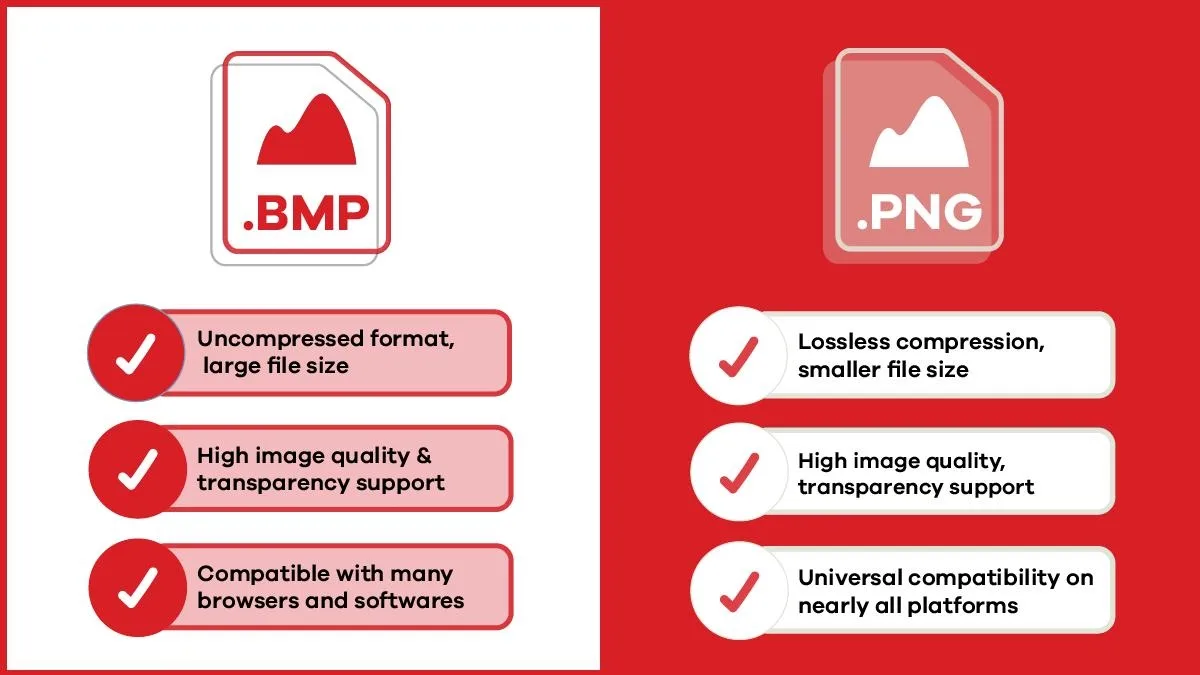
TL;DR: If you’re choosing between BMP and PNG today, pick PNG. Both are lossless (zero quality loss), but PNG compresses to 5–30x smaller file sizes, supports full transparency, and works everywhere on the web. BMP only makes sense for legacy Windows software, embedded/microcontroller systems, or raw pixel-processing code where zero decompression overhead is worth the giant file size.
Quick Side-by-Side Comparison
| Feature | BMP (Bitmap) | PNG (Portable Network Graphics) |
|---|---|---|
| Compression | None by default (optional RLE only for ≤8-bit) | Lossless DEFLATE + adaptive row filtering |
| Typical 1920×1080 file | ~6.2 MB (always) | 0.5–3 MB (varies by content) |
| Transparency | No (32-bit alpha rarely supported) | Full 8-bit / 16-bit alpha channel |
| Color depth | 1–32 bit (64 in v5) | 1–48 bit (16 bits per channel) |
| Web support | Poor — avoid | Universal |
| Metadata | Almost none | ICC, gamma, EXIF/XMP, text chunks |
| Interlacing / progressive | No | Yes (Adam7) |
| Best for | Legacy systems, raw pixel work | Web, graphics, logos, archiving |
What Is BMP, Exactly?
BMP — short for Bitmap, sometimes called DIB (Device-Independent Bitmap) — is one of the oldest image formats still in circulation. Microsoft introduced it with Windows 1.0 in 1985 as the native graphics format for the Windows operating system. The whole idea was beautifully simple: store every single pixel’s color value, one after another, with no processing in between.
A BMP file has three parts: a small header (dimensions, bit depth, compression flag), an optional color palette, and the raw pixel data. For a standard 24-bit BMP, each pixel takes exactly 3 bytes — one each for red, green, and blue. That’s it. No compression, no tricks, no magic. There’s even a small quirk: each row of pixels is padded to a multiple of 4 bytes (called “stride”), which is why a BMP’s exact size is width × height × 3 + padding + headers.
This simplicity was a superpower in the 1980s and ’90s. Reading a BMP is basically a memory copy; even the weakest CPU can do it instantly. It’s why old Windows wallpapers, MS Paint saves, and countless legacy applications defaulted to BMP. The Library of Congress still documents BMP v5 as a preservation-relevant format, noting its optional alpha and ICC features in later versions.
But that same simplicity is its weakness today. Because nothing is compressed, file sizes balloon. A 1920×1080 photo saved as a 24-bit BMP is about 6.2 MB — every single time, regardless of what’s actually in the image. A mostly-blank white document and a detailed sunset take exactly the same space.
BMP does offer optional RLE (Run-Length Encoding) compression, but it only works on 4-bit and 8-bit images (16 or 256 colors). For the 24-bit true-color images everyone uses today, RLE simply isn’t available. There’s also a 32-bit BMP variant with an alpha channel, but real-world support is so spotty that most software and browsers ignore it.
What Is PNG?
PNG — Portable Network Graphics, pronounced “ping” — was born in early 1995 out of frustration. CompuServe had just asserted patent rights on the LZW compression used by GIF, and the web desperately needed a patent-free, lossless, modern alternative. Thomas Boutell posted the first draft (then called PBF, for Portable Bitmap Format) in January 1995, and a volunteer group of developers built the format over the next year. PNG 1.0 became a W3C Recommendation on October 1, 1996, and later an international standard (ISO/IEC 15948). You can read the full origin story in the official PNG history by the format’s creators.
How PNG Compression Actually Works
PNG’s genius is that it’s lossless but smartly compressed — and the secret is a two-step process. First, before any compression, PNG applies one of five “filters” to each row of pixels. Each filter predicts a pixel’s value from its neighbors (the pixel above, to the left, or a blend) and stores only the difference between the prediction and the real value. Those differences are mostly small numbers, which compress far better than raw RGB values.
Then the filtered data goes through DEFLATE — the same lossless algorithm used by ZIP and gzip. DEFLATE combines LZ77 (finding repeated byte sequences) with Huffman coding (assigning shorter codes to frequent values). The result: pixel-perfect quality at a fraction of BMP’s size, and you can re-save a PNG a thousand times without losing a single bit.
PNG also brought features BMP never had: full alpha-channel transparency (256 levels of opacity, so logos sit cleanly on any background), gamma and ICC color profiles for consistent display across monitors, Adam7 two-dimensional interlacing for progressive web loading, and rich metadata chunks for author, copyright, and description. It was designed from day one for the internet.
Head-to-Head: Where They Really Differ
Compression and File Size
This is the biggest gap between the two formats. BMP stores raw pixels; PNG compresses them losslessly. How much smaller is PNG in practice? It depends heavily on image content, because PNG’s filters exploit repetition and flat areas:
- Screenshots, UI graphics, flat logos: PNG is often 10–30x smaller. Large solid-color regions and repeating patterns compress extremely well. A 1920×1080 screenshot might be 6.2 MB as BMP but only 200–600 KB as PNG.
- Photographs: PNG typically achieves 2–7x reduction (roughly a 1.7:1 to 5:1 ratio) because noisy photo data doesn’t compress as cleanly. That same 6.2 MB BMP photo lands around 1.5–3 MB as PNG.
- Line art, text, icons: Can be 20–50x smaller as PNG, since sharp edges and flat colors are exactly what DEFLATE handles best.
If you’re curious how pixel count and bit depth translate to raw file size, our guide on pixels, DPI and file size breaks down the math. And if you’re ever confused whether that “MB” on your screen is bigger than “KB,” we’ve got a simple explainer too.
Image Quality
Here’s the surprise most people miss: at the same bit depth, BMP and PNG are pixel-for-pixel identical. Both are lossless. A 24-bit BMP and a 24-bit PNG of the same image contain exactly the same red, green, and blue values for every single pixel. The only “quality” difference is that PNG supports higher color depths — up to 48-bit truecolor (16 bits per channel) — and proper alpha, while most BMP files top out at 24-bit with no usable transparency. So if anything, PNG is capable of higher fidelity than typical BMP.
You can save a PNG, re-open it, edit it, and save it again a thousand times, and it never degrades — unlike JPEG, which loses a little data on every save. That’s why designers and photographers use it as a working format during editing.
Transparency
This is a knockout win for PNG. PNG supports a full alpha channel with 256 levels of opacity (or 65,536 levels in 16-bit mode). That means soft edges, drop shadows, anti-aliased text, and logos that float cleanly over any background color or image. It’s the reason essentially every website logo, icon, and overlay you see is a PNG.
BMP? Standard 24-bit BMP has zero transparency support. A 32-bit BMP can technically store an alpha channel, but almost no browsers, apps, or printers honor it. If you need transparency — and in 2026, you almost always do — BMP is a non-starter.
Web Compatibility
Every browser in existence supports PNG. It’s the universal lossless web format, with MIME type image/png and full support across Chrome, Safari, Firefox, Edge, and every mobile browser. BMP? Browsers can technically display some BMP files, but MDN explicitly warns against using BMP for web content because of the giant file sizes and inconsistent support. A page full of BMPs loads slowly, wastes bandwidth, hurts Core Web Vitals, and tanks your SEO. For web use, PNG (or better, WebP/AVIF) is the only sane choice.
Metadata and Color Management
PNG supports ICC color profiles, gamma correction, EXIF and XMP metadata (via standard chunks), and text annotations for author, copyright, and description. BMP’s metadata support is essentially nonexistent — the header holds dimensions and bit depth, and that’s about it. For archiving, professional workflows, or anything where color accuracy and provenance matter, PNG is far more capable.
Editing and Processing Speed
BMP has one genuine advantage: because it’s uncompressed, opening and reading it requires zero CPU work. If you’re writing low-level code that processes pixels one at a time — edge detection, machine vision, scientific imaging, forensics — BMP lets you memory-map the file and start reading immediately. PNG requires a DEFLATE decompression step first. On a modern desktop CPU that difference is measured in milliseconds, but on a two-dollar microcontroller it can be the difference between working and not working.
For normal human editing in Photoshop, GIMP, or any raster editing software, both formats open essentially instantly and edit identically.
Real-World File Size Examples
Let’s put concrete numbers to it. Here’s what the same 1920×1080 (Full HD) image looks like across formats, depending on content:
| Content type | BMP (24-bit) | PNG (lossless) | JPEG (q85, lossy) |
|---|---|---|---|
| Screenshot / UI | ~6.2 MB | 200–600 KB | ~300 KB |
| Flat logo / graphic | ~6.2 MB | 50–300 KB | ~150 KB |
| Photograph | ~6.2 MB | 1.5–3 MB | ~400 KB |
| Line art / text | ~6.2 MB | 30–150 KB | ~200 KB |
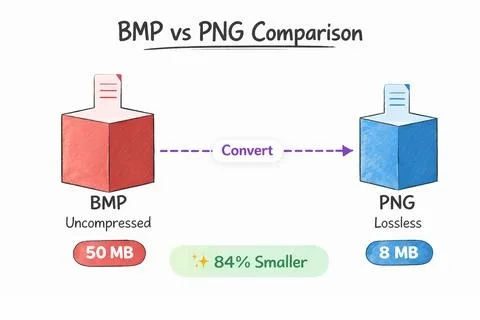
Notice the pattern: BMP is always ~6.2 MB because it doesn’t care what’s in the image. PNG adapts to content. For a folder of 100 screenshots, BMP eats roughly 620 MB; PNG eats maybe 30 MB. That’s the difference between fitting on a small USB stick or not — and a huge deal for cloud storage backups and archival too.
When BMP Still Makes Sense (Yes, Really)
After all that, you might wonder why BMP hasn’t gone extinct. It hasn’t, because there are a handful of niches where its simplicity is genuinely valuable:
- Embedded systems and microcontrollers — Arduino, ESP32, tiny OLED/LCD displays, industrial HMIs. A basic BMP decoder fits in a few kilobytes of firmware; a full PNG decoder (filtering + DEFLATE) often doesn’t fit at all. Boot logos, firmware splash screens, and cheap device displays still run on BMP.
- Legacy Windows software — Some old CAD, engineering, and industrial tools from the ’90s and early 2000s only read and write BMP. If the machine or software can’t be upgraded, BMP is the only option.
- Raw pixel-processing pipelines — When you’re doing programmatic pixel manipulation (computer vision, scientific imaging, forensics) and want the simplest possible file format with zero decoding complexity, BMP’s predictable, documented structure is convenient.
- Medical imaging adjuncts — Some older PACS systems and ultrasound machines export thumbnails as BMP alongside DICOM files, because the hardware predates PNG and the firmware can’t be updated.
- Forensic / hex-editable files — BMP’s structure is so simple and well-documented that you can inspect and edit it reliably in a hex editor. That’s occasionally useful in data recovery and digital forensics.
Outside those five scenarios, there’s almost no reason to choose BMP over PNG. Even the Reddit r/DataHoarder community — people who archive petabytes and care deeply about preservation — concluded PNG is strictly better for archival storage because it’s lossless but dramatically smaller, with no long-term accessibility downside.
When to Choose PNG
PNG is the right default in 2026 for almost everything:
- Web graphics — logos, icons, buttons, illustrations, anything with flat colors or transparency.
- Screenshots — PNG compresses UI screenshots beautifully and keeps text razor-sharp (JPEG smears text with artifacts).
- Line art, diagrams, comics — solid colors and sharp edges are PNG’s sweet spot.
- Archival lossless storage — you keep every pixel, at a fraction of BMP’s space.
- Working files during editing — re-saving never degrades quality, so it’s safe to iterate.
- Images with transparency — the only widely-supported lossless format with a real alpha channel.
For photographs on the web, you’ll often get even smaller files with modern lossy formats like WebP or AVIF. We compare all the major options in our image formats guide and deep-dive the next generation in AVIF vs WebP vs JPEG XL. But if lossless is a hard requirement, PNG is your workhorse. And if you need to shrink PNGs further, you can always compress images without losing quality using tools like pngquant, optipng, or oxipng.
How to Convert BMP to PNG (Losslessly)
Converting BMP to PNG loses zero quality — both are lossless, and the pixel data is identical. You’re just changing the container and adding compression. Your options:
- Windows / macOS / Linux: Open in any image editor (Paint, Preview, GIMP, Photoshop) → Save As → choose PNG.
- Batch conversion: Use XnConvert, IrfanView batch mode, or command-line ImageMagick (
magick input.bmp output.png). - Online tools: Plenty of free converters exist, but for sensitive or high-value images stick to offline tools to avoid privacy risks.
If you’re resizing during conversion, follow a solid image resizing and compression guide to avoid quality pitfalls. And if you’re prepping product photos for an ecommerce store, a professional image format guide can help you match the right format to each use case.
Common Myths Busted
Myth: BMP is higher quality than PNG.
Fact: At the same bit depth, they’re identical. Both are lossless. PNG supports higher bit depths (up to 48-bit) and alpha transparency, so it can actually store more information than a standard 24-bit BMP.
Myth: PNG compression loses quality.
Fact: PNG is 100% lossless. DEFLATE is the same compression ZIP uses — it reconstructs the original data bit-for-bit. No pixel value is ever changed, discarded, or approximated.
Myth: BMP supports transparency.
Fact: Standard BMP does not. The 32-bit BMP variant has an alpha field, but real-world support is so rare it’s effectively useless. Use PNG (or WebP) if you need transparency.
Myth: BMP is completely obsolete and never used.
Fact: It’s rare in consumer workflows, but embedded systems, legacy industrial software, and some medical hardware still depend on it. It’s a niche format, not a dead one.
Myth: You should use BMP for high-quality printing.
Fact: Neither BMP nor PNG is ideal for professional print — both are RGB formats, while offset and professional print use CMYK. TIFF or PDF are the standard print formats. Adobe’s own comparison notes the same limitation for both formats.
Decision Time: Which Should You Pick?
Ask yourself one question: “Does my hardware or software literally require BMP?” If the answer is no — and for 99% of people it will be — save as PNG. You’ll get identical quality, dramatically smaller files, transparency support, and far more flexibility. If you’re working with embedded firmware, a legacy Windows industrial tool, or raw pixel-processing code, BMP’s zero-overhead simplicity may genuinely be the right call.
Frequently Asked Questions
Is BMP better quality than PNG?
No. Both are lossless, so at the same bit depth they’re pixel-for-pixel identical. PNG actually supports higher color depths (up to 48-bit) and alpha transparency, making it capable of higher fidelity than standard 24-bit BMP.
Why are BMP files so much bigger than PNG?
BMP stores every pixel as raw 3-byte (24-bit) values with no compression. PNG applies adaptive row filtering plus DEFLATE compression, which typically shrinks files by 60–95% with zero quality loss. A 1920×1080 BMP is always ~6.2 MB; the same image as PNG is usually 0.5–3 MB.
Does converting BMP to PNG lose quality?
No. Both are lossless formats. Converting BMP → PNG is a pure container change — every pixel is preserved exactly. You can convert back and forth indefinitely with no degradation.
Can BMP files have transparent backgrounds?
Not in practice. Standard 24-bit BMP has no alpha channel. A 32-bit BMP variant exists, but almost no software or browsers support its alpha data. PNG is the format you want for transparency.
When would anyone actually use BMP today?
Only in narrow cases: embedded systems and microcontrollers that can’t decode PNG, legacy Windows industrial or engineering software, raw pixel-processing code where zero decompression overhead matters, and some older medical imaging hardware.
Is PNG good for photographs?
PNG is lossless and perfectly fine for photos, but file sizes are larger than JPEG or WebP. For web photos, JPEG, WebP, or AVIF give much smaller files. Use PNG for photos only when lossless quality is a hard requirement.
What’s the maximum size of a BMP file?
The BMP header uses a 32-bit file-size field, so individual BMP files cap out around 4 GB. PNG has no practical size limit. This rarely matters for normal images, but it’s a real constraint for very large scans or scientific imagery.
Which format is better for web use?
PNG, unequivocally. It’s universally supported, much smaller, and supports transparency. BMP on the web wastes bandwidth and slows page loads — MDN recommends avoiding it entirely. For even better web performance, consider WebP or AVIF as a modern upgrade.